Are All Steam Screenshots Public? A Comprehensive Guide to Steam Screenshot Privacy
Fast answer first. Then use the tabs or video for more detail.
- Watch the video explanation below for a faster overview.
- Game mechanics may change with updates or patches.
- Use this block to get the short answer without scrolling the whole page.
- Read the FAQ section if the article has one.
- Use the table of contents to jump straight to the detailed section you need.
- Watch the video first, then skim the article for specifics.
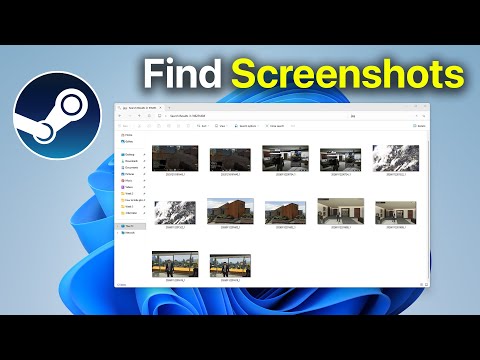
The short answer is no, not all Steam screenshots are public. While Steam offers the option to share your in-game moments with the world, it also provides robust privacy controls that allow you to decide who sees your captured images. By default, after a significant Steam UI update, newly uploaded screenshots are often set to private. This means you, and only you, can view them unless you actively change the visibility setting.
Let’s dive deeper into how Steam handles screenshots, the different visibility options, and everything else you need to know about managing your in-game snapshots.
Understanding Steam Screenshot Privacy Settings
Steam offers three primary privacy settings for your screenshots:
-
Public: Anyone on Steam, including friends and non-friends, can view your screenshots. They will also appear on your profile and the community hub for the respective game.
-
Friends Only: Only your Steam friends can view your screenshots. They will not be visible to the general public.
-
Private: Only you can view your screenshots. They are not visible to anyone else, including your friends.
These settings allow you to tailor your screenshot sharing experience to your comfort level. Want to show off your epic wins? Go public. Prefer to keep your gaming moments to yourself? Private is the way to go.
How to Change Your Steam Screenshot Visibility
Changing your screenshot visibility is a straightforward process:
- Access the Screenshot Uploader: You can access the Screenshot Uploader by going to View -> Screenshots in the Steam client or by clicking on “Screenshots” in the Steam Overlay (accessed while in-game).
- Manage Screenshots: In the Screenshot Uploader, look for a “Manage screenshots” button, typically located in the top right corner. This allows you to select multiple screenshots at once.
- Change Visibility: Once you have selected the screenshots you want to modify, you can change their visibility using the drop-down menu at the bottom of the window. Choose either Public, Friends Only, or Private.
You can also change the visibility of individual screenshots on your Steam profile:
- Go to your Steam Profile.
- Click on “Screenshots” on the right-hand side.
- Select the screenshot you want to change.
- Click the “Change Visibility” button below the screenshot.
- Choose your desired visibility setting.
Default Screenshot Visibility After Upload
It’s important to be aware of the default visibility setting. As previously mentioned, following Steam UI updates, the default setting is often changed to “Private“. This can be easily overlooked, leading to the misconception that screenshots are not uploading correctly. Always double-check your visibility settings after uploading a batch of screenshots.
The Steam Screenshot Uploader: More Than Just Uploading
The Steam Screenshot Uploader is a powerful tool that offers more than just basic uploading and visibility controls. It allows you to:
- Add Captions: Add context or commentary to your screenshots.
- Tag Games: Ensure your screenshots are correctly associated with the game they were taken from.
- Upload to Social Media: Share your screenshots directly to platforms like Facebook, Twitter, and Reddit.
Using these features can enhance your screenshot sharing experience and allow you to connect with other gamers. For more information on game-based learning see the Games Learning Society.
FAQs About Steam Screenshots
Here are some frequently asked questions regarding Steam screenshots and their privacy:
1. Where Are Steam Screenshots Stored on My Computer?
Steam screenshots are stored in a specific folder on your computer, buried within the Steam directory. The exact path usually looks something like this:
C:Program Files (x86)Steamuserdata[your Steam ID]760remote[game ID]screenshots
However, the easiest way to access them is through the Steam client itself by going to View > Screenshots.
2. Does Uninstalling a Steam Game Delete the Screenshots?
If you used in-game tools to generate screenshots and did not upload them to Steam, uninstalling the game will delete those screenshots. However, screenshots that have been uploaded to Steam Cloud will remain accessible even after uninstalling the game.
3. How Do I Find My Steam ID?
Your Steam ID is a unique identifier for your Steam account. You can find it by going to your Steam profile, clicking on “Edit Profile,” and looking for the “Custom URL” field. If you have not set a custom URL, your Steam ID will be displayed as a long number in the URL.
4. Are Steam Screenshots Saved to the Cloud?
Yes, Steam screenshots are saved to the Steam Cloud once you upload them. This ensures that your screenshots are backed up and accessible from any computer where you are logged in to Steam.
5. Can I Change the Default Screenshot Hotkey?
Yes, you can change the default screenshot hotkey (F12) in the Steam settings. Go to Steam > Settings > In-Game and you will find the option to change the “Screenshot shortcut keys”.
6. Why Are My Screenshots Going to OneDrive?
If you have OneDrive enabled on your computer, it may automatically back up your Pictures folder, which includes the Steam screenshots folder. You can change the OneDrive settings to prevent it from syncing this folder if you prefer.
7. What’s the Difference Between Unlisted and Private on Steam?
This question pertains to the Steam Workshop rather than screenshots, but understanding the distinction is still helpful. Private means no one can see the item except you. Unlisted means the item won’t appear in searches, but anyone with a direct link can access it. Screenshots don’t have an “unlisted” option, only Public, Friends Only and Private.
8. Can My Friends See My Game Activity Even If My Profile Is Private?
If you set your “Game Details” to private in your Steam profile settings, your friends will not be able to see what games you are playing or when you play them.
9. Is It Illegal to Share Screenshots of a Game?
Generally, sharing screenshots of a game is not illegal. However, if the screenshot contains copyrighted material or violates the game’s terms of service, it could potentially lead to legal issues.
10. Can Screenshots Be Traced Back to Me?
While screenshots themselves do not contain personal information, the context in which they are shared can reveal details about you. Sharing screenshots on public platforms can potentially expose your Steam username or other identifying information.
11. How Do I Recover Deleted Steam Screenshots?
If you accidentally deleted screenshots from your computer, you can try using a file recovery app to recover them. However, if the screenshots were only stored locally and have been overwritten, recovery may not be possible.
12. How Can I Take a Screenshot Without Using Steam?
You can use your computer’s built-in screenshot tools. On Windows, you can press the Print Screen key to copy a screenshot to the clipboard or use Windows key + Print Screen to save it directly to the Pictures > Screenshots folder. On macOS, you can use Shift + Command + 3 to capture the entire screen or Shift + Command + 4 to select a specific area.
13. Are There Third-Party Screenshot Tools That Work With Steam?
Yes, there are numerous third-party screenshot tools like Greenshot, Lightshot, and ShareX that can be used with Steam games. These tools often offer more advanced features than the built-in Steam screenshot tool.
14. Why Are My Screenshots Blurry?
Blurry screenshots can be caused by several factors, including low graphics settings in the game, incorrect resolution settings, or compression during uploading. Ensure your game is set to a high resolution and graphics quality for best results.
15. How Do I Report Inappropriate Content in a Steam Screenshot?
If you come across a screenshot on Steam that contains inappropriate content, you can report it to Valve by clicking the “Flag” button below the screenshot and selecting the appropriate reason for reporting.
Taking Control of Your Steam Presence
Ultimately, managing your Steam screenshot privacy is about taking control of your online presence and sharing your gaming experiences in a way that feels comfortable for you. By understanding the different privacy settings and utilizing the tools available within the Steam client, you can ensure that your screenshots are only seen by the people you want to see them. This level of control allows for a more enjoyable and personalized Steam experience.
Want to dive deeper into how games impact learning and education? Explore the research and resources available at GamesLearningSociety.org.