Are There Any Gaming Laptops That Don’t Overheat?
Fast answer first. Then use the tabs or video for more detail.
- Watch the video explanation below for a faster overview.
- Game mechanics may change with updates or patches.
- Use this block to get the short answer without scrolling the whole page.
- Read the FAQ section if the article has one.
- Use the table of contents to jump straight to the detailed section you need.
- Watch the video first, then skim the article for specifics.
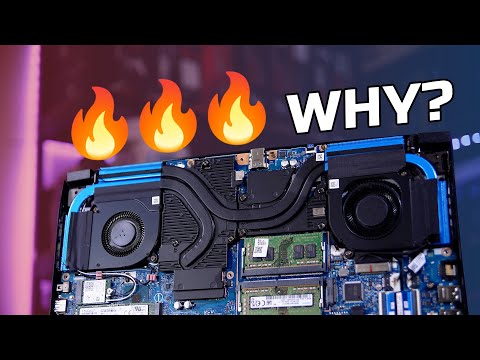
The short answer is: no, not really. While some gaming laptops handle heat better than others, all laptops will experience some degree of overheating when subjected to prolonged, intense gaming sessions. The physics are simple: powerful components generate heat, and compact laptop designs struggle to dissipate that heat effectively. The real question isn’t about finding a laptop that never overheats, but rather finding one that manages its thermal performance effectively to avoid performance throttling and potential damage. Let’s dive into why this is the case and how to choose a gaming laptop that mitigates overheating as much as possible.
Understanding Why Gaming Laptops Overheat
Gaming laptops pack desktop-level performance into a significantly smaller chassis. This means CPUs and GPUs capable of running demanding games are crammed into a space with limited airflow. Here are the core factors contributing to overheating:
-
Component Density: High-performance CPUs and GPUs generate significant heat. In a laptop, these components are tightly packed together, increasing the overall temperature.
-
Limited Airflow: Unlike desktop PCs with ample space for large fans and elaborate cooling systems, laptops have restricted airflow. Small fans struggle to effectively remove heat.
-
Thermal Design Power (TDP): The TDP of a CPU or GPU indicates the amount of heat it’s expected to generate. Gaming laptops often push components to their TDP limits to deliver maximum performance, exacerbating heat issues.
-
Ambient Temperature: External factors, like the room temperature, influence a laptop’s ability to dissipate heat.
-
Dust Accumulation: Over time, dust can accumulate in vents and on fan blades, hindering airflow and reducing cooling efficiency. It also contributes to the wear and tear and lifespan of the gaming laptop. Learn more about creating games through GamesLearningSociety.org.
Identifying the Best Gaming Laptops for Thermal Management
While a completely “overheat-proof” gaming laptop doesn’t exist, certain brands and models excel at thermal management. Look for these features:
-
Robust Cooling Systems: Laptops with multiple heat pipes, large fans, and strategically placed vents are better equipped to handle heat. Vapor chamber cooling is also a premium feature for exceptional heat dissipation.
-
Advanced Fan Control: The ability to customize fan curves allows you to prioritize cooling performance over noise levels.
-
Optimized Chassis Design: Some laptops feature designs that promote better airflow and heat dissipation.
-
Reputable Brands: Brands like Lenovo (Legion series), ASUS (ROG and Strix series), and MSI are known for their focus on thermal performance in their gaming laptops. Though Alienware is another brand of gaming laptop, it tends to be overpriced.
Strategies for Minimizing Overheating
Even with a well-designed gaming laptop, you can take steps to further minimize overheating:
-
Use a Laptop Cooling Pad: Cooling pads can supplement the laptop’s built-in cooling system by providing additional airflow.
-
Elevate the Laptop: Ensure the laptop is placed on a flat, hard surface to allow for proper airflow. Avoid using it on soft surfaces like beds or couches, which can block vents.
-
Clean the Vents Regularly: Use compressed air to remove dust from the vents and fan blades.
-
Monitor Temperatures: Use software to monitor CPU and GPU temperatures during gaming. If temperatures consistently reach critical levels, consider adjusting game settings or investing in better cooling solutions.
-
Reapply Thermal Paste: Over time, the thermal paste between the CPU/GPU and the heatsink can dry out, reducing its effectiveness. Reapplying fresh thermal paste can improve heat transfer.
-
Undervolting: Undervolting the CPU and GPU can reduce their power consumption and heat output without significantly impacting performance.
-
Adjust Game Settings: Lowering graphics settings can reduce the load on the GPU and CPU, leading to lower temperatures.
Addressing Performance Throttling
Thermal throttling is a safety mechanism that reduces the performance of the CPU or GPU when it reaches a critical temperature. This prevents damage to the components but results in lower frame rates and a less enjoyable gaming experience. By proactively managing temperatures, you can minimize the likelihood of thermal throttling.
Long-Term Impact of Overheating
Consistent overheating can shorten the lifespan of your gaming laptop. Prolonged exposure to high temperatures can damage components and reduce overall reliability. Therefore, investing in a laptop with good thermal management and taking steps to minimize overheating is essential for long-term performance and longevity.
Frequently Asked Questions (FAQs)
1. What are safe temperatures for a gaming laptop?
Generally, aim for CPU temperatures below 85°C and GPU temperatures below 75°C under load. Exceeding these temperatures consistently can lead to thermal throttling and potential damage.
2. Do laptop cooling pads actually work?
Yes, laptop cooling pads can effectively lower temperatures, especially if they provide a good airflow to the bottom of the laptop. While the degree of cooling varies, many tests have shown a reduction in internal temperatures.
3. Are gaming laptops worth it in 2024?
Yes, if you need portability and the ability to game on the go. Gaming laptops have become increasingly powerful and offer a great gaming experience.
4. How often should I clean my gaming laptop’s vents?
Ideally, clean the vents every 3-6 months, or more frequently if you notice dust buildup.
5. What are the disadvantages of laptop cooling pads?
Cooling pads can drain battery power, introduce dust into the system, and require maintenance.
6. Is it better to shut down my laptop or leave it on?
Shutting down your laptop daily is fine and can help prevent dust buildup. It’s generally recommended to shut it down at least once a week.
7. How long do gaming laptops typically last?
Mid-range gaming laptops last around 3-4 years, while high-end models can last 4-6 years.
8. Does gaming reduce a laptop’s lifespan?
Yes, heavy gaming can put stress on components and shorten the lifespan if overheating is not managed.
9. What should I do if my gaming laptop is overheating?
Clean the vents, use a cooling pad, adjust game settings, and monitor temperatures.
10. Can I use a gaming laptop on my lap?
It’s not recommended, as it can block the vents and cause overheating. Use a hard, flat surface or a lap desk.
11. Is liquid cooling available for gaming laptops?
Yes, some high-end gaming laptops offer liquid cooling solutions, but they are typically expensive and more complex.
12. What are some signs of an overheating laptop?
Hot to the touch, loud fan noise, slowdowns, shutdowns, and thermal throttling.
13. Can I damage my laptop by gaming too much?
Yes, prolonged gaming sessions can lead to overheating and potential damage if temperatures are not managed.
14. How does ambient temperature affect my gaming laptop?
High ambient temperatures make it harder for the laptop to dissipate heat, increasing the risk of overheating.
15. What is thermal throttling and how can I prevent it?
Thermal throttling is when the laptop reduces performance to prevent overheating. Prevent it by cleaning vents, using a cooling pad, and adjusting game settings.