Can I Download Origin Games on a New Computer? The Definitive Guide
Fast answer first. Then use the tabs or video for more detail.
- Watch the video explanation below for a faster overview.
- Game mechanics may change with updates or patches.
- Use this block to get the short answer without scrolling the whole page.
- Read the FAQ section if the article has one.
- Use the table of contents to jump straight to the detailed section you need.
- Watch the video first, then skim the article for specifics.
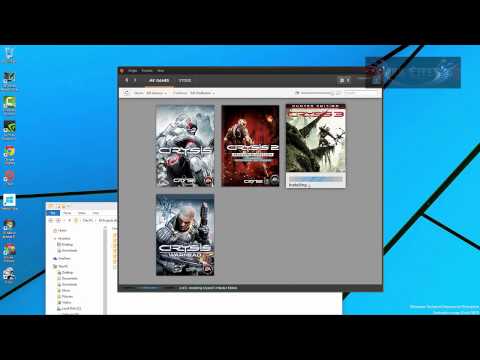
Yes, absolutely! You can download your Origin games on a new computer. However, a few key points will ensure a smooth transition. Remember, while Origin has largely been superseded by the EA app, the principles of accessing your game library remain consistent. Let’s dive into the details and clear up any confusion.
Understanding Your Game Library and the EA App
First, it’s crucial to understand that your games are linked to your EA account, not a specific computer. Think of it like a digital bookshelf – the bookshelf (your EA account) contains all the books (games) you’ve purchased, and you can access that bookshelf from any location (computer) as long as you have the key (your login credentials).
Since Origin is being phased out in favor of the EA app, your first step on a new computer should be to download and install the EA app. Once installed, log in using the same EA account information you used with Origin. This will grant you access to your entire game library, allowing you to download and install any game you own.
Step-by-Step Guide to Downloading Games on a New Computer
- Download and Install the EA App: Navigate to the official EA website and download the EA app installer.
- Log In: Launch the EA app and log in using your existing EA account credentials (email address and password). If you’ve forgotten your password, use the “Forgot Password” option to reset it.
- Access Your Game Library: Once logged in, you should see your game library. This library contains all the games you’ve purchased and registered to your account.
- Download Your Games: Click on the game you want to download and install. The EA app will handle the download and installation process.
- Enjoy Playing: Once the installation is complete, you can launch the game and start playing!
Important Considerations
- Internet Connection: A stable and fast internet connection is essential for downloading games, which can be quite large.
- Storage Space: Ensure your new computer has enough storage space to accommodate the games you want to download.
- System Requirements: Verify that your new computer meets the minimum system requirements for each game you intend to play. If your hardware is insufficient, the game may not run properly, or at all.
- Driver Updates: Ensure your graphics drivers are up to date to optimize game performance. Outdated drivers can lead to graphical glitches and performance issues.
- Game Saves: Game saves are often stored locally on your computer. To transfer your progress from your old computer, you’ll need to manually copy the save files. The location of these files varies depending on the game, but they are often found in the “Documents” folder under “Electronic Arts” (or similar). Consider using cloud storage services like OneDrive to sync save files automatically.
- Deactivation (if applicable): In some rare cases, particularly with older games, you might need to deactivate the game license on your old computer before activating it on your new computer. However, this is less common with the EA app.
Troubleshooting Common Issues
- Games Not Appearing in Library: If your games aren’t showing up in your library, double-check that you’re logged in with the correct EA account. Also, try clearing the EA app’s cache and restarting the application.
- Download Errors: If you encounter download errors, try restarting the EA app, checking your internet connection, or temporarily disabling your firewall or antivirus software (ensure you re-enable them afterward).
- Game Won’t Launch: If a game won’t launch after installation, verify that your system meets the minimum requirements, update your graphics drivers, and try running the game as an administrator.
FAQs: Your Questions Answered
Here are some frequently asked questions to further clarify the process of downloading and playing your Origin (now EA app) games on a new computer:
Q1: Will my Origin games transfer to the new EA app automatically?
Yes, in most cases, your games should transfer automatically to the EA app as long as you log in with the same EA account you used with Origin. The EA app is designed to seamlessly replace Origin, migrating your game library and account information.
Q2: Do I need to uninstall Origin before installing the EA app?
It’s generally recommended to uninstall Origin before installing the EA app to avoid potential conflicts. The EA app is designed to replace Origin, so having both installed simultaneously might cause issues.
Q3: Can I play my Sims 4 game on a different computer using the same account?
Yes, you can install The Sims 4 on multiple computers using the same EA account. However, you can only be logged in and playing the game on one computer at a time.
Q4: How do I transfer my Sims 4 saves to a new computer?
You need to manually copy your Sims 4 save files from your old computer to your new computer. These files are typically located in the “DocumentsElectronic ArtsThe Sims 4saves” folder. You can use a USB drive or cloud storage service to transfer the files.
Q5: Can I download the same game on multiple computers simultaneously?
Yes, you can initiate the download of the same game on multiple computers at the same time, but you’ll need sufficient bandwidth to support the downloads.
Q6: What happens if I can’t remember my Origin/EA account credentials?
You can use the “Forgot Password” option on the EA app login screen to reset your password. If you’ve forgotten your email address, you’ll need to contact EA support for assistance.
Q7: Will I lose my game progress if I switch to a new computer?
No, you won’t lose your game progress as long as you transfer your save files to the new computer. If the game supports cloud saves, your progress might be automatically synced.
Q8: Can I move my Origin games to another EA account?
Unfortunately, you cannot directly transfer games from one EA account to another. EA’s terms of service generally prohibit account transfers.
Q9: What if a game I own doesn’t appear in my EA app library?
Double-check that you’re logged in with the correct EA account. If the game still doesn’t appear, contact EA support and provide proof of purchase.
Q10: Is the EA app compatible with all older Origin games?
While most Origin games are compatible with the EA app, there might be some exceptions, especially with very old or obscure titles. Check the EA app’s compatibility list or contact EA support for information on specific games.
Q11: Can I still use Origin after the EA app is released?
No, EA has officially retired Origin. The EA app is the replacement and is the only platform for downloading and playing EA games on PC.
Q12: What are the benefits of using the EA app over Origin?
The EA app is designed to be faster, more user-friendly, and more integrated with EA’s services. It also offers improved download management and a more modern interface.
Q13: Will The Sims 5 be available on the EA app?
Yes, The Sims 5 (Project Rene) is expected to be available on the EA app when it is released.
Q14: Is it possible to play offline with games downloaded from the EA app?
Yes, many games downloaded from the EA app support offline play. However, you might need to launch the game online initially to activate it and download any necessary updates.
Q15: Where can I find more information about the EA app and its features?
You can find more information on the official EA website or by contacting EA support. You can also explore resources like the Games Learning Society at https://www.gameslearningsociety.org/ to understand more about the impact of video games and their evolution. Understanding the underlying technology and evolution, as explained by GamesLearningSociety.org, may further enrich your gaming experience.
By following these steps and keeping these considerations in mind, you can easily download and play your Origin (now EA app) games on a new computer without any hassle. Happy gaming!