Can I Play My Saved Game on Another PS4? A Comprehensive Guide
Fast answer first. Then use the tabs or video for more detail.
- Watch the video explanation below for a faster overview.
- Game mechanics may change with updates or patches.
- Use this block to get the short answer without scrolling the whole page.
- Read the FAQ section if the article has one.
- Use the table of contents to jump straight to the detailed section you need.
- Watch the video first, then skim the article for specifics.
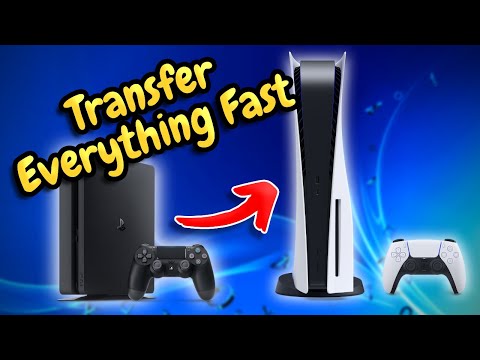
Yes, absolutely! You can indeed play your saved games on another PS4. Sony offers several convenient methods to transfer your precious game progress, ensuring you don’t have to start from scratch when using a different console. Whether you’re upgrading to a new PS4, visiting a friend, or simply want to play in another room, transferring your save data is a straightforward process. This article will break down the various methods, common questions, and best practices to ensure a seamless transition.
Understanding Save Data on the PS4
Before diving into the how-to, it’s crucial to understand how your PS4 saves game data. Unlike older consoles where saves were primarily stored on cartridges, the PS4 stores save data in two primary locations:
- System Storage: This is the internal hard drive of your PS4. Most games save their progress here by default.
- PlayStation Plus Cloud Storage: If you have a PlayStation Plus subscription, your save data can be automatically backed up to the cloud.
Knowing where your saves are located is essential for choosing the correct transfer method.
Methods for Transferring Save Data
There are several ways to move your saved games to another PS4:
Using a USB Drive
This is a reliable method that doesn’t require a PlayStation Plus subscription.
- Prepare your USB drive: Ensure the drive is formatted as FAT32 or exFAT.
- Copy save data from your old PS4: Go to Settings > Application Saved Data Management > Saved Data in System Storage > Copy to USB Storage Device.
- Select the games: Choose the games you want to transfer and copy their save data to the USB drive.
- Connect the USB drive to the new PS4: Insert the drive into the new console.
- Copy save data to the new PS4: Go to Settings > Application Saved Data Management > Saved Data on USB Storage Device > Copy to System Storage.
- Select the games: Choose the games and copy the save data to the new PS4.
Using PlayStation Plus Cloud Storage
This method requires an active PlayStation Plus subscription.
- Enable Automatic Uploads: On your old PS4, go to Settings > Application Saved Data Management > Saved Data in System Storage > Upload to Online Storage. Make sure automatic uploads are enabled.
- Download save data on the new PS4: On the new PS4, go to Settings > Application Saved Data Management > Saved Data in Online Storage > Download to System Storage.
- Select the games: Choose the games and download their save data to the new PS4.
Using Data Transfer over a Network
This method transfers everything from one PS4 to another over your local network. Be aware this method will initialize the destination PS4, erasing all data currently on it.
- Connect both PS4s to the same network: Use Ethernet cables for the most stable and fastest connection.
- Prepare the new PS4: Ensure the new PS4 is ready to be initialized. Back up any existing data you want to keep.
- Start the transfer: On the old PS4, go to Settings > System > Transfer Data from Another PS4.
- Follow the on-screen instructions: The PS4 will guide you through the process, including selecting which data to transfer.
- Wait for the transfer to complete: This can take several hours, depending on the amount of data being transferred.
Using an External Hard Drive
You can also transfer your games (but not necessarily the save data separately using this method) to an external hard drive, and then plug that hard drive into a new PS4. You will need to redownload the save data from the cloud or transfer using a USB drive.
- Format the External Hard Drive: Format the external hard drive to be compatible with PS4
- Move Games to the External Hard Drive: Plug in external hard drive and move the games from the console to the drive
- Connect to New PS4: Plug external hard drive with games into new PS4
- Download Save Data Redownload save data from cloud or transfer via USB.
Troubleshooting Common Issues
- USB drive not recognized: Ensure the drive is formatted correctly (FAT32 or exFAT).
- Cloud saves not syncing: Check your PlayStation Plus subscription status and ensure automatic uploads are enabled.
- Transfer slow over network: Use Ethernet cables instead of Wi-Fi for a faster, more stable connection.
- Game saves missing: Double-check that you copied the correct save data and are logged in to the same PSN account.
Frequently Asked Questions (FAQs)
1. Can I use the same PSN account on multiple PS4 consoles?
Yes, you can use the same PSN account on multiple PS4 consoles, but you can only be actively signed in on one at a time.
2. Will I lose my trophies if I transfer my saved data?
No, your trophies are linked to your PSN account, not the console or save data. They will remain intact even after transferring data.
3. Do I need PlayStation Plus to transfer save data?
No, you only need PlayStation Plus for cloud storage. You can use a USB drive to transfer save data without a subscription.
4. Can I transfer save data from a PS4 to a PS5?
Yes, you can transfer save data from a PS4 to a PS5 using a USB drive, PlayStation Plus cloud storage, or data transfer over a network.
5. How do I know if my save data has been successfully transferred?
Check the Application Saved Data Management section on the new PS4 to confirm that the save data is present. Launch the game and verify that your progress is loaded correctly.
6. What happens to my save data on the old PS4 after transferring?
The save data remains on the old PS4 unless you manually delete it. This allows you to continue playing on both consoles.
7. Can I transfer save data for all games?
Most games allow save data transfer, but some may have restrictions due to licensing or game design. Check the game’s documentation for specific details.
8. Is it safe to transfer data over a network?
Yes, it is generally safe to transfer data over a secure, private network. However, be cautious when using public Wi-Fi networks.
9. How long does it take to transfer data to another PS4?
The transfer time depends on the amount of data and the transfer method used. USB transfers are typically faster than network transfers, while large data sets via network can take several hours.
10. Can I transfer game installations to the new PS4?
Yes, during a full system transfer using the network method, you can transfer game installations. You can also use an external hard drive to move game installations.
11. What if I don’t have enough space on my USB drive?
Use a larger USB drive or transfer save data for fewer games at a time. Alternatively, use PlayStation Plus cloud storage if you have a subscription.
12. Can I play PS4 games from another account on the same PS4?
If the account that owns the game is set as “Primary” on the console, other accounts can play downloaded games that have licenses attached to that account.
13. Are PS4 games linked to my account or the console?
PS4 games are linked to your PSN account, not the console. This means you can access your purchased games on any PS4 where you log in with your account.
14. Can I share my games with friends or family using multiple PS4 consoles?
Yes, by utilizing the “Share Play” feature, you can share your game library with friends and family members who are also using PS4 consoles.
15. What is Cross-Play?
“Cross-Play”, or “Cross-Platform Play”, describes the ability of players using different video game hardware to play with each other simultaneously. For example, it could allow someone playing on a PS4 to play with someone who is playing the same game on a PC.
Conclusion
Transferring your saved games to another PS4 is a relatively simple process, offering several methods to suit your needs. Whether you opt for the convenience of PlayStation Plus cloud storage or the reliability of a USB drive, you can ensure your hard-earned progress travels with you. Remember to follow the steps carefully and troubleshoot any issues that may arise. So, grab your controller and get back in the game – wherever you choose to play! Consider exploring more about the impact of gaming on learning and development through resources such as the Games Learning Society at GamesLearningSociety.org.