Can I Turn My Xbox Off From My Phone? The Ultimate Guide
Fast answer first. Then use the tabs or video for more detail.
- Watch the video explanation below for a faster overview.
- Game mechanics may change with updates or patches.
- Use this block to get the short answer without scrolling the whole page.
- Read the FAQ section if the article has one.
- Use the table of contents to jump straight to the detailed section you need.
- Watch the video first, then skim the article for specifics.
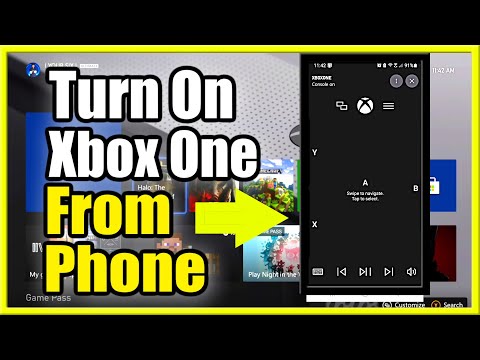
Yes, you absolutely can turn your Xbox off from your phone! This functionality comes courtesy of the Xbox app and the console’s remote features. However, there are a few key settings you’ll need to configure beforehand to enable this convenient control. This article will walk you through the process step-by-step, providing a comprehensive guide to managing your Xbox remotely.
Setting Up Your Xbox for Remote Control
The first step is to ensure your Xbox is properly configured to receive commands from your phone. This involves enabling remote features and selecting the appropriate power mode.
Enabling Remote Features
- Power On your Xbox.
- Press the Xbox button on your controller to open the guide.
- Navigate to Profile & system > Settings > Devices & connections > Remote features.
- Select the Enable remote features checkbox.
This crucial step allows your console to communicate with the Xbox app on your phone.
Choosing the Right Power Mode
The power mode you select significantly impacts your ability to remotely control your Xbox.
- While still in Remote features, look for Power options.
- Select Sleep as your power mode.
Important: Shutdown mode completely powers down your console, preventing remote activation. Sleep mode keeps the console in a low-power state, allowing it to respond to remote commands.
Using the Xbox App to Turn Off Your Xbox
With your console configured, you can now use the Xbox app on your phone to power it off.
- Download and install the Xbox app from the App Store (iOS) or Google Play Store (Android).
- Sign in to the app using the same Microsoft account you use on your Xbox.
- Once signed in, the app should automatically detect your Xbox console. If not, you may need to manually add it.
- Select your Xbox from the list of devices.
- Look for the power icon or a “Turn off” option within the app.
- Tap the power icon to send the shutdown command to your console.
Note: Your phone and Xbox must be connected to the same network for this to work reliably. Remote Play requires a good internet connection.
Benefits of Remote Control
The ability to turn off your Xbox remotely offers several advantages:
- Convenience: You can power down your console from anywhere in your house without needing to physically access it.
- Parental Control: As highlighted in the initial article excerpt, the Xbox Family Settings app allows parents to remotely disable their child’s Xbox.
- Energy Savings: If you forget to turn off your Xbox before leaving the house, you can easily do so remotely, saving energy and reducing your electricity bill.
- Troubleshooting: In some cases, a remote shutdown can resolve minor software glitches.
Troubleshooting Remote Shutdown Issues
If you’re experiencing difficulties turning off your Xbox from your phone, consider the following:
- Network Connectivity: Ensure both your phone and Xbox are connected to the same Wi-Fi network and that the network is functioning correctly.
- Xbox App Updates: Make sure you’re using the latest version of the Xbox app.
- Xbox Updates: Verify that your Xbox has the latest system updates installed.
- Power Mode: Double-check that your Xbox is set to Sleep mode.
- Remote Features Enabled: Confirm that the Enable remote features checkbox is selected in your Xbox settings.
- App Permissions: Ensure the Xbox app has the necessary permissions on your phone (e.g., network access).
Exploring Additional Remote Features
Beyond simply turning off your Xbox, the Xbox app offers a range of other remote capabilities:
- Remote Play: Play games installed on your Xbox on your phone, PC, or tablet.
- Game Streaming: Stream games from the cloud using Xbox Game Pass Ultimate.
- Media Control: Control media playback on your Xbox.
- Download Games: Start game downloads remotely.
- Manage Settings: Adjust certain Xbox settings from your phone.
FAQs: Remote Xbox Control
1. Can I turn on my Xbox remotely from my phone?
Yes, if your Xbox is in Sleep mode and remote features are enabled, you can turn it on remotely using the Xbox app.
2. Does Remote Play require Xbox Game Pass Ultimate?
Yes, to stream games from the cloud (not from your console) you require Xbox Game Pass Ultimate. However, to play installed games from your console you do not.
3. What happens if my internet connection drops during Remote Play?
The Remote Play session will be interrupted, and you may lose progress in your game. Once the internet connection is re-established, you can usually resume your session.
4. Can I use a Bluetooth controller with Remote Play on my phone?
Yes, most Bluetooth controllers are compatible with Remote Play on phones and tablets.
5. Is there a limit to the distance I can be from my Xbox for Remote Play to work?
As long as you have a stable internet connection on both your Xbox and your phone, there is no practical distance limit.
6. What are the minimum internet speed requirements for Remote Play?
Microsoft recommends a minimum upload speed of 9 Mbps for your Xbox’s internet connection and a download speed of 9 Mbps for your phone’s internet connection.
7. Can I use the Xbox app to control multiple Xbox consoles?
Yes, you can add multiple Xbox consoles to the Xbox app and switch between them.
8. Is it safe to leave my Xbox in Sleep mode all the time?
While Sleep mode consumes more power than Shutdown mode, it’s generally safe to leave your Xbox in Sleep mode. However, it’s advisable to occasionally fully power down your console to clear its cache and prevent potential software issues. You can also consult resources from organizations such as the Games Learning Society located at GamesLearningSociety.org.
9. Can I use voice commands to turn off my Xbox from my phone?
Yes, you can use voice commands with digital assistants like Google Assistant or Alexa to turn off your Xbox, provided you have configured them properly.
10. Does turning off my Xbox remotely disconnect controllers?
Yes, turning off your Xbox remotely will disconnect any connected controllers.
11. What is the Xbox Family Settings app?
The Xbox Family Settings app allows parents to manage their children’s Xbox activity, including screen time limits, content restrictions, and communication settings. It can even remotely turn off the Xbox.
12. Can I use the Xbox app to start game downloads remotely?
Yes, you can browse the Xbox Store in the Xbox app and start game downloads remotely, which will then be installed on your console.
13. Will Remote Play drain my phone’s battery quickly?
Yes, Remote Play can be battery-intensive, so it’s recommended to keep your phone plugged in or have a power bank available.
14. Can I use Remote Play with mobile data?
Yes, you can use Remote Play with mobile data, but it’s important to be mindful of data usage, as Remote Play can consume a significant amount of data. Wi-Fi is generally recommended for a smoother experience.
15. What do I do if my Xbox won’t turn off remotely even after following all the steps?
First, restart both your Xbox and your phone. If that doesn’t work, try reinstalling the Xbox app. If the problem persists, contact Xbox Support for further assistance.
With the Xbox app and a properly configured console, controlling your Xbox remotely from your phone is a breeze. Enjoy the convenience!