Can I Uninstall Minecraft and Reinstall It? A Comprehensive Guide
Fast answer first. Then use the tabs or video for more detail.
- Watch the video explanation below for a faster overview.
- Game mechanics may change with updates or patches.
- Use this block to get the short answer without scrolling the whole page.
- Read the FAQ section if the article has one.
- Use the table of contents to jump straight to the detailed section you need.
- Watch the video first, then skim the article for specifics.
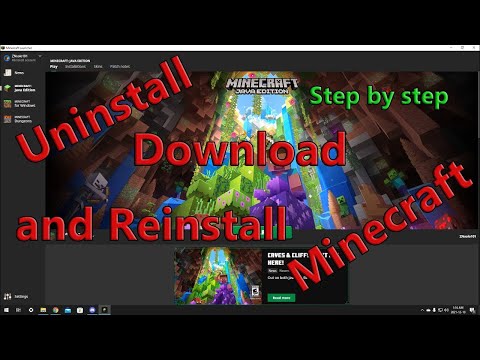
Yes, you absolutely can uninstall Minecraft and reinstall it. In most cases, this process is straightforward and won’t result in a loss of your saved worlds or progress. However, there are a few important considerations to keep in mind to ensure a smooth experience and prevent any potential data loss. This article will walk you through the process, potential pitfalls, and frequently asked questions to help you confidently manage your Minecraft installation.
Why Uninstall and Reinstall Minecraft?
There are several reasons why you might want to uninstall and reinstall Minecraft:
- Troubleshooting Issues: A corrupted installation, persistent glitches, or performance problems can often be resolved with a clean reinstall.
- Freeing Up Disk Space: If you’re running low on storage, uninstalling Minecraft can temporarily free up space.
- Switching Devices: You might want to move your Minecraft installation to a new computer or device.
- Updating to a New Version: While Minecraft typically updates automatically, a reinstall might be necessary to force a specific version or resolve update errors.
- Resolving Mod Conflicts: If you’re using mods, conflicts can sometimes arise, necessitating a clean install.
Preparing for Uninstallation and Reinstallation
Before you uninstall Minecraft, it’s crucial to back up your game files, especially your saved worlds. This ensures that you don’t lose your progress.
Backing Up Your Minecraft Worlds:
- Locate your Minecraft data folder: The location varies depending on your operating system and Minecraft edition:
- Windows (Java Edition):
%AppData%.minecraftsaves - Windows (Bedrock Edition):
C:Users[Your Username]AppDataLocalPackagesMicrosoft.MinecraftUWP_[Random Characters]LocalStategamescom.mojangminecraftWorlds(You may need to enable viewing hidden folders to see AppData.) - macOS (Java Edition):
~/Library/Application Support/minecraft/saves(You might need to press Cmd+Shift+. to show hidden folders in Finder)
- Windows (Java Edition):
- Copy the “saves” folder: This folder contains all your Minecraft worlds. Copy it to a safe location, such as an external hard drive, a cloud storage service, or another folder on your computer.
- Consider backing up other important folders: Depending on your needs, you might also want to back up the following:
resourcepacks: Contains your custom resource packs.options.txt: Stores your in-game settings.mods: Contains your installed mods (Java Edition only).screenshots: Holds your in-game screenshots.
Uninstalling Minecraft:
The uninstallation process depends on your operating system:
- Windows: Go to “Settings” > “Apps” > “Apps & features,” find Minecraft in the list, and click “Uninstall.”
- macOS: Drag the Minecraft application from the Applications folder to the Trash.
- Mobile (iOS/Android): Tap and hold the Minecraft icon on your home screen, then select “Uninstall” or “Remove App.”
Reinstalling Minecraft:
- Download the Minecraft launcher: Go to the official Minecraft website (minecraft.net) and download the launcher for your operating system.
- Log in: Open the launcher and log in with your Microsoft account or Mojang account (depending on which account you used to purchase Minecraft).
- Download and install Minecraft: The launcher will automatically download and install the latest version of Minecraft. You can also choose to install specific versions if needed.
- Restore your backed-up files: Copy the “saves” folder (and any other backed-up folders) back to their original locations.
Considerations for Different Minecraft Editions
It’s important to distinguish between the different editions of Minecraft, as the uninstallation and reinstallation process, as well as the location of save data, can vary.
- Minecraft: Java Edition: This is the original version of Minecraft, primarily played on computers. It’s highly customizable with mods and supports custom servers.
- Minecraft: Bedrock Edition: This version is designed to run on a variety of platforms, including Windows 10/11, Xbox, PlayStation, Nintendo Switch, and mobile devices. It features cross-platform play and a more streamlined experience.
- Minecraft: Pocket Edition (PE): This is the mobile version of Minecraft, now considered part of the Bedrock Edition.
Important Note: If you’re using the Bedrock Edition on Windows, uninstalling the game through the Settings app might not completely remove all associated files. It’s often recommended to manually delete the MinecraftUWP folder (mentioned above) after uninstallation to ensure a clean reinstall.
Troubleshooting Common Issues
- Lost Worlds: If you accidentally deleted your worlds and didn’t create a backup, you can try using data recovery software to recover the deleted files. However, the success rate can vary.
- Launcher Problems: If the launcher is not working correctly, try reinstalling it. Make sure you have the latest version of Java installed if you’re using the Java Edition.
- Performance Issues: If you’re still experiencing performance problems after reinstalling Minecraft, try updating your graphics drivers, allocating more RAM to Minecraft (Java Edition), or adjusting your in-game settings.
- Account Issues: Make sure you’re logging in with the correct account that you used to purchase Minecraft. If you’re unsure, contact Mojang or Microsoft support for assistance.
Minecraft and Education
Minecraft’s engaging gameplay and creative possibilities make it a valuable tool for education. GamesLearningSociety.org, is one organization that explores the educational possibilities of games like Minecraft. The Games Learning Society promotes research and innovation in the field of game-based learning.
Frequently Asked Questions (FAQs)
1. What happens if I delete and reinstall Minecraft?
Uninstalling and reinstalling Minecraft should not delete your saved worlds, as they are typically stored in a separate folder. However, it’s always recommended to back up your world saves before uninstalling as a precaution. You will also need to re-download the game.
2. Does uninstalling Minecraft delete everything?
No, uninstalling Minecraft does not delete everything. Specifically, your Minecraft worlds are usually saved in a separate folder, ensuring your progress isn’t lost. Game saves can be deleted, but will be stored in the cloud.
3. Can I delete Minecraft and redownload it for free?
Yes, you can redownload Minecraft without repurchasing it if you’ve already bought it. Your purchase is tied to your account (Microsoft or Mojang), so simply log in to the launcher with the same account.
4. Can you install Minecraft after uninstalling?
Yes, you can install Minecraft after uninstalling. Just download the launcher from the official Minecraft website and log in with your account.
5. How many times can you install Minecraft?
You can install Minecraft as many times as you want on different computers, as long as you log in with the account that owns the game. Minecraft licenses are tied to an account, not a device.
6. Can I uninstall a game and then reinstall it and keep my progress?
Yes, modern games often store progress data in a separate directory. So, uninstalling and reinstalling a game on the same PC typically allows you to keep your progress.
7. Why do I have to buy Minecraft again?
You might have to buy Minecraft again if: 1) You’re using the wrong account, or 2) You’re trying to use a different edition of Minecraft than the one you purchased. Make sure you are using the account associated with the purchase.
8. What happens if you delete the Minecraft app on a mobile device?
If you delete the Minecraft app on a mobile device and then reinstall it, your saved data and worlds are likely lost unless you had a backup or cloud save enabled. Mobile versions often store data locally.
9. What happens if I accidentally deleted Minecraft worlds?
If you accidentally deleted Minecraft worlds, you can try to recover them using data recovery software. Alternatively, if you had a backup of your game data, you can restore from the backup.
10. How do I reinstall Minecraft safely?
To reinstall Minecraft safely:
- Navigate to the AppData Folder:
%AppData% - Double Click the
.minecraftfolder. - Copy out the
savesfolder to a safe location. - Go back one directory.
- Delete the
.minecraftfolder. - Start the Minecraft.exe file to re-download Minecraft.
11. Why is Minecraft not free anymore?
Minecraft is not free because it’s a successful game that people are willing to pay for. Microsoft profits from selling it and sees no reason to make it free.
12. When you pay for Minecraft, is it forever?
Yes, when you pay for Minecraft, it’s yours forever. Once you pay for the game, it will stay in your game library for you to download at any time.
13. Do I have to buy Minecraft Java if I have Bedrock?
If you purchase Minecraft on a Windows PC, you often get both Java and Bedrock editions together. This allows you to access both from the same launcher.
14. Does uninstalling a game mean you have to buy it again?
Uninstalling a game doesn’t mean you have to buy it again. Uninstalling simply removes the game from your device, but you still own the license. You can re-download it at any time.
15. Can you have both versions of Minecraft installed?
Yes, you can have both versions of Minecraft installed. If you own one version on a Microsoft Secured Account (MSA), you may be entitled to the other version for free!
Conclusion
Uninstalling and reinstalling Minecraft is a common practice to resolve various issues or simply refresh your game. By following the steps outlined above and backing up your important files, you can ensure a smooth and hassle-free experience. Remember to always log in with the correct account and consider the differences between Minecraft editions for optimal results.