Can I Use a Normal Hard Drive for PS3? The Definitive Guide
Fast answer first. Then use the tabs or video for more detail.
- Watch the video explanation below for a faster overview.
- Game mechanics may change with updates or patches.
- Use this block to get the short answer without scrolling the whole page.
- Read the FAQ section if the article has one.
- Use the table of contents to jump straight to the detailed section you need.
- Watch the video first, then skim the article for specifics.
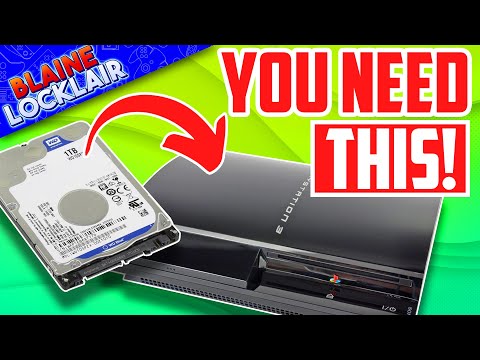
Yes, you absolutely can use a normal hard drive for your PlayStation 3 (PS3). In fact, the PS3 was designed to be user-friendly when it came to storage upgrades. The console utilizes standard 2.5-inch SATA notebook hard drives, making it easy to find a compatible replacement or upgrade. However, there are certain specifications and considerations to keep in mind to ensure a smooth and successful upgrade. This guide will delve into everything you need to know, from compatible drive types to installation procedures, and address frequently asked questions to help you maximize your PS3’s storage potential.
Understanding PS3 Hard Drive Compatibility
The PS3 isn’t picky about brands, but it is picky about the type of hard drive. Let’s break down the key specifications:
-
Form Factor: It must be a 2.5-inch hard drive. These are commonly found in laptops and are smaller than the 3.5-inch drives used in desktop computers.
-
Interface: The drive needs to have a SATA (Serial ATA) interface. This is the standard interface for connecting hard drives to motherboards.
-
RPM (Rotations Per Minute): Both 5400 RPM and 7200 RPM drives will work. A 7200 RPM drive may offer slightly faster loading times, but the difference is often negligible in real-world use for the PS3.
-
Capacity: While technically the PS3 was designed to work optimally with drives up to 1TB, some users have reported success with larger drives, but this can sometimes lead to file system maintenance issues. Officially, stick to 1TB for guaranteed stability.
-
SSD (Solid State Drive): You can also replace your PS3’s hard drive with an SSD. This will significantly improve loading times and overall system responsiveness. Ensure that the SSD meets the 2.5-inch form factor and SATA interface requirements.
Step-by-Step Hard Drive Replacement Guide
Replacing the hard drive in your PS3 is a relatively straightforward process. Here’s a step-by-step guide:
-
Back Up Your Data: This is crucial! Use the PS3’s built-in backup utility to copy all your save data, game installs, and other content to an external storage device like a USB hard drive or memory stick. You’ll find this utility under Settings > System Settings > Backup Utility.
-
Power Down and Disconnect: Completely power down your PS3 and unplug all cables, including the power cord.
-
Locate the Hard Drive Bay: On the PS3, there’s a small access panel that covers the hard drive bay. The location varies depending on the model. Consult your PS3’s manual if you’re unsure where it is.
-
Remove the Hard Drive Tray: Once the access panel is removed, you’ll see a screw securing the hard drive tray. Remove the screw. Then, gently pull on the hard drive tray and pull straight up to remove it from the PS3 shell.
-
Replace the Hard Drive: The hard drive is secured to the tray with four screws. Use a Phillips screwdriver to remove these screws. Replace the old hard drive with the new one, ensuring it’s properly aligned. Secure the new hard drive in the exact position the old hard drive was on the tray.
-
Reassemble and Reconnect: Slide the hard drive tray back into the PS3. Secure it with the screw you removed earlier. Reconnect all cables and power on the console.
-
Restore Your Data: After booting up, the PS3 will prompt you to format the new hard drive. Follow the on-screen instructions. Once formatted, use the Backup Utility again, but this time choose the “Restore” option to transfer your backed-up data back to the new hard drive.
External Hard Drive Compatibility
While you can replace the internal drive, you can also use an external hard drive with your PS3 for storing media files, but not for directly installing games. Here are the requirements for using an external hard drive:
- USB Interface: The external hard drive must be connected via USB 2.0, as that’s what the PS3 supports.
- File System: The external hard drive must be formatted as FAT32. The PS3 does not support NTFS or exFAT for external storage. This is a crucial step!
Formatting Your External Hard Drive to FAT32
Most external hard drives come pre-formatted as NTFS, so you’ll likely need to reformat it. Be aware that formatting will erase all data on the drive. Here’s how:
-
Connect the External Hard Drive to your computer.
-
Windows: You can format the drive as FAT32 within Windows, but it’s often limited for drives larger than 32GB. For larger drives, you’ll need a third-party formatting tool like FAT32 Format (easily found online).
-
Mac: Use Disk Utility. Select the drive, choose “Erase,” and then select “MS-DOS (FAT)” as the format.
-
Transfer Media Files: Once formatted, transfer your movies, music, and photos to the external hard drive.
-
Connect to PS3: Connect the external hard drive to a USB port on your PS3. Your PS3 should recognize the drive, and you can access your media files through the Photo, Music, or Video sections of the XMB (Cross Media Bar) menu.
FAQs: Understanding PS3 Hard Drive Options
1. Can I use any external hard drive with my PS3?
You can use almost any external hard drive, as long as it is formatted as FAT32 and connected via USB 2.0.
2. Can I play games directly from an external hard drive on my PS3?
No, the PS3 doesn’t allow you to directly play games installed on an external hard drive. You can only store and access media files (videos, music, photos).
3. What happens if I put a hard drive from an old PS3 into a new PS3?
If you put your PS3 hard drive into another PS3, that other PS3 will require you to format the drive, erasing it completely. This is because the hard drive is tied to the motherboard of the original PS3.
4. Will a 2TB hard drive work in a PS3?
While some users have reported success with 2TB drives, the official maximum supported size is 1TB. Using a larger drive might lead to instability and file system errors.
5. Can I use an SSD to upgrade my PS3’s hard drive?
Yes, you can replace the original hard drive with an SSD to improve loading times and system performance. Make sure the SSD is a 2.5-inch SATA drive.
6. Do I need to format a new hard drive for my PS3?
Yes, the PS3 will prompt you to format the new hard drive when you first install it. This will erase all data on the drive.
7. What file system does the PS3 support for external hard drives?
The PS3 only supports FAT32 for external hard drives.
8. Why won’t my PlayStation recognize my external hard drive?
Common causes include an incompatible file system (not FAT32), a faulty USB connection, or a corrupted external drive.
9. Can I use the same external hard drive for both PS3 and PS4?
You can, but keep in mind the file system limitations. The PS3 requires FAT32, while the PS4 supports exFAT. Formatting the drive for one console will likely make it unusable on the other without reformatting.
10. How big of a hard drive can I put in a PS3?
The officially supported maximum size is 1TB.
11. How do I know if my PS3 hard drive is failing?
Signs of a failing hard drive include lagging, freezing, slow loading times, file corruption, and error messages.
12. Can I put my old PS3 hard drive in my new PS3?
No, putting your old PS3 hard drive in a new PS3 will require you to format the drive, erasing all data. The hard drive is tied to the original system’s motherboard.
13. Are all external hard drives compatible with PlayStation?
For PS3, they need to be USB 2.0 and formatted to FAT32. For PS4, they need to be USB 3.0 or later.
14. Can Seagate hard drive work on PS3?
Yes, a Seagate hard drive can work on a PS3 as long as it meets the specifications: 2.5-inch SATA and 1TB or less for internal drives, or FAT32 formatted for external drives.
15. How do I prepare my PS3 for a new hard drive?
Back up your data using the PS3 Backup Utility, power down the console, and gather the necessary tools (screwdriver). This prepares you for removing the old hard drive and installing the new one.
Upgrading or replacing your PS3’s hard drive is a simple way to improve its performance and storage capacity. By following these guidelines and addressing common questions, you can ensure a successful and hassle-free upgrade experience. Remember to always back up your data before making any changes to your console’s storage.
For more information on gaming and learning, consider exploring resources at the Games Learning Society at https://www.gameslearningsociety.org/, where educational aspects of games are discussed and explored.