Can Minecraft Run on a Low-End PC? A Deep Dive
Fast answer first. Then use the tabs or video for more detail.
- Watch the video explanation below for a faster overview.
- Game mechanics may change with updates or patches.
- Use this block to get the short answer without scrolling the whole page.
- Read the FAQ section if the article has one.
- Use the table of contents to jump straight to the detailed section you need.
- Watch the video first, then skim the article for specifics.
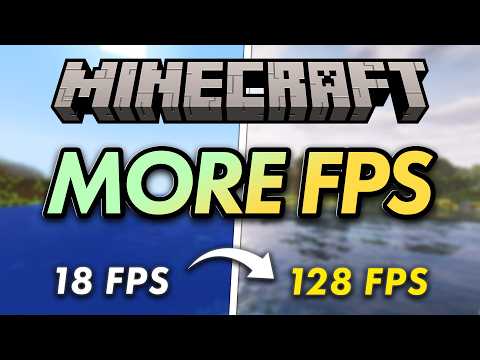
Yes, Minecraft can absolutely run on a low-end PC, but the experience will heavily depend on your expectations and the configurations you’re willing to tweak. Don’t expect breathtaking visuals and silky-smooth frame rates at max settings. However, with the right optimizations, a low-spec machine can certainly provide a playable and enjoyable Minecraft experience.
Understanding the Hardware Landscape
Before we dive into specifics, let’s clarify what constitutes a “low-end PC” in the context of Minecraft. Generally, this refers to systems with the following characteristics:
- Processor: Older Intel Core i3 or AMD equivalent.
- RAM: 4GB or less.
- Graphics: Integrated graphics (Intel HD Graphics or similar) or very basic dedicated graphics cards.
- Storage: HDD (Hard Disk Drive) rather than SSD (Solid State Drive).
Keep in mind that “low-end” is a relative term. A PC considered low-end today might have been mid-range a few years ago. However, the principles of optimization remain the same regardless.
Optimizing Minecraft for Low-End PCs
Achieving playable frame rates on a low-end PC requires a multi-pronged approach. Here’s a breakdown of key optimization strategies:
1. Version Selection: Java vs. Bedrock
The first decision you’ll need to make is which version of Minecraft to play: Java Edition or Bedrock Edition. While both offer the core Minecraft experience, they differ significantly in performance characteristics.
- Java Edition: Historically the original and most popular version, Java Edition is known for its extensive modding community and flexibility. However, it tends to be more resource-intensive.
- Bedrock Edition: Designed for cross-platform play (Windows 10/11, consoles, mobile), Bedrock Edition is generally better optimized for lower-end hardware due to its coding language, C++.
For low-end PCs, Bedrock Edition is often the better choice due to its superior performance.
2. Graphics Settings: The Key to Performance
Minecraft’s graphics settings have a profound impact on performance. Here’s a breakdown of the most critical settings to adjust:
- Render Distance: This setting determines how far you can see into the distance. Reducing the render distance dramatically improves performance. Start with the lowest setting (usually 2 chunks or 4 chunks) and gradually increase it until you find a balance between visual quality and frame rate.
- Graphics: Choose “Fast” instead of “Fancy.” This simplifies textures and lighting, reducing the load on your system.
- Smooth Lighting: Disable this feature. It adds subtle lighting effects but can significantly impact performance.
- Particles: Reduce the particle count to “Minimal” or “Decreased.”
- Clouds: Turn clouds off entirely. They consume valuable resources.
- Fullscreen Mode: Running Minecraft in fullscreen mode can sometimes improve performance compared to windowed mode.
- Mipmap Levels: Set to 0. Mipmapping can help with texture aliasing but can also impact performance on low-end systems.
3. OptiFine: The Ultimate Optimization Mod (Java Edition Only)
If you’re playing the Java Edition, OptiFine is an indispensable mod for low-end PCs. OptiFine drastically improves performance by optimizing rendering, adding customizable settings, and providing advanced control over various graphical elements. It allows you to fine-tune Minecraft to run smoothly even on very modest hardware.
- Installation: Download the latest OptiFine version compatible with your Minecraft version and follow the installation instructions.
- Configuration: OptiFine provides a wealth of settings to adjust. Experiment with different configurations to find what works best for your system. Key settings to tweak include render distance, graphics quality, and performance options like chunk loading and smooth FPS.
4. RAM Allocation (Java Edition Only)
The Java Edition allows you to allocate a specific amount of RAM to Minecraft. While allocating more RAM can sometimes improve performance, it’s not always the solution for low-end PCs.
- Check Available RAM: Determine how much RAM your system has and how much is available while running Minecraft.
- Allocate Appropriately: Don’t allocate more RAM than your system has available. For low-end PCs with 4GB of RAM, allocating 2GB or 3GB to Minecraft is usually sufficient. Too much RAM allocation can actually hinder performance.
- Launcher Settings: Adjust the RAM allocation in your Minecraft launcher settings.
5. Closing Background Applications
Ensure that you close all unnecessary background applications before launching Minecraft. Programs running in the background consume system resources that could be used by the game. Web browsers, streaming services, and other resource-intensive applications should be closed for optimal performance.
6. Driver Updates
Ensure that your graphics drivers are up to date. Newer drivers often include performance optimizations that can improve Minecraft’s frame rate. Visit the website of your graphics card manufacturer (Intel, AMD, or NVIDIA) to download and install the latest drivers.
7. Operating System Tweaks
Optimizing your operating system can also improve Minecraft’s performance.
- Disable Unnecessary Services: Disable unnecessary services running in the background.
- Defragment Your Hard Drive: If you’re using an HDD, defragmenting your hard drive can improve read/write speeds.
- Run a Disk Cleanup: Remove temporary files and other unnecessary data from your system.
8. Consider Older Versions of Minecraft
While newer versions of Minecraft introduce new features and content, they also tend to be more demanding on hardware. If you’re struggling to achieve playable frame rates with the latest version, consider playing an older version of Minecraft (e.g., 1.8.9, 1.12.2). These versions are often less resource-intensive and may provide a smoother experience on low-end PCs.
Additional Considerations
- World Generation: Generating new chunks can be resource-intensive. Avoid exploring new areas rapidly on low-end PCs.
- Modded Minecraft: While mods can enhance the Minecraft experience, they can also significantly impact performance. Be cautious when installing mods on low-end PCs and choose performance-friendly mods.
- Multiplayer: Playing on multiplayer servers can be more demanding than playing in single-player mode. Factor in network latency and server load when assessing performance.
Games Learning Society and Minecraft’s Educational Potential
Minecraft’s accessibility, even on lower-end hardware, contributes to its widespread adoption in educational settings. Organizations like the Games Learning Society, found at GamesLearningSociety.org, explore the pedagogical potential of games, including Minecraft. Its open-ended nature fosters creativity, problem-solving, and collaboration, making it a valuable tool for learning across various subjects. Even on less powerful machines, students can engage in meaningful learning experiences thanks to the game’s adaptability.
Frequently Asked Questions (FAQs)
1. Can Minecraft run on a PC with 2GB of RAM?
While not ideal, Minecraft can run on a PC with 2GB of RAM, especially the Bedrock Edition or older Java Edition versions with OptiFine and optimized settings. Expect lower frame rates and potential stuttering. Close all other applications and allocate as much RAM as possible to Minecraft.
2. What’s the best version of Minecraft for a low-end PC?
The Bedrock Edition is generally the best version for low-end PCs due to its better optimization. Alternatively, older Java Edition versions with OptiFine can also be playable.
3. How much RAM should I allocate to Minecraft?
For low-end PCs with 4GB of RAM, allocating 2GB or 3GB to Minecraft is usually sufficient. Avoid allocating more RAM than your system has available.
4. Will OptiFine improve performance on my low-end PC?
Yes, OptiFine can significantly improve performance on Java Edition, especially on low-end PCs. It optimizes rendering and provides advanced settings for fine-tuning performance.
5. What graphics settings should I adjust for better performance?
Reduce render distance, set graphics to “Fast,” disable smooth lighting and clouds, and minimize particle count.
6. Is it better to play Minecraft in fullscreen or windowed mode?
Fullscreen mode can sometimes improve performance compared to windowed mode.
7. Can I play Minecraft with integrated graphics?
Yes, you can play Minecraft with integrated graphics, but performance will be limited. Optimize your settings for the best possible frame rate.
8. Will upgrading to an SSD improve Minecraft’s performance?
Yes, upgrading to an SSD can significantly improve load times and overall performance compared to an HDD.
9. Can I play modded Minecraft on a low-end PC?
Playing modded Minecraft on a low-end PC can be challenging, as mods can significantly impact performance. Choose performance-friendly mods and optimize your settings.
10. Does the number of players on a server affect performance?
Yes, the number of players on a server can affect performance, especially on low-end PCs. Servers with fewer players tend to be less demanding.
11. Is it better to play an older version of Minecraft on a low-end PC?
Yes, playing an older version of Minecraft can sometimes improve performance compared to newer versions.
12. How can I check my computer’s specifications?
On Windows, you can check your computer’s specifications by searching for “System Information” or “About Your PC”.
13. Why is Minecraft so laggy on my low-end PC?
Lag can be caused by various factors, including insufficient RAM, low-end graphics, high render distance, and background applications. Optimize your settings and close unnecessary programs.
14. Can I play Minecraft on a Chromebook?
Yes, you can play Minecraft on a Chromebook, usually through the Android app version (Bedrock Edition) or by installing Linux and running the Java Edition. Performance will vary depending on the Chromebook’s specifications.
15. What are some good alternatives to Minecraft for low-end PCs?
Some good alternatives include Terraria, Roblox (with optimized settings), and older PC games with lower system requirements.