Can Overwatch 2 Run on a Low-End PC? A Deep Dive
Fast answer first. Then use the tabs or video for more detail.
- Watch the video explanation below for a faster overview.
- Game mechanics may change with updates or patches.
- Use this block to get the short answer without scrolling the whole page.
- Read the FAQ section if the article has one.
- Use the table of contents to jump straight to the detailed section you need.
- Watch the video first, then skim the article for specifics.
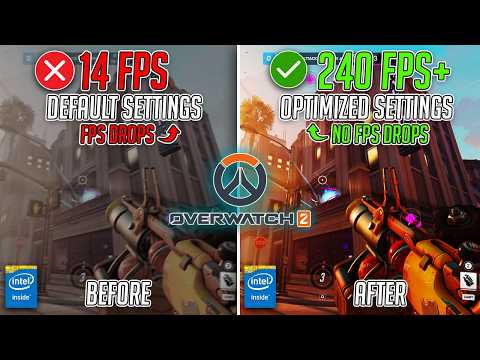
Yes, Overwatch 2 is generally playable on low-end PCs, but with caveats. While Blizzard has optimized the game to be less graphically demanding than many modern titles, achieving a smooth and enjoyable experience requires careful tweaking of settings and a realistic expectation of visual fidelity. Don’t expect ultra graphics, but you can expect to frag!
Understanding Overwatch 2’s Demands
Overwatch 2, compared to its predecessor and other contemporary shooters, isn’t a hardware hog. Blizzard has consistently aimed for accessibility, understanding that a broad player base is crucial for the game’s long-term success. This doesn’t mean any computer can run it flawlessly, but it does mean that even older systems can join the fight with the right configurations.
Minimum System Requirements: The Baseline
Let’s break down the minimum system requirements, as this is where the “low-end PC” conversation begins.
- Operating System: Windows 10 64-bit (latest Service Pack)
- Processor: Intel Core i3 or AMD Phenom X3 8650
- Memory: 6 GB RAM
- Graphics Card: NVIDIA GeForce GTX 600 series or AMD Radeon HD 7000 series
These specs are quite forgiving, and many older machines will meet or exceed them. However, meeting the minimum doesn’t guarantee a stellar experience. You’ll likely be playing at lower resolutions and graphics settings to maintain a playable frame rate, typically around 30 FPS.
The Performance Sweet Spot: Aiming for 60 FPS
While 30 FPS is playable, most gamers prefer a smoother 60 FPS for competitive shooters like Overwatch 2. Achieving this on a low-end PC requires more optimization. You’ll need a slightly more powerful CPU and GPU than the minimum requirements suggest. Aiming for an Intel Core i5 or AMD Phenom II X3 and a GeForce GTX 660 or Radeon HD 7950 is a good starting point.
Optimizing Overwatch 2 for Low-End PCs: The Settings Deep Dive
The key to making Overwatch 2 playable on less powerful hardware lies in meticulously adjusting the in-game settings. Here’s a breakdown of the most impactful options:
-
Display Mode: Always choose Fullscreen. This provides the game with exclusive access to your graphics card, minimizing overhead.
-
Target Display: Select Best Match to ensure the game uses your primary monitor.
-
Resolution: This is crucial. Start with your monitor’s native resolution, but if performance is poor, reduce it. Lowering the resolution significantly impacts visual quality but provides a massive FPS boost. Consider starting at 1280×720 (720p) and experimenting from there.
-
Refresh Rate: Select the highest refresh rate your monitor supports (e.g., 60Hz, 75Hz, 144Hz).
-
Field of View (FOV): 103 is the standard, and it shouldn’t significantly impact performance.
-
Aspect Ratio: 16:9 is the most common and generally recommended.
-
Dynamic Render Scale: Turn this OFF. While it dynamically adjusts the resolution to maintain a target FPS, it can lead to inconsistent visual quality and distracting shifts.
-
Render Scale: Set this to 100% initially. If performance is lacking, gradually lower it. This setting directly impacts the sharpness and clarity of the image. Going below 70% can make the game look blurry.
-
Graphics Quality: This is where the real magic (or compromise) happens. Set this to Low or even Lowest. Then, delve into the individual settings below:
- Texture Quality: Low
- Texture Filtering Quality: Low
- Local Fog Detail: Low
- Dynamic Reflections: Off
- Shadow Detail: Low or Off
- Model Detail: Low
- Effects Detail: Low
- Lighting Quality: Low
- Antialiasing Quality: Off or FXAA (FXAA is less demanding than other options like SMAA)
- Refraction Quality: Low
- Screenshot Quality: Low (this only affects screenshots, not gameplay performance)
-
VSync: Disable VSync unless you experience screen tearing (horizontal lines appearing on the screen). VSync can introduce input lag.
-
Triple Buffering: Disable this as well, unless you have VSync enabled.
-
Reduce Buffering: Enable this. It can reduce input lag.
-
NVIDIA Reflex Low Latency: If you have an NVIDIA graphics card, enable this for lower latency.
Beyond In-Game Settings: System-Level Tweaks
Don’t just focus on the in-game settings. Here are some system-level optimizations to consider:
- Update Graphics Drivers: Ensure you have the latest drivers for your graphics card.
- Close Background Applications: Close any unnecessary programs running in the background, as they consume valuable resources.
- Optimize Power Settings: Set your power plan to “High Performance.”
- Monitor Temperatures: Overheating can significantly impact performance. Make sure your CPU and GPU are adequately cooled.
- Defragment Your Hard Drive (if using an HDD): While less crucial on SSDs, defragmenting can improve loading times on older hard drives.
- Consider an SSD: If you’re still using a traditional HDD, upgrading to an SSD will dramatically improve loading times and overall system responsiveness.
Frequently Asked Questions (FAQs)
Here are some frequently asked questions to further clarify the capabilities of low-end PCs when it comes to running Overwatch 2:
1. Can I run Overwatch 2 without a dedicated graphics card?
It’s highly unlikely. While integrated graphics have improved, Overwatch 2 requires a dedicated GPU (even a low-end one) to run at playable frame rates.
2. Will more RAM help Overwatch 2 run better on my low-end PC?
Yes, to a point. The minimum RAM requirement is 6 GB. If you have 4 GB, upgrading to 8 GB will likely improve performance, especially if you’re running other applications in the background. Beyond 8 GB, the benefits diminish for Overwatch 2 alone.
3. Is Overwatch 2 CPU or GPU intensive?
Initially, Overwatch is CPU intensive. You may experience high CPU usage while playing this game.
4. Why is my Overwatch 2 so laggy, even with low settings?
Lag can be caused by several factors, including a slow internet connection, high ping, outdated drivers, or excessive background processes. Rule out network issues first.
5. Is an Intel Core i5 good enough for Overwatch 2?
Yes, an Intel Core i5 (or equivalent AMD Ryzen processor) is generally sufficient for running Overwatch 2 at 60 FPS with reasonable settings.
6. Why is Overwatch 2 only running at 30 FPS, even though I have a decent PC?
Check your in-game settings, particularly the “Limit FPS” option. Also, ensure VSync is disabled unless you’re experiencing screen tearing.
7. What does VSync do, and should I use it?
VSync synchronizes the game’s frame rate with your monitor’s refresh rate to prevent screen tearing. However, it can introduce input lag. Only enable it if you experience screen tearing.
8. Is my internet speed affecting my Overwatch 2 performance?
Yes, a stable and fast internet connection is crucial for online gaming. High latency (ping) can cause lag and rubberbanding.
9. What is a good latency (ping) for gaming?
Generally, a ping of 60 milliseconds (ms) or lower is considered good for gaming. A ping above 100 ms can lead to noticeable lag.
10. Why are my Overwatch 2 graphics so bad, even on low settings?
Ensure the Render Scale is set to 100% initially. Lowering it too much will significantly degrade visual quality.
11. Can a GTX 1060 run Overwatch 2?
Yes, a GTX 1060 can run Overwatch 2 very well, even at 1440p with some settings adjustments.
12. What settings should I change if I’m getting low FPS in team fights?
Focus on lowering the “Effects Detail” and “Shadow Detail” settings. These are often the most demanding during intense combat situations.
13. Is an i5 overkill for Overwatch 2?
No, an i5 is not overkill, especially if you want to maintain a consistent 60 FPS or higher. It provides a good balance of performance and affordability.
14. What does IND mean in Overwatch 2?
IND stands for Interpolation Delay. It’s a buffer of time between when your client receives information from the server and when it’s displayed on your screen.
15. Where can I learn more about game development and technology?
There are numerous online resources available. Consider exploring educational resources like the Games Learning Society at https://www.gameslearningsociety.org/ for insights into game design, technology, and the impact of games on learning.
The Verdict: Playable, But with Compromises
Overwatch 2 is playable on low-end PCs, but it requires realistic expectations and a willingness to compromise on visual quality. By meticulously adjusting the in-game settings, optimizing your system, and understanding the limitations of your hardware, you can still enjoy the fast-paced action of Overwatch 2 without breaking the bank. Remember, gameplay trumps graphics!