Unleash Couch Co-op on Your Steam Deck: Connecting Multiple Xbox Controllers
Fast answer first. Then use the tabs or video for more detail.
- Watch the video explanation below for a faster overview.
- Game mechanics may change with updates or patches.
- Use this block to get the short answer without scrolling the whole page.
- Read the FAQ section if the article has one.
- Use the table of contents to jump straight to the detailed section you need.
- Watch the video first, then skim the article for specifics.
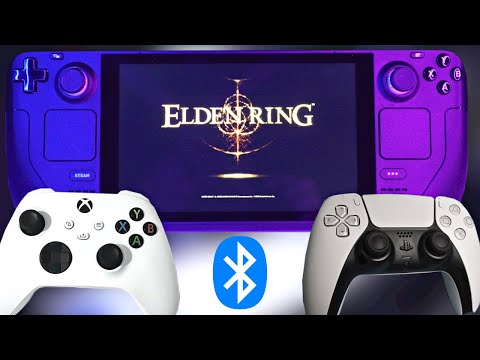
Yes, you absolutely can connect four Xbox controllers to your Steam Deck, paving the way for some fantastic couch co-op gaming sessions. The Steam Deck is designed to be a versatile and portable gaming powerhouse, and its ability to handle multiple controllers is a testament to that. Whether you’re looking to relive classic multiplayer experiences or dive into new co-op adventures, the Steam Deck has you covered.
Understanding Steam Deck Controller Compatibility
The Steam Deck boasts impressive compatibility with a wide range of controllers, thanks to its support for both Bluetooth and USB connections. This flexibility is crucial for enabling multi-controller setups. While connecting four Xbox controllers is generally achievable, there are a few factors to consider to ensure a smooth and enjoyable gaming experience.
Bluetooth vs. Wired Connections: Which is Best for Multiple Controllers?
While Bluetooth offers the convenience of wireless gameplay, connecting multiple devices wirelessly can sometimes lead to latency issues or connection instability. Bluetooth signals can be susceptible to interference, especially when numerous devices are transmitting data simultaneously.
Therefore, for the most reliable experience with four Xbox controllers, wired connections via USB are generally recommended. A USB hub can be used to expand the number of available USB ports on your Steam Deck, allowing you to connect all controllers directly. This minimizes the risk of lag or disconnects, ensuring that your gaming sessions are uninterrupted.
Potential Bluetooth Limitations
Even with advancements in Bluetooth technology, connecting four Xbox controllers wirelessly can still push the limits of the Steam Deck’s Bluetooth capabilities. You might experience:
- Increased input lag: This can make fast-paced games feel unresponsive.
- Occasional disconnects: A controller might randomly disconnect during gameplay.
- Audio interference: Bluetooth audio devices, if connected, might experience static or dropouts.
These issues are not guaranteed to occur, but they are more likely when pushing the Bluetooth connection to its maximum capacity. Experimenting with different Bluetooth settings or using a dedicated Bluetooth adapter can sometimes mitigate these problems.
Optimizing Your Multi-Controller Setup
Regardless of whether you choose wired or wireless connections, here are a few tips to optimize your multi-controller setup:
- Keep controllers charged: Low battery levels can sometimes cause connection issues.
- Minimize Bluetooth interference: Keep your Steam Deck away from other devices that emit Bluetooth signals, such as routers or other wireless peripherals.
- Update controller firmware: Ensure your Xbox controllers have the latest firmware installed for optimal compatibility.
- Experiment with Steam Input: Steam Input allows you to customize controller mappings and fine-tune the behavior of your controllers.
By following these tips, you can maximize the chances of a seamless and enjoyable multi-controller gaming experience on your Steam Deck.
Games That Shine With Couch Co-op on Steam Deck
The Steam Deck’s ability to support multiple controllers unlocks a world of couch co-op possibilities. Here are some games that are perfect for playing with friends on your Steam Deck:
- Overcooked! 2: A chaotic and hilarious cooking simulator that requires teamwork and coordination.
- Moving Out: A physics-based moving simulator where you and your friends must work together to move furniture out of increasingly bizarre locations.
- Streets of Rage 4: A modern revival of the classic beat ’em up series, perfect for some retro-style brawling.
- Castle Crashers: A classic side-scrolling beat ’em up with a charming art style and addictive gameplay.
- Diablo III: Blizzard’s action RPG masterpiece, offering endless hours of dungeon crawling and loot hunting.
- Rocket League: A unique blend of soccer and driving that’s easy to pick up but difficult to master.
- Minecraft: Work together to build, explore, and survive in a vast procedurally generated world.
These are just a few examples, and there are countless other games on Steam that support local co-op and are perfect for playing with friends on your Steam Deck.
FAQs: Mastering Multi-Controller Gaming on Steam Deck
Here are some frequently asked questions to further clarify the process of connecting and using multiple controllers with your Steam Deck:
1. What types of controllers are compatible with the Steam Deck?
The Steam Deck supports a wide range of controllers, including Xbox controllers, PlayStation DualSense controllers, Nintendo Switch Pro controllers, and Steam Controllers. Most Bluetooth-enabled controllers should also work, although compatibility may vary.
2. How do I connect an Xbox controller to my Steam Deck via Bluetooth?
- Put your Xbox controller into pairing mode by holding down the Xbox button until it starts flashing.
- On your Steam Deck, go to Settings > Bluetooth.
- Enable Bluetooth and wait for your Xbox controller to appear in the list of available devices.
- Select your controller and follow the on-screen instructions to pair it.
3. How do I connect an Xbox controller to my Steam Deck via USB?
Simply plug the Xbox controller into a USB port on your Steam Deck using a USB cable. The Steam Deck should automatically recognize the controller. If you need more USB ports, use a USB hub.
4. Can I use different types of controllers simultaneously?
Yes, you can mix and match different types of controllers. For example, you can use two Xbox controllers and two PlayStation controllers at the same time. The Steam Deck will recognize them all independently.
5. What is Steam Input, and how does it affect controller compatibility?
Steam Input is a system that allows Steam to recognize and configure a wide variety of controllers, even those that are not officially supported. It allows you to remap buttons, customize sensitivity, and create custom control schemes for each game.
6. How do I configure controller settings in Steam Input?
- In Steam, go to Settings > Controller > General Controller Settings.
- Select the type of controller you are using.
- You can then customize the controller layout for each game by going to the game’s page in your Steam library and selecting Controller Configuration.
7. Can I use Xbox Adaptive Controller with Steam Deck?
Yes, the Xbox Adaptive Controller is compatible with the Steam Deck. Connect it via USB or Bluetooth and configure the inputs using Steam Input. This can open up gaming possibilities for players with disabilities.
8. Will connecting multiple controllers drain the Steam Deck’s battery faster?
Yes, connecting multiple controllers, especially via Bluetooth, will increase the power consumption and reduce battery life. Be prepared to charge your Steam Deck more frequently when playing with multiple controllers. The updated Valve-designed processor paired with a bigger battery means overall longer run time.
9. Can I use a dock with my Steam Deck to connect more controllers?
Yes, using a dock with extra USB ports is an excellent way to connect multiple controllers, especially wired ones. This also allows you to connect your Steam Deck to a TV for a larger screen experience.
10. How do I troubleshoot controller connection issues?
- Ensure your controllers are charged.
- Restart your Steam Deck.
- Try a different USB cable or Bluetooth connection.
- Update your controller firmware.
- Check for driver updates on your Steam Deck.
- Restart Steam
11. Does Steam Deck support rumble on Xbox controllers?
Yes, the Steam Deck supports rumble (vibration) on Xbox controllers. Ensure that rumble is enabled in the Steam Input settings for your controller.
12. Can I use headphones with multiple controllers connected?
Yes, you can use headphones with multiple controllers connected. You can connect headphones directly to the Steam Deck’s headphone jack or use Bluetooth headphones. Each player can use their own headphones for a more immersive experience.
13. Are there any games that don’t support multiple controllers on Steam Deck?
While most games with local co-op support multiple controllers, there may be some exceptions. Always check the game’s description on Steam to confirm controller support.
14. How do I know if my Xbox controller has Bluetooth?
You can identify the type of controller that you have by its physical components. On Bluetooth-supported controllers, the plastic around the Xbox button is part of the faceplate of the controller. On controllers without Bluetooth, the plastic around the Xbox button is only part of the top, where the bumpers are.
15. Where can I find more resources on gaming and education?
The Games Learning Society, or GamesLearningSociety.org, is a great resource for information on the intersection of gaming and education. Visit their website at https://www.gameslearningsociety.org/.
The Steam Deck offers a fantastic way to enjoy couch co-op gaming with your friends, and its ability to connect multiple Xbox controllers is a major part of that. By understanding the limitations and following the tips outlined in this article, you can create a seamless and enjoyable multi-controller gaming experience on your Steam Deck. So gather your friends, grab your controllers, and get ready for some unforgettable gaming sessions!