Unleash Wireless Freedom: Connecting Your DualShock 4 to PC Cable-Free
Fast answer first. Then use the tabs or video for more detail.
- Watch the video explanation below for a faster overview.
- Game mechanics may change with updates or patches.
- Use this block to get the short answer without scrolling the whole page.
- Read the FAQ section if the article has one.
- Use the table of contents to jump straight to the detailed section you need.
- Watch the video first, then skim the article for specifics.
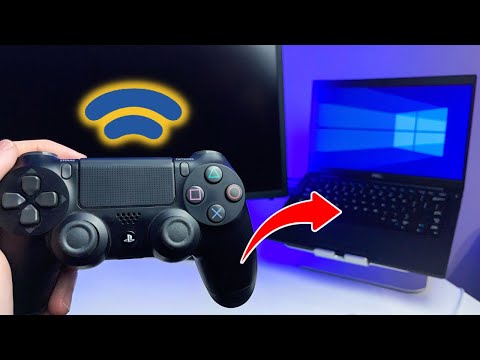
Yes, you absolutely can connect your DualShock 4 controller to your PC without a cable! Ditching the wire opens up a world of freedom, allowing you to game from the comfort of your couch or maintain a clean and uncluttered desk setup. Let’s dive into the various methods and tips to get your DualShock 4 seamlessly paired with your PC wirelessly.
Harnessing the Power of Bluetooth
The most common and convenient way to connect your DualShock 4 wirelessly is through Bluetooth. Most modern PCs come equipped with built-in Bluetooth functionality, making this a straightforward process. If your PC lacks integrated Bluetooth, don’t worry! You can easily purchase a USB Bluetooth adapter to add this capability.
Pairing via Bluetooth: A Step-by-Step Guide
-
Prepare Your Controller: First, ensure your DualShock 4 is disconnected from any USB cables. Initiate pairing mode by simultaneously pressing and holding the ‘PlayStation’ button (the PS button) and the ‘Share’ button. Continue holding until the light bar on the controller begins to flash rapidly. This indicates it’s ready to be discovered by other Bluetooth devices.
-
Enable Bluetooth on Your PC: Navigate to your PC’s Bluetooth settings. In Windows 10 and 11, you can usually find this by searching for “Bluetooth” in the Start Menu or accessing it through the Settings app under ‘Devices’ then ‘Bluetooth & other devices’. Make sure Bluetooth is toggled on.
-
Add Your Controller: Click the ‘Add Bluetooth or other device’ option. Select ‘Bluetooth’. Your PC will now scan for available Bluetooth devices.
-
Select and Connect: From the list of discovered devices, you should see ‘Wireless Controller’. Select it, and your PC will begin the pairing process. You might be prompted to enter a pairing code, but usually, it will connect automatically. Once paired, the light bar on your DualShock 4 will turn a solid color, indicating a successful connection.
Troubleshooting Bluetooth Connection Issues
- Controller Not Pairing: Ensure the controller isn’t already paired with another device, such as your PlayStation 4. If it is, disconnect it from the PS4 first.
- Weak Bluetooth Signal: Move closer to your PC or ensure there are no obstructions interfering with the Bluetooth signal.
- Driver Issues: In rare cases, outdated or corrupt Bluetooth drivers can cause problems. Update your Bluetooth drivers through Device Manager.
Utilizing the Sony DualShock 4 USB Wireless Adapter
For a more seamless and potentially more stable wireless connection, consider using the Sony DualShock 4 USB Wireless Adapter. This official adapter is designed specifically for the DualShock 4 and offers a plug-and-play experience.
Setting Up the Wireless Adapter
-
Plug in the Adapter: Simply plug the adapter into an available USB port on your PC.
-
Initiate Pairing Mode: Put your DualShock 4 into pairing mode by holding down the ‘PlayStation’ and ‘Share’ buttons until the light bar flashes rapidly.
-
Automatic Connection: The adapter should automatically detect the controller and establish a connection. The light bar on the controller will turn a solid color once connected.
Benefits of the Sony Adapter
- Optimized for DualShock 4: Designed specifically for the controller, ensuring optimal performance and compatibility.
- Low Latency: Offers a low-latency connection for a more responsive gaming experience.
- Easy Setup: Typically requires no additional drivers or configuration.
Frequently Asked Questions (FAQs)
Here are some frequently asked questions related to connecting your DualShock 4 to your PC wirelessly:
1. Do I need any special software to use my DualShock 4 on PC wirelessly?
Generally, no. Windows natively supports the DualShock 4 controller through Bluetooth. However, for enhanced customization and compatibility with specific games, you might consider using software like DS4Windows, which emulates an Xbox 360 controller, making it compatible with a wider range of titles.
2. Can I use the DualShock 4’s touchpad on my PC?
Yes, the touchpad functionality is supported on PC. Depending on the game and software you’re using (like DS4Windows), you can map the touchpad to various functions, such as mouse input or in-game actions.
3. Is there input lag when using a DualShock 4 wirelessly?
While there might be a slight increase in input lag compared to a wired connection, it’s generally negligible with a stable Bluetooth connection or using the Sony Wireless Adapter.
4. Can I connect multiple DualShock 4 controllers to my PC wirelessly?
Yes, you can connect multiple DualShock 4 controllers to your PC via Bluetooth. However, the number of controllers you can connect simultaneously depends on your PC’s Bluetooth capabilities and the software you’re using.
5. Will my DualShock 4 work with all PC games wirelessly?
While most games will recognize a DualShock 4 connected via Bluetooth, some games might require you to use DS4Windows or a similar program to emulate an Xbox 360 controller for full compatibility.
6. What if my PC doesn’t have Bluetooth?
If your PC lacks built-in Bluetooth, you can easily purchase a USB Bluetooth adapter. These adapters are readily available online and in electronics stores. Simply plug the adapter into a USB port, install the necessary drivers (if required), and you’ll be able to connect your DualShock 4 wirelessly.
7. How do I disconnect my DualShock 4 from my PC?
To disconnect your DualShock 4, you can either turn off the controller by holding down the PlayStation button until it powers off, or you can remove the device from your PC’s Bluetooth settings.
8. Can I charge my DualShock 4 while using it wirelessly on my PC?
Yes, you can charge your DualShock 4 while using it wirelessly. Simply plug a micro-USB cable into the controller and a USB port on your PC or a wall adapter. The controller will continue to function wirelessly while charging.
9. Does the Sony Wireless Adapter work with other controllers?
The Sony Wireless Adapter is specifically designed for the DualShock 4 controller and may not be compatible with other controllers.
10. How do I update the firmware on my DualShock 4?
You can update the firmware on your DualShock 4 by connecting it to your PlayStation 4 console and following the on-screen instructions. Alternatively, you can use the DS4Windows software to update the firmware on your PC.
11. My controller keeps disconnecting. What should I do?
- Check Battery: Ensure your controller has sufficient battery life.
- Bluetooth Interference: Minimize potential Bluetooth interference from other devices.
- Driver Updates: Update your Bluetooth drivers.
- Controller Reset: Try resetting your controller by pressing the small reset button on the back.
12. Is the wireless connection as good as a wired connection?
In most cases, a good wireless connection will be nearly indistinguishable from a wired connection in terms of latency and responsiveness. The Sony Wireless Adapter, in particular, is known for its low-latency performance.
13. Can I use headphones with my DualShock 4 when connected to my PC wirelessly?
Yes, you can connect headphones to the 3.5mm audio jack on the DualShock 4 when connected to your PC wirelessly. However, the audio quality might vary depending on your PC’s Bluetooth settings and drivers.
14. Why is my controller showing up as “Xbox 360 Controller” in some games?
This typically happens when you are using software like DS4Windows, which emulates an Xbox 360 controller to ensure compatibility with a wider range of games. The game is recognizing the emulated controller rather than the actual DualShock 4.
15. Where can I learn more about game design and controller accessibility?
For more insights into game design principles and accessibility, explore resources from organizations like the Games Learning Society at GamesLearningSociety.org. They provide valuable information on creating inclusive and engaging gaming experiences.
By following these steps and troubleshooting tips, you can enjoy the freedom of playing your favorite PC games with your DualShock 4 controller wirelessly. Happy gaming!