Expanding Your PlayStation 5 Storage: A Comprehensive Guide
Fast answer first. Then use the tabs or video for more detail.
- Watch the video explanation below for a faster overview.
- Game mechanics may change with updates or patches.
- Use this block to get the short answer without scrolling the whole page.
- Read the FAQ section if the article has one.
- Use the table of contents to jump straight to the detailed section you need.
- Watch the video first, then skim the article for specifics.
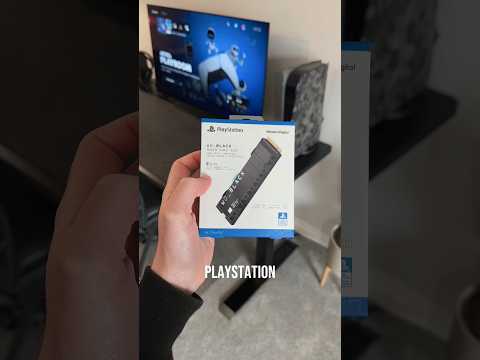
Yes, you absolutely can expand the storage of your PlayStation 5 (PS5)! Sony wisely included options for increasing your console’s capacity, allowing you to store more games, apps, and media without constantly deleting and re-downloading content. This is a game-changer (pun intended!) for serious gamers who maintain a large digital library. Let’s dive into the details of how to do it, what to consider, and answer some frequently asked questions.
Understanding Your Options
The PS5 offers two primary methods for storage expansion:
-
Internal M.2 SSD Expansion: This involves installing a compatible M.2 NVMe SSD into a dedicated slot inside the console. This is the preferred method as it offers the best performance, allowing games to load and run directly from the expanded storage with speeds comparable to the internal drive.
-
External USB Storage: You can connect an external USB hard drive or SSD to your PS5. However, there’s a catch: you can only store PS5 games on external storage, not play them directly from it. PS4 games, on the other hand, can be played directly from an external USB drive. This option is useful for archiving PS5 titles you’re not actively playing or for expanding your PS4 game library.
Internal M.2 SSD Expansion: The Speed Demon’s Choice
Requirements for M.2 SSDs
Not just any SSD will work with your PS5. Sony has specific requirements that you need to meet:
- Interface: PCIe Gen4 x4 NVMe SSD
- Capacity: 250GB – 8TB
- Form Factor: M.2 Type 2230, 2242, 2260, 2280, or 22110
- Socket Type: Socket 3 (Key M)
- Size: The total size of the M.2 SSD with a cooling mechanism (heatsink) must be smaller than the dimensions listed on Sony’s support site.
- Sequential Read Speed: 5500MB/s or faster (this is crucial for optimal performance)
Crucially, a heatsink is highly recommended (and sometimes required) to prevent the SSD from overheating. Some SSDs come with pre-installed heatsinks, while others require you to purchase and install one separately.
Installation Process
Installing an M.2 SSD in your PS5 is relatively straightforward, but it requires some basic technical skills. Always ensure your PS5 is powered off and unplugged before opening it. Detailed instructions, including video tutorials, are available on Sony’s official PlayStation support website. The general steps are:
- Remove the PS5’s side panel.
- Locate the M.2 SSD expansion slot.
- Remove the screw and spacer.
- Insert the M.2 SSD into the slot.
- Secure the SSD with the screw and adjust the spacer if necessary.
- Reattach the PS5’s side panel.
- Power on the PS5 and format the new SSD.
Benefits of Internal Expansion
- Optimal Performance: Games load and run as fast as they do from the internal SSD.
- Seamless Integration: The expanded storage integrates seamlessly with the PS5’s user interface.
- Future-Proofing: Gives you plenty of space for upcoming games and updates.
External USB Storage: A Convenient Archive
Limitations of External Storage
As mentioned earlier, the main limitation of external USB storage is that you cannot play PS5 games directly from it. You can only store them there. This means you’ll need to transfer games back to the internal SSD or the expanded M.2 SSD before you can play them.
Requirements for External USB Storage
- USB Interface: SuperSpeed USB 5 Gbps or later (USB 3.0 or later is recommended)
- Capacity: 250 GB minimum, 8 TB maximum.
Usage Scenarios
- Archiving PS5 Games: Free up space on your internal SSD by moving games you’re not currently playing to the external drive.
- Playing PS4 Games: Enjoy your PS4 game library directly from the external drive, without taking up space on your internal SSD.
- Easy Portability: Conveniently move your PS4 games between PS5 consoles.
Choosing the Right Storage Solution
The best storage solution for you depends on your individual needs and budget. If you want the best performance and plan to play a lot of PS5 games, an internal M.2 SSD expansion is the way to go. If you primarily want to archive PS5 games or play PS4 games, an external USB drive is a more economical option.
Frequently Asked Questions (FAQs)
Here are some frequently asked questions about expanding the PS5’s storage:
1. Can I use any M.2 SSD with my PS5?
No, you need to use an M.2 NVMe SSD that meets Sony’s specific requirements, including a sequential read speed of 5500MB/s or faster and a compatible form factor. Always check the specifications before purchasing.
2. Does the M.2 SSD need a heatsink?
Yes, a heatsink is highly recommended and may be required for optimal performance and to prevent overheating. Some SSDs come with pre-installed heatsinks, while others require you to purchase one separately.
3. What is the maximum storage capacity I can add to my PS5?
The PS5 supports M.2 SSDs with capacities ranging from 250GB to 8TB.
4. Can I play PS5 games directly from an external USB drive?
No, you cannot play PS5 games directly from an external USB drive. You can only store them there and must transfer them back to the internal SSD or expanded M.2 SSD to play them.
5. Can I play PS4 games from an external USB drive on my PS5?
Yes, you can play PS4 games directly from an external USB drive connected to your PS5.
6. How do I format a new M.2 SSD or external USB drive for use with my PS5?
The PS5 will prompt you to format the drive when you first connect it. Follow the on-screen instructions.
7. How do I move games between the internal SSD and external storage?
Go to Settings > Storage, select the storage location (internal or external), and choose the games you want to move.
8. Will expanding my PS5 storage void my warranty?
Installing an M.2 SSD should not void your warranty as long as you follow Sony’s instructions carefully and do not damage the console. However, modifying the console in any way can be tricky so GamesLearningSociety.org recommends you take due care.
9. How much does it cost to expand PS5 storage?
The cost varies depending on the capacity and brand of the SSD or external drive. Expect to pay anywhere from $70 to $800 or more, depending on your chosen storage solution.
10. Is 1TB enough for PS5?
Whether 1TB is enough depends on your gaming habits. If you only play a few games at a time, it might be sufficient. However, if you have a large digital library or plan to play many large AAA titles, consider a larger capacity like 2TB or 4TB.
11. Can I use two external hard drives on my PS5 simultaneously?
The PS5 can only read one external hard drive at a time. You can connect multiple drives, but you’ll need to switch between them.
12. Why is the usable storage on the PS5 less than the advertised 825GB?
The PS5’s internal SSD has a raw capacity of 825GB, but some of that space is reserved for the operating system, firmware, and other system files. This is common in all storage devices.
13. Does a full SSD affect game performance?
While a completely full SSD might experience some performance degradation, it’s unlikely to be noticeable in most gaming scenarios. However, it’s always a good idea to leave some free space for optimal performance.
14. What read/write speeds should I aim for when buying an external SSD?
While the PS5 requires internal SSD expansion to have a read speed of 5500MB/s or faster, there’s no minimum speed requirement for external SSD. But for archiving and moving PS5 games between storage and the console the higher read/write speed it has, the faster games are able to be played.
15. Will a bigger storage space affect the performance of my PS5?
No, the storage space doesn’t affect the performance of your PS5, only its ability to contain more files and games.
Expanding your PS5 storage is a worthwhile investment that can significantly enhance your gaming experience. By understanding your options and choosing the right storage solution, you can ensure that you have plenty of space for all your favorite games and media.