Can You Increase Storage on PS5? A Comprehensive Guide
Fast answer first. Then use the tabs or video for more detail.
- Watch the video explanation below for a faster overview.
- Game mechanics may change with updates or patches.
- Use this block to get the short answer without scrolling the whole page.
- Read the FAQ section if the article has one.
- Use the table of contents to jump straight to the detailed section you need.
- Watch the video first, then skim the article for specifics.
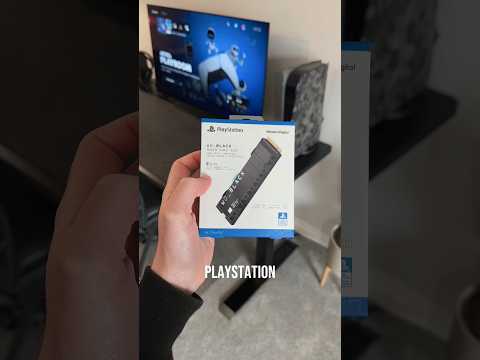
The short answer is a resounding YES! You absolutely can increase the storage on your PlayStation 5 (PS5). The internal storage of the PS5, while utilizing a blazing-fast custom SSD, can quickly become cramped, especially with the ever-increasing size of modern games. Fortunately, Sony designed the PS5 with storage expansion in mind, offering two primary methods for upgrading your console’s capacity: internal SSD expansion and external USB storage. This article delves into both methods, providing you with everything you need to know to expand your PS5’s storage and keep those gaming adventures rolling.
Internal SSD Expansion: Unleash the True Potential
The most powerful way to boost your PS5’s storage is by installing a compatible M.2 NVMe SSD into the internal expansion slot. This option allows you to store and play both PS5 and PS4 games directly from the expanded storage, ensuring the same lightning-fast loading times and seamless performance you expect.
Choosing the Right SSD: Key Specifications
Selecting the right SSD is crucial for a smooth and optimal gaming experience. Here are the key specifications to keep in mind:
-
Interface: It must be a PCIe Gen4 x4 NVMe SSD. This ensures compatibility with the PS5’s high-speed data transfer requirements.
-
Capacity: The PS5 supports SSDs ranging from 250GB to 8TB. Choose a capacity that suits your gaming needs and budget. 1TB or 2TB are generally considered sweet spots.
-
Sequential Read Speed: Sony recommends a minimum sequential read speed of 5,500MB/s. While some SSDs may slightly exceed this speed, aim for this baseline for optimal performance.
-
Form Factor: The supported form factors are 2230, 2242, 2260, 2280, and 22110. The most common and readily available size is 2280 (80mm).
-
Heatsink: A heatsink is essential to dissipate heat generated by the SSD, preventing thermal throttling and ensuring stable performance, especially during extended gaming sessions. Some SSDs come with pre-installed heatsinks, while others require you to purchase one separately. Make sure the total height of the SSD, including the heatsink, doesn’t exceed 11.25mm.
Installing the Internal SSD: A Step-by-Step Guide
Installing an M.2 SSD in your PS5 is a relatively straightforward process, but it’s essential to follow the steps carefully:
-
Power Down and Unplug: Completely turn off your PS5 and disconnect all cables, including the power cord.
-
Ground Yourself: Touch a grounded metal object to discharge any static electricity before handling internal components.
-
Remove the Side Panel: Place your PS5 on a soft surface and gently slide the side panel off by pushing it down and towards the back of the console. There are plenty of videos on YouTube that demonstrate how to do this, should you require a visual aid.
-
Locate the Expansion Slot: Identify the M.2 SSD expansion slot, which is covered by a metal plate.
-
Remove the Metal Plate: Unscrew the screw securing the metal plate and carefully remove it.
-
Adjust the Spacer: Inside the expansion slot, you’ll find a screw and a spacer. Move the spacer to the correct position based on the length of your SSD (usually 80mm for 2280).
-
Insert the SSD: Gently insert the SSD into the slot at a slight angle and then press it down to secure it.
-
Secure the SSD: Screw the SSD into place using the screw you removed earlier.
-
Reattach the Metal Plate: Place the metal plate back over the SSD and secure it with the screw.
-
Reattach the Side Panel: Slide the side panel back onto the PS5 until it clicks into place.
-
Reconnect and Power On: Reconnect all cables and power on your PS5.
-
Format the SSD: The PS5 will prompt you to format the newly installed SSD. Follow the on-screen instructions to complete the process.
External USB Storage: The Convenient Option
Using an external USB hard drive or SSD is a simpler and more affordable way to expand your PS5’s storage, but with a key limitation: you can only store and play PS4 games from an external drive. PS5 games can be stored, but you’ll need to move them back to the internal SSD or the internal expanded SSD to play them.
Choosing an External Drive: What to Look For
-
Type: You can use either a traditional hard disk drive (HDD) or a solid state drive (SSD). SSDs offer significantly faster transfer speeds, making them ideal for playing PS4 games directly from the external drive.
-
Interface: The drive must be connected via USB 3.0 or later.
-
Capacity: The PS5 supports external drives ranging from 250GB to 8TB.
Setting Up External Storage: A Simple Process
-
Connect the Drive: Plug the external drive into one of the PS5’s USB ports (preferably a USB 3.0 port for faster transfer speeds).
-
Format the Drive: Go to Settings > Storage > Extended Storage and select Format as Extended Storage. Follow the on-screen instructions to format the drive.
-
Move Games: You can now move PS4 games to the external drive to free up space on your internal storage.
Maintaining Your PS5 Storage
Regardless of which storage expansion method you choose, it’s important to manage your storage effectively. Regularly deleting games you no longer play, transferring save data to the cloud, and organizing your media files can help you keep your storage optimized and your PS5 running smoothly. Exploring educational games is also a great way to make use of your storage while having fun. For more information on the educational value of games, visit the Games Learning Society at https://www.gameslearningsociety.org/.
Frequently Asked Questions (FAQs)
1. What is the maximum size SSD for PS5?
The PS5 supports M.2 NVMe SSDs with a capacity of up to 8TB for internal expansion. For external USB drives, the maximum supported capacity is also 8TB.
2. Does adding SSD to PS5 make it faster?
Adding a compatible M.2 NVMe SSD to the internal expansion slot will provide the same performance as the internal SSD, meaning faster loading times and seamless gameplay for both PS5 and PS4 games stored on the expanded storage.
3. How many PS5 games can a 1TB SSD hold?
The number of games a 1TB SSD can hold depends on the size of the games. On average, PS5 games range from 40GB to 60GB. Therefore, a 1TB SSD could realistically hold 15-25 PS5 games.
4. Can you play PS5 games from an external hard drive?
No. You can store PS5 games on an external USB drive, but you cannot play them directly from the external drive. You must move them back to the internal SSD or the internal expanded SSD to play them.
5. How many SSD slots does a PS5 have?
The PS5 has one M.2 SSD expansion slot for internal storage upgrades.
6. Is 825GB enough for PS5?
Whether 825GB is enough depends on your gaming habits. If you only play a few games at a time, it might suffice. However, for avid gamers who like to keep many games installed, 825GB is likely insufficient, and expanding the storage is highly recommended.
7. What happens if my PS5 doesn’t have enough storage?
If your PS5 runs out of storage, you’ll need to delete games or media to free up space. Alternatively, you can expand the storage using either an internal SSD or an external USB drive.
8. Does PS5 slow down when storage is full?
While performance degradation isn’t as severe as it used to be on older consoles, copying data may be slightly slower when the storage is near capacity. However, the impact on in-game loading times is usually minimal.
9. What kind of SSD do I need for PS5?
You need a PCIe Gen4 x4 NVMe SSD with a sequential read speed of at least 5,500MB/s. It’s important to choose an SSD with a heatsink to prevent overheating.
10. Is upgrading PS5 storage worth it?
Yes, upgrading the PS5’s storage is definitely worth it, especially if you frequently download and play multiple games. It provides more space for your game library and ensures a smoother gaming experience.
11. How much does it cost to expand PS5 storage?
The cost of expanding PS5 storage varies depending on the capacity and type of storage you choose. A 1TB M.2 NVMe SSD with a heatsink can range from $80 to $150, while a 2TB SSD can cost between $150 and $300. External USB drives are generally more affordable, with 1TB options starting around $50.
12. Can I use an external hard drive on a PS5?
Yes, you can use an external hard drive on a PS5. However, you can only store and play PS4 games directly from the external drive. PS5 games can be stored, but must be moved to the internal SSD to be played.
13. How many games can 4TB hold PS5?
A 4TB HDD or SSD can hold a significant number of games. If the average game size is 60GB, a 4TB drive could hold approximately 60-70 games.
14. Why is PS5 storage so fast?
The PS5 storage is fast because it utilizes a custom-designed SSD connected via a PCIe 4.0 interface, allowing for extremely high data transfer speeds.
15. What if my SSD does not fit in my PS5 SSD slot?
If your SSD doesn’t fit, ensure it conforms to the required form factor (2230, 2242, 2260, 2280, or 22110) and that the heatsink doesn’t exceed the maximum height (11.25mm). Double-check the installation steps and consult online resources for guidance if needed. You may have to buy a low-profile heatsink, or one designed for the PS5.
Expanding your PS5’s storage is a worthwhile investment that enhances your gaming experience by providing more space for your games and ensuring optimal performance. Choose the method that best suits your needs and budget, and get ready to enjoy a vast library of games without worrying about running out of space.