Can You Put an SD Card in a Steam Deck? Everything You Need to Know
Fast answer first. Then use the tabs or video for more detail.
- Watch the video explanation below for a faster overview.
- Game mechanics may change with updates or patches.
- Use this block to get the short answer without scrolling the whole page.
- Read the FAQ section if the article has one.
- Use the table of contents to jump straight to the detailed section you need.
- Watch the video first, then skim the article for specifics.
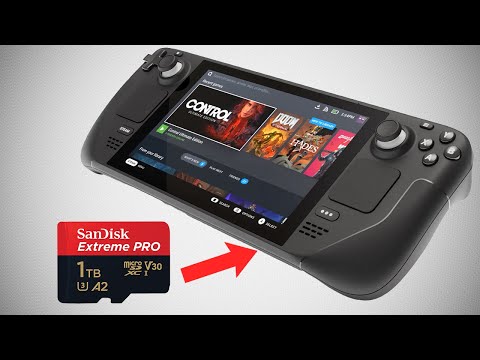
The short answer is a resounding yes, you absolutely can put an SD card in a Steam Deck! In fact, it’s one of the most convenient and affordable ways to expand your storage on this versatile handheld gaming PC. The Steam Deck features a microSD card slot, specifically designed to accommodate microSDXC cards, which allow for significant storage expansion beyond the internal drive. This capability is a game-changer, allowing you to carry a vast library of games with you without constantly worrying about running out of space. But there’s more to it than simply slotting in a card. Let’s dive into everything you need to know about using SD cards with your Steam Deck.
Why Use an SD Card with Your Steam Deck?
The primary reason most Steam Deck owners opt for SD card storage is to address the limited internal storage of the base models, especially the 64GB version. While the internal storage is fast and reliable, it fills up quickly, especially with modern AAA games. SD cards provide a cost-effective and easily removable solution to this problem. They allow you to:
- Increase storage capacity: Carry more games, videos, and other media without constantly having to uninstall and reinstall.
- Organize your library: Separate different game genres or groups onto different SD cards for better organization.
- Easily swap storage: Hot-swapping SD cards lets you quickly access different libraries of games on the go.
- Cost-Effective Alternative: SD cards are generally cheaper than upgrading the internal SSD.
Choosing the Right SD Card for Your Steam Deck
Not all SD cards are created equal. When it comes to your Steam Deck, you need a card that can keep up with the demands of modern gaming. Here’s what to look for:
MicroSDXC is Key
It’s crucial that you opt for a microSDXC card. Standard microSD cards are limited to 2GB, and microSDHC cards max out at 32GB, making them unsuitable for the storage demands of most modern games. MicroSDXC cards are capable of handling the 64GB to 2TB range, making them the only real option.
Speed Matters
While the Steam Deck’s card reader is limited to UHS-I speeds, it’s still important to choose a card with good read and write speeds. Look for cards rated at least U3 and V30 for the best performance. These ratings indicate that the card can maintain a minimum write speed of 30MB/s, which is important for quick game installs and smooth performance. While UHS-II cards offer faster speeds, the Steam Deck’s hardware won’t utilize them, making UHS-I the most suitable option.
Capacity Options
SD cards for the Steam Deck are commonly found in capacities ranging from 128GB all the way up to 1TB, with even 2TB cards becoming increasingly available. Your ideal size will depend on how many games you plan to carry. A 512GB SD card is a great sweet spot for many users, offering ample storage for a substantial library without breaking the bank. If you have a large collection of demanding AAA titles, 1TB card is the most future-proof option.
Recommended SD Cards
The market offers many suitable options, but here are some of the most consistently recommended SD cards for Steam Deck:
- Samsung Evo Plus microSDXC: Often considered the best overall option for its blend of performance and value.
- Samsung EVO Select 512GB microSDXC: A great pick, particularly for Amazon shoppers.
- SanDisk 512GB Extreme microSDXC: Well-regarded for its reliability and availability in a range of size options, including 1TB.
- SanDisk 1TB Extreme microSDXC UHS-I: An excellent choice for those needing lots of storage and want that solid performance.
- Samsung PRO Plus 512GB microSDXC: A high-performance option that can help reduce loading times.
How to Install and Format an SD Card on Steam Deck
The process is remarkably simple:
- Insert the SD card into the designated slot on your Steam Deck.
- Press the Steam button to open the main menu.
- Navigate to Settings > System.
- Select “Format SD card.”
- Confirm your choice.
It’s crucial to format your SD card through the Steam Deck’s system settings, even if the card is brand new. This ensures that it uses the correct EXT4 file system, which is compatible with the Steam Deck’s Linux-based operating system. Failure to do so may result in errors and performance issues.
Performance Considerations
While SD cards are convenient, it’s important to manage your expectations. SD cards will generally not perform as fast as the internal SSD. Although the Steam Deck’s software has been optimized to minimize the difference, you might experience slightly longer loading times and, in some very demanding games, occasional stuttering, particularly when loading in new areas. However, for the most part, the performance difference is minimal and many users have reported that the SD card feels just as fast as the internal SSD. If performance is a top priority, prioritize installing the most frequently played or performance-sensitive games on your internal SSD and using the SD card for games that don’t require rapid loading.
Frequently Asked Questions (FAQs)
1. Do games run slower on an SD card on Steam Deck?
Yes, potentially. Due to the slower read and write speeds of SD cards compared to the internal SSD, you might notice slightly longer loading times and occasional stuttering in some games, especially when loading new areas. However, the performance difference is usually minimal.
2. What is the best SD card for Steam Deck in 2023?
The Samsung Evo Plus microSDXC is often cited as the best overall SD card. The SanDisk Extreme series (in sizes such as 512GB or 1TB) are also excellent choices, particularly the 1TB version for those needing a lot of storage.
3. Can I use a 1TB SD card in my Steam Deck?
Absolutely! The Steam Deck supports 1TB microSDXC cards, such as the SanDisk 1TB Extreme microSDXC UHS-I card. This provides plenty of space for a vast game library.
4. Is a 128GB SD card enough for Steam Deck?
For basic use and a smaller library of games, a 128GB card is enough, especially if you prioritize smaller indie titles. However, most users will find that a 512GB or 1TB card is a better long-term investment.
5. Does a 2TB microSD card work on Steam Deck?
Yes, while less common, 2TB microSDXC cards are compatible with the Steam Deck. It’s essential to ensure that the card is formatted correctly to the EXT4 file system using the Steam Deck’s own formatting tool.
6. Why is my Steam Deck not recognizing my SD card?
This can happen if the SD card is not formatted correctly. Make sure to format the card as EXT4 using the Steam Deck’s internal formatting tool. If that fails, it is possible that you have an incompatible SD card.
7. What if I previously used my SD card with a Windows or Mac device?
It’s best practice to format a new or previously used microSD card using the Steam Deck’s internal formatting system to ensure the EXT4 file system is used. This is particularly important if you were using it on a Windows or Mac device.
8. Can I use other external storage devices like an external SSD?
Yes, you can use external USB drives and SSDs with the Steam Deck via its USB-C port.
9. How do I expand Steam Deck storage besides using an SD card?
Besides SD cards, you can also use an external USB drive, or you can replace the internal SSD with a larger one.
10. Is it better to get the 64GB or 256GB Steam Deck?
The 256GB version is the better option. It has much more internal storage space, and you also have the microSD slot for further expansion. However, if the cost is a significant factor and you plan on using a microSD card for most of your games, the 64GB version can also be a viable option.
11. How long does the Steam Deck battery last?
The Steam Deck battery typically lasts around 2 hours on average with default settings, but it can last up to 8 hours depending on the game, the settings you use, and other system parameters.
12. Is the Steam Deck still worth it in 2023?
Yes, the Steam Deck remains a great option for portable gaming, offering a vast library of games and the ability to play PC games on the go.
13. Can I connect my Steam Deck to a TV?
Yes, you can connect your Steam Deck to a TV or monitor using a USB-C to HDMI adapter.
14. Is a SanDisk Ultra SD card good for Steam Deck?
The SanDisk Ultra MicroSD card works with the Steam Deck, reaching up to 120 MB/s read speeds. It is a more affordable option, making it suitable for those with the 64GB model looking for a cheap storage boost. However, the faster SanDisk Extreme series or the Samsung EVO are better for optimal performance.
15. Is the Steam Deck faster than the PS5?
No, the PS5 offers superior performance, faster loading times, and smoother gameplay. However, the Steam Deck is a capable and versatile device that provides great gaming experiences, especially for portable play.
In conclusion, adding an SD card to your Steam Deck is a fantastic and cost-effective way to expand your storage and enhance your gaming experience. With the right card and some basic setup, you can enjoy a vast library of games on the go. Just remember to choose a suitable microSDXC card and always format it through the Steam Deck’s system settings to ensure optimal performance.