Can You Tell If Someone Is Online on Steam? A Comprehensive Guide
Fast answer first. Then use the tabs or video for more detail.
- Watch the video explanation below for a faster overview.
- Game mechanics may change with updates or patches.
- Use this block to get the short answer without scrolling the whole page.
- Read the FAQ section if the article has one.
- Use the table of contents to jump straight to the detailed section you need.
- Watch the video first, then skim the article for specifics.
The short answer is: it’s not always straightforward. Steam provides multiple status options that allow users to control their visibility, making it tricky to definitively know if someone is truly offline. While you can generally see if a friend is online, the system is designed to prioritize user privacy. Let’s delve deeper into the nuances of Steam’s online visibility and how to navigate these settings.
Understanding Steam’s Online Status Options
Steam offers several online status options, each with its own implications:
Online
This is the default state. When a user is logged into Steam, they will appear as “Online” to their friends and the community. This means their friends can see their status, what game they are playing (if not hidden), and can message them.
Away
This status indicates that the user is logged in, but may not be actively at their computer. Steam automatically changes your status to “Away” after 5 minutes of inactivity. You can also manually set your status to “Away.”
Snooze
After approximately 2 hours of inactivity, Steam automatically sets your status to “Snooze“. This signals that the user has been away from their computer for an extended period.
Invisible
This option allows a user to appear offline to everyone, while still being able to access Steam’s features, such as chatting with friends and participating in the community. It’s designed for maximum privacy. If someone is in Invisible mode, you will not see them as online.
Offline
Choosing Offline status actually signs the user out of the Steam network. They won’t appear in friends lists or be able to interact with the online community until they sign back in.
How to Determine If Someone Is Online
The primary way to see if someone is online on Steam is to add them to your friends list. This allows you to see their current status, be it Online, Away, Snooze, or what game they are currently playing, provided they haven’t set their game details to private.
If the person is set to Invisible, they will always show as offline on your friends list, regardless of their actual activity. If someone’s status appears as offline, it could mean they are genuinely offline, or they could be in Invisible mode. Without knowing for sure, there is no way to tell for sure. Steam intentionally obscures the line between truly offline and Invisible for user privacy.
Why Might Someone Choose to Hide Their Online Status?
There are many reasons why someone might choose to appear offline. Common reasons include:
- Privacy Concerns: Some users prefer not to be constantly monitored for their gaming habits and choose to keep their activity private.
- Avoiding Interactions: If a user wants to play without being disturbed, going Invisible prevents friends from messaging or requesting to join their game.
- Playing Embarrassing Games: Let’s face it, some games are more “guilty pleasures” than others. Hiding game activity can prevent friends from seeing what you’re playing.
- Managing Time: Some users like to be more mindful of how much time they spend gaming and don’t like the online social accountability.
Frequently Asked Questions (FAQs)
1. Can someone see if I’m online if I’m in Invisible mode?
No. When you are in Invisible mode, you will appear offline to all your friends and other Steam users. They cannot see if you are logged in.
2. What’s the difference between Invisible and Offline status?
Invisible still keeps you logged in to Steam, allowing you to use chat and other features, while appearing offline to others. Offline completely signs you out of the Steam network and you cannot access chat, join games, etc.
3. How long does it take for Steam to change my status to “Away”?
Steam automatically changes your status to “Away” after 5 minutes of inactivity.
4. How long does it take for Steam to change my status to “Snooze”?
Steam automatically sets your status to “Snooze” after approximately 2 hours of inactivity.
5. Can I see what game someone is playing if they are online?
Yes, if their Game Details setting is set to public or friends-only. If they have chosen to hide this information, you will not see the game they are playing.
6. Can I see when someone views my Steam profile?
No. Steam does not provide a feature to track who views your profile. If you want to limit who can see your profile, you can set your profile to private or friends-only.
7. Can I hide my game activity from my friends?
Yes. You can hide your game activity by changing your Game Details privacy setting to private. You can also hide specific games by selecting the game in your library and choosing Manage > Hide This Game.
8. If someone removes me as a friend on Steam, will I be notified?
No, Steam doesn’t explicitly notify you if someone removes you from their friend list. However, you will notice they are no longer on your list, which indicates they have removed you.
9. If someone blocks me on Steam, will I know?
Steam doesn’t directly notify you if someone blocks you. However, you will not be able to see their public profile, add them as a friend, or send a friend request.
10. Can I see if someone is using Steam Mobile?
No, the Steam client will not reveal whether someone is using the Steam Mobile app or the desktop client.
11. Does Steam Mobile allow you to go Invisible?
Yes, while the Steam Mobile client doesn’t have all the status options, the Steam Chat app does let you go Invisible.
12. Why do some people hide their Steam games and activity?
People hide their games and activity for various reasons, such as privacy concerns, avoiding unwanted interactions, and keeping their gaming habits private.
13. What does the “ZZZ” status on Steam mean?
The “ZZZ” status often indicates that the user is either AFK (Away From Keyboard) while playing a game or has simply left their computer while playing.
14. Can friends see uninstalled games on my Steam profile?
Friends can not see uninstalled games in your library but they can see achievements for uninstalled games you may have played. They also don’t have access to your purchase history.
15. How do I appear online while using the Steam client?
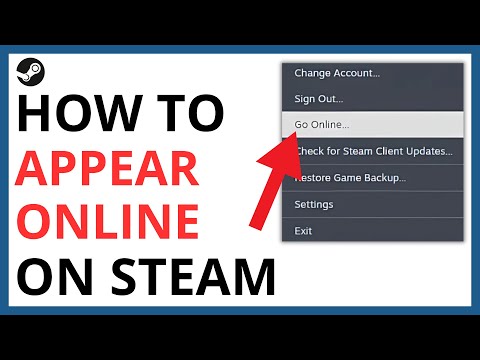
If you’re in offline mode, click “Steam” in the upper left corner and select “Go online.” Steam will then restart in online mode.
Conclusion
Determining if someone is online on Steam is not always clear-cut. The system prioritizes user privacy through options like Invisible mode and the ability to hide game activity. While you can often see your friend’s status if they are online and are not hidden, it’s important to remember that not every offline status definitively means they aren’t online. By understanding these various status options and privacy settings, you can navigate Steam’s social system with more clarity and respect for other players’ privacy preferences.