Can You Turn Off Mods? A Comprehensive Guide to Mod Management
Fast answer first. Then use the tabs or video for more detail.
- Watch the video explanation below for a faster overview.
- Game mechanics may change with updates or patches.
- Use this block to get the short answer without scrolling the whole page.
- Read the FAQ section if the article has one.
- Use the table of contents to jump straight to the detailed section you need.
- Watch the video first, then skim the article for specifics.
Yes, you absolutely can turn off mods! The process varies significantly depending on the game and the platform you’re using. Managing your mods, whether it’s disabling, uninstalling, or simply tweaking their load order, is a crucial skill for any PC gamer venturing into the world of game modifications. Understanding the different methods and potential consequences will save you from headaches and game-breaking bugs. Let’s dive into the specifics of how you can control your mod experience.
Understanding Game Mods
Mods, short for modifications, are alterations to a video game made by players or other third parties. They can range from simple cosmetic changes to complex overhauls that completely transform the gameplay experience. While mods offer endless possibilities for customization and personalization, they can also introduce instability if not managed correctly.
General Methods for Disabling Mods
The method for disabling mods depends entirely on the game and the tools you are using to manage them. Here are some common approaches:
- In-Game Mod Managers: Some games have built-in mod managers that allow you to enable or disable mods with a simple checkbox.
- External Mod Managers: Programs like Vortex and Mod Organizer 2 are popular tools that provide comprehensive control over your mod installations, allowing you to easily enable, disable, and uninstall mods.
- Manual File Management: This involves directly altering the game files, typically by renaming or deleting mod files. This method requires caution and a good understanding of the game’s file structure.
Specific Examples Across Different Games
Here are some examples of how to disable mods in popular games:
Minecraft
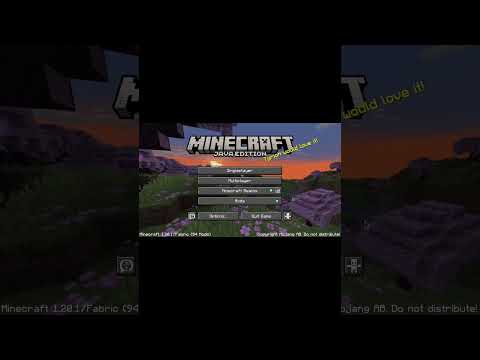
- Vanilla Launcher: In the Minecraft Launcher, navigate to “Installations,” find the profile you’re using (e.g., Fabric), click the folder icon, and then the “mods” folder. To disable a mod, rename the
.jarfile to.jar.disabled. - Third-Party Launchers: Launchers like CurseForge offer similar functionalities, typically with a graphical interface for enabling and disabling mods.
The Sims 4
- When you load the game, a list of installed mods usually appears. You can disable mods from loading by deselecting an option, but it may need a game restart to apply.
- Another way is to go into the Sims 4’s settings, and disable the mods in settings. This will remove all mods and a restart is required for the changes to be applied.
Skyrim
- Bethesda.net Mod Manager: Skyrim has an in-game mod manager that allows you to disable mods.
- Vortex/Mod Organizer 2: These external managers offer greater control over your mod setup.
Grand Theft Auto V (GTA 5)
- Mods are generally disabled by removing or renaming the relevant files from the game’s directory. However, using mods in GTA Online is strictly prohibited and can result in a ban. It’s essential to play the online mode with a clean, unmodded installation.
Potential Consequences of Disabling Mods
Disabling mods can have several consequences:
- Game Instability: Removing certain mods mid-game can cause crashes or save file corruption.
- Missing Content: Disabling mods that add items, quests, or characters will remove that content from your game.
- Achievement Lockout: Some games disable achievements when mods are enabled. Disabling all mods and loading a pre-modded save may restore achievement eligibility.
Best Practices for Mod Management
- Read Mod Descriptions Carefully: Understand the requirements and potential conflicts of each mod before installing it.
- Use a Mod Manager: Tools like Vortex and Mod Organizer 2 simplify mod installation, management, and troubleshooting.
- Create Backups: Regularly back up your game saves and important game files before making significant changes to your mod setup.
- Test Mods Individually: Install and test mods one at a time to identify any conflicts or issues.
- Clean Your Game: After uninstalling mods, use tools to clean your game directory of any residual files that could cause problems.
Frequently Asked Questions (FAQs)
1. What happens if I disable a mod mid-game?
Disabling a mod mid-game can potentially cause issues such as crashes, save file corruption, or missing content. It’s generally recommended to start a new game after making significant changes to your mod setup.
2. Will disabling mods re-enable achievements in games like Skyrim?
Yes, in many games like Skyrim, enabling mods will disable achievements. To re-enable achievements, you must disable or remove all mods and load a save file from before you installed any mods.
3. Is it safe to disable all mods at once?
While it’s possible, it’s generally safer to disable mods incrementally and test the game after each change. This helps identify any specific mods that may be causing issues.
4. What’s the difference between disabling and uninstalling a mod?
Disabling a mod simply prevents it from being loaded by the game, while uninstalling removes the mod files from your system entirely.
5. Can mods mess up my game permanently?
Yes, poorly designed or conflicting mods can potentially damage your game files or save files. It’s always a good idea to back up your game before installing mods.
6. Do all games allow mods?
No, not all games support mods. Some games are designed with modding in mind, while others have restricted access to their game files.
7. Are there risks involved in downloading mods?
Yes, there are always risks involved in downloading files from the internet. Download mods from trusted sources and be wary of suspicious files.
8. How do I know if a mod is causing a problem?
If you experience crashes, glitches, or unexpected behavior after installing a mod, it’s likely that the mod is causing a problem. Try disabling the mod to see if the issue resolves itself.
9. What is a “dirty mod” and how do I fix it?
A “dirty mod” contains unnecessary or conflicting edits that can cause issues. Tools like SSEEdit can be used to clean dirty mods.
10. Is it okay to mod Minecraft?
Yes, it is. Minecraft’s developers Mojang, fully supports modding. There are tons of Minecraft mods available.
11. How do mod managers like Vortex work?
Vortex uses a virtual data directory, so disabled mods aren’t inserted into that virtual directory. The mod files remain on your drive until uninstalled.
12. What happens if I uninstall The Sims 4?
The Sims 4’s saves, mods, and user options are saved, and you won’t lose anything when you uninstall the game.
13. Where can I find safe mods to download?
Nexus Mods is a very well-known and safe website to find all sorts of mods for many games.
14. Is God Mode allowed for getting achievements in Skyrim?
God Mode does not disable achievements in the game.
15. How do mods change learning?
Mods can transform video games into powerful learning tools. They offer a unique platform for players to engage with complex systems, solve problems creatively, and even learn basic coding skills. The Games Learning Society (GamesLearningSociety.org) explores these educational applications further.
Conclusion
Turning off mods is a fundamental aspect of managing your PC gaming experience. By understanding the different methods and potential consequences, you can enjoy the benefits of mods while minimizing the risks. Always practice safe modding habits, back up your game files, and stay informed about the mods you’re using.