Can You Use a Regular SSD for Xbox One? A Comprehensive Guide
Fast answer first. Then use the tabs or video for more detail.
- Watch the video explanation below for a faster overview.
- Game mechanics may change with updates or patches.
- Use this block to get the short answer without scrolling the whole page.
- Read the FAQ section if the article has one.
- Use the table of contents to jump straight to the detailed section you need.
- Watch the video first, then skim the article for specifics.
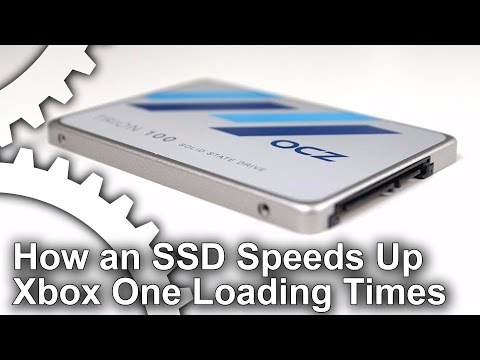
The short answer is yes, you can use a regular SSD with your Xbox One, but it’s not quite as simple as plugging it in and playing. While Microsoft officially recommends and supports external SSDs connected via USB 3.0, it is also possible to replace the internal hard drive of the Xbox One with an SSD. However, this comes with caveats that we’ll explore in detail. This article aims to provide a comprehensive guide to using regular SSDs with your Xbox One, covering both external and internal options and addressing common questions.
Internal SSD Upgrades: A DIY Approach
The Possibilities and the Risks
While Microsoft’s official stance is to recommend external storage, internal SSD replacement is feasible for technically inclined users. Replacing the internal HDD (Hard Disk Drive) with an SSD (Solid State Drive) can noticeably improve load times, game performance, and overall system responsiveness. However, this process comes with a significant risk: it voids your Xbox One warranty. So, if your console is still under warranty, proceed with caution.
The Process
The general procedure involves:
- Powering down and disconnecting your Xbox One.
- Opening the console case, which typically involves some level of disassembly.
- Removing the original HDD.
- Installing the new SSD in its place.
- Reassembling the console.
- Reinstalling the operating system. Note this step might require additional resources and research.
It’s important to note that this is not a simple plug-and-play process and requires careful handling to avoid damaging your console. It’s strongly recommended that you follow a reputable online guide or video tutorial to ensure you perform the upgrade safely.
Choosing the Right Internal SSD
For internal replacement, you’ll need a 2.5-inch SATA SSD that fits the physical dimensions of the original HDD. Ensure it’s a compatible model with the correct SATA interface. The size of the SSD depends on your needs, but most users opt for at least 500GB or 1TB for a decent upgrade. Keep in mind the price per gigabyte tends to go down as you increase your storage size.
External SSDs: The Simpler Option
The Advantages of External SSDs
Using an external SSD with your Xbox One is a much simpler and safer approach. It doesn’t void your warranty and requires no technical disassembly. External SSDs offer noticeable improvements in loading times and game performance compared to the original hard drive, especially for more data-intensive games.
How to Connect an External SSD
- Plug your external SSD into one of the Xbox One’s USB 3.0 ports.
- The console will typically recognize the drive and prompt you to format it.
- Select “Format storage device” and give it a name.
- Your external SSD is now ready to be used for game storage.
Speed Considerations
The speed of your external SSD will significantly impact performance. While external SSDs offer significant speed increases, the connection method matters. You will get the best results if you use an SSD that supports the higher throughput of the USB 3.0 connection on the console.
Choosing the Right External SSD
Look for an external SSD with a USB 3.0 or higher connection for maximum speed. There are many options on the market, ranging from affordable units to high-performance ones with faster speeds. Consider your storage needs and budget when choosing.
The Performance Boost: Is it Worth it?
Loading Times and In-Game Performance
SSDs provide significantly faster read and write speeds compared to HDDs. This translates to reduced loading times, quicker game installations, and smoother gameplay in certain situations, such as rendering in open-world titles.
SSDs and Xbox One S vs Xbox One X
It’s worth mentioning that the Xbox One X will generally benefit more from an SSD than the Xbox One S. While both will see performance improvements, the Xbox One X, with its more powerful hardware, can utilize the speed boost more effectively.
Frequently Asked Questions (FAQs)
1. What type of SSD is compatible with Xbox One?
For internal upgrades, you need a standard 2.5-inch SATA SSD. For external use, any external SSD with a USB 3.0 or higher connection is compatible.
2. Does an external SSD improve Xbox One performance?
Yes, an external SSD drastically improves load times and can enhance performance, especially in games with large open worlds or frequent loading screens.
3. Will an SSD make my Xbox One run faster?
While it won’t make the console’s processor faster, it will drastically reduce loading times, making the experience feel snappier and more responsive.
4. Will my games run as fast from an external SSD?
Yes, games run just as fast, if not faster, from an external SSD as they would from the internal HDD, and with the right connection setup.
5. How do I set up an external SSD with my Xbox One?
Simply plug it into a USB 3.0 port, and the console will prompt you to format it as a game storage device.
6. What size SSD is recommended for Xbox One?
500GB to 1TB is a good starting point for most users, depending on the number of games you want to store.
7. Can I move my games from the internal HDD to an external SSD?
Yes, you can easily move games between internal and external storage from the Xbox One’s storage settings.
8. Is an SSD worth the extra cost?
Yes, the increased speed and performance offered by an SSD is generally worth the extra cost, especially for avid gamers.
9. Will an SSD fix stuttering in games?
If the stuttering is related to slow loading times, an SSD can help. However, if the stutter is due to other factors, like processor bottlenecks, an SSD won’t help as much.
10. What are the downsides of using an external SSD?
The main downsides are the higher cost compared to traditional HDDs and sometimes issues with compatibility, however these are very rare now.
11. How long will an SSD last?
SSDs typically last five to ten years, depending on usage.
12. Can I use a USB stick instead of an SSD?
While you can use a USB stick, it is not recommended. SSDs offer much faster speeds that USB sticks cannot match. You will be getting only a very small benefit compared to an SSD.
13. Does upgrading to an SSD void my Xbox One warranty?
Replacing the internal drive will void your warranty. However, using an external SSD will not.
14. Can an SSD improve the performance of the Xbox One S?
Yes, an SSD can improve the performance of the Xbox One S by reducing loading times and improving the responsiveness of games.
15. What is the difference between an SSD and HDD?
SSDs use flash memory for fast storage, while HDDs use spinning disks. SSDs are generally faster, more durable, and produce less heat.
Conclusion
While upgrading to an SSD may seem daunting, the benefits to your Xbox One gaming experience are undeniable. Whether you choose to go the more technical route with internal replacement, or the simpler approach of external storage, an SSD can provide a noticeable increase in speed, responsiveness, and overall gaming enjoyment. Just remember to weigh the risks and benefits carefully before making your decision. With the right SSD setup, you can breathe new life into your Xbox One and get back into gaming with minimal wait times.