Can I Use Any Bluetooth Headset with My Xbox Series S? A Comprehensive Guide
Fast answer first. Then use the tabs or video for more detail.
- Watch the video explanation below for a faster overview.
- Game mechanics may change with updates or patches.
- Use this block to get the short answer without scrolling the whole page.
- Read the FAQ section if the article has one.
- Use the table of contents to jump straight to the detailed section you need.
- Watch the video first, then skim the article for specifics.
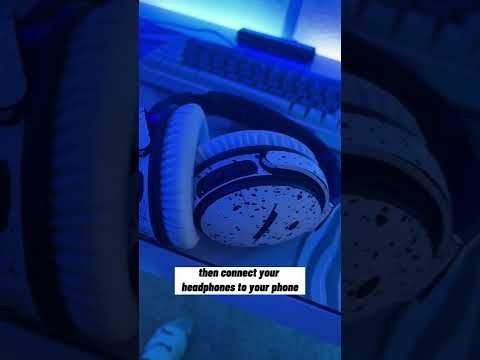
The short answer is no, not all Bluetooth headsets work directly with the Xbox Series S. While the Xbox Series S is a modern gaming console, it doesn’t natively support Bluetooth audio for headsets in the way you might expect. This can be frustrating for gamers who want to use their existing Bluetooth headphones or earbuds for gaming. But fear not! There are workarounds and specific types of headsets that do work, and we’re here to break it all down for you.
Understanding Xbox Wireless Protocol
The primary reason for this limitation is that Xbox consoles, including the Series S, utilize the Xbox Wireless Protocol for connecting wirelessly to controllers and headsets. This protocol offers lower latency and a more stable connection compared to Bluetooth, which is crucial for a smooth gaming experience. Microsoft designed Xbox Wireless with gaming performance in mind, prioritizing responsiveness over universal compatibility with Bluetooth devices.
Why Doesn’t Xbox Just Use Bluetooth?
Bluetooth, while ubiquitous, isn’t always the best solution for gaming audio. It can introduce latency, which is the delay between when a sound is produced in the game and when you hear it. Even a slight delay can be detrimental to your gameplay, especially in competitive scenarios. The Xbox Wireless Protocol is specifically optimized for low-latency audio transmission. Also, by maintaining its proprietary protocol, Microsoft can exert greater control over the user experience and maintain its ecosystem.
What Headsets Do Work with Xbox Series S?
While direct Bluetooth connectivity is limited, you have several options for using headsets with your Xbox Series S:
1. Xbox Wireless Headsets
These are the officially supported headsets designed to work seamlessly with the console. They connect directly using the Xbox Wireless Protocol, offering a hassle-free experience. Examples include:
-
Microsoft Xbox Wireless Headset: Designed specifically for Xbox Series X|S and Xbox One, providing excellent sound quality and integration.
-
SteelSeries Arctis 9X: A popular choice known for its comfort, sound quality, and dual wireless connectivity (Xbox Wireless + Bluetooth for simultaneous connections).
-
Turtle Beach Stealth 700 Gen 2 MAX: Offers long battery life and compatibility across multiple platforms.
2. Wired Headsets
Any headset with a 3.5mm audio jack can be plugged directly into the 3.5mm port on the Xbox Wireless Controller. This is a simple and reliable solution, although it does mean you’ll be tethered to your controller.
3. Third-Party Wireless Headsets with Xbox Wireless Support
Some third-party manufacturers create headsets specifically designed to work with the Xbox Wireless Protocol. These headsets offer a wireless experience similar to the official Xbox Wireless Headset. Before buying, always confirm that the headset explicitly states that it is compatible with Xbox Series X|S consoles.
4. Using Bluetooth Adapters
This is the method to use if you really want to use your existing Bluetooth headset. Bluetooth adapters specifically designed for Xbox controllers plug into the controller and transmit audio wirelessly to your Bluetooth headset. Note that the article does state the need for bluetooth adapters that are designed to be used with newer Xbox controllers. However, keep in mind that these adapters are third-party solutions, and their performance can vary. Look for adapters with low latency claims and good reviews. The article mentions that a Bluetooth 5.0 adapter can add Bluetooth audio support to Xbox controllers by converting game sound output via the 3.5mm headphone jack.
5. Connecting Through Your TV
As the article states: Many modern TVs support Bluetooth audio output. By connecting your Xbox to your TV via HDMI, you can then pair your Bluetooth headset directly to your TV. The audio is routed to the TV first and then passed to the Bluetooth headset. This method might introduce some additional latency, so it’s not ideal for competitive gaming.
Connecting USB Headsets
Connecting a USB headset can sometimes be tricky. The Xbox consoles use a different type of chip than the PlayStation or Nintendo Switch. Some USB headsets designed specifically for Xbox will connect directly via the USB-A port on the console. However, most standard USB headsets won’t work. As always, check compatibility before purchasing.
Headset Settings and Customization
Once you have a compatible headset connected, you can adjust the audio settings on your Xbox Series S by pressing the Xbox button to open the guide and selecting Profile & system > Settings > General > Volume & audio output. Here, you can adjust headset volume, chat mixer levels, and headset audio format.
Frequently Asked Questions (FAQs)
1. Why can’t I directly connect my AirPods to my Xbox Series S?
AirPods use Bluetooth, and the Xbox Series S does not natively support Bluetooth audio connections for headsets.
2. Can I use a USB-C to 3.5mm adapter to connect my USB-C headphones to the Xbox controller?
If your USB-C headphones have an internal DAC that is not compatible with Xbox, then no, it won’t work. However, some adapters may work, but results can vary.
3. Will a Bluetooth transmitter plugged into my TV allow me to use any Bluetooth headset with my Xbox Series S?
Yes, this is a viable workaround. Connect the Xbox to your TV via HDMI, and then connect the Bluetooth transmitter to the TV’s audio output. Pair your Bluetooth headset with the transmitter. Be aware of potential latency issues.
4. How do I know if a headset is compatible with Xbox Wireless Protocol?
Check the product description or specifications. Look for explicit mentions of “Xbox Wireless” or “compatible with Xbox Series X|S” on the packaging or website.
5. What is the best type of headset to use with Xbox Series S for the lowest latency?
An Xbox Wireless headset offers the lowest latency and the most seamless integration.
6. My headset works on my PC but not on my Xbox Series S. Why?
Your headset might be using a standard Bluetooth connection on your PC. Since the Xbox Series S doesn’t support Bluetooth audio directly, it won’t work unless you use an adapter or other workaround.
7. Where can I find the headset audio settings on my Xbox Series S?
Press the Xbox button to open the guide and select Profile & system > Settings > General > Volume & audio output.
8. What does “allow passthrough” mean in the Xbox audio settings?
Audio passthrough allows the Xbox to send raw audio directly to your TV or audio receiver, bypassing any processing by the console. This can improve audio quality if you have a high-end audio setup.
9. Why is my headset not working on my Xbox Series S even though it’s plugged into the controller?
Ensure the headset is fully plugged into the controller’s 3.5mm port. Also, check that the headset isn’t muted and the volume is turned up. Finally, ensure that the controller firmware is up to date.
10. Can I use a wireless headset designed for PlayStation on my Xbox Series S?
Not directly. PlayStation headsets typically use a different wireless protocol (often Bluetooth) than Xbox. You’ll need an adapter specifically designed to bridge the gap between PlayStation headsets and Xbox consoles.
11. My Xbox Series S doesn’t have an optical audio output. How can I connect my older headset that uses optical audio?
Connect your Xbox Series S to your TV via HDMI, and then connect your headset to your TV’s optical audio output. You may need to adjust your TV’s audio settings to ensure the audio is being output correctly.
12. How do I update the firmware on my Xbox Wireless Controller to ensure headset compatibility?
Press the Xbox button to open the guide and select Profile & system > Settings > Devices & connections > Controllers & headsets. Select your controller, and then choose “Update.”
13. Can I use a USB microphone with my Xbox Series S?
Generally, no. The Xbox Series S primarily supports headsets designed for gaming, not standalone USB microphones. Some USB microphones designed explicitly for Xbox may work, but this is rare.
14. Where can I learn more about the science behind gaming and learning?
You can explore resources and research on the Games Learning Society at GamesLearningSociety.org, which investigates the intersection of gaming and education.
15. Is there any way to use my Bluetooth earbuds for in-game chat on Xbox Series S?
The easiest way is by using the Xbox app on your smartphone. You can use the app to participate in Xbox parties, effectively using your phone’s microphone and your Bluetooth earbuds for chat. You’ll still hear the game audio through your TV or a separate headset.