Do All PS5 Consoles Have SSD Slots? A Deep Dive into PlayStation 5 Storage
Fast answer first. Then use the tabs or video for more detail.
- Watch the video explanation below for a faster overview.
- Game mechanics may change with updates or patches.
- Use this block to get the short answer without scrolling the whole page.
- Read the FAQ section if the article has one.
- Use the table of contents to jump straight to the detailed section you need.
- Watch the video first, then skim the article for specifics.
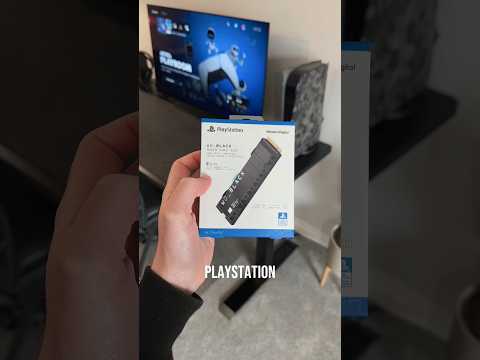
Yes, all PS5 consoles, both the original and the Slim models, come equipped with an extra SSD slot for storage expansion. This means whether you own the standard PlayStation 5 or the newer, more compact PS5 Slim, you have the option to significantly increase your console’s storage capacity by adding an M.2 NVMe SSD. This is a game-changer (pun intended!) because it allows you to store and play more games directly from the expanded storage, eliminating the need to constantly delete and redownload titles. Let’s explore this feature in more detail and address some common questions.
Understanding the PS5’s Storage Capabilities
The PS5 comes with a built-in, ultra-fast SSD, which is crucial for its incredibly quick loading times and overall performance. However, the usable storage space is somewhat limited, usually hovering around 667GB on the original model. This can quickly fill up, especially with the ever-increasing size of modern games. This is where the expansion slot becomes invaluable.
By adding a compatible M.2 SSD, you can essentially double or even quadruple your storage, providing ample space for a vast game library, media files, and apps. This expansion is internal, meaning the added SSD integrates seamlessly with the system, offering performance comparable to the built-in drive. In contrast, external hard drives connected via USB are suitable for storing PS4 games, but PS5 games cannot be played directly from them due to speed limitations.
What To Consider When Choosing an SSD for your PS5
Choosing the right SSD for your PS5 is critical. Not all M.2 SSDs are created equal, and certain specifications must be met to ensure optimal performance and compatibility. Here’s what to keep in mind:
- Type: The PS5 requires an M.2 NVMe SSD (Non-Volatile Memory Express) with a PCIe Gen4 interface.
- Speed: Sony recommends a read speed of at least 5500MB/s for the added SSD. While faster drives exist, this is the minimum requirement to match the PS5’s internal drive performance.
- Form Factor: The PS5 supports M.2 SSDs with form factors ranging from 2230 to 22110. The most common and widely recommended size is 2280.
- Heatsink: A heatsink is highly recommended to dissipate heat and prevent thermal throttling, which can reduce performance. Some SSDs come with pre-installed heatsinks, while others require you to install one separately. The height of the SSD with the heatsink installed is a crucial factor.
- Capacity: You can choose SSD capacities from 250GB up to 4TB. Consider your storage needs and budget when making this decision.
How to Install an SSD in your PS5
Installing an SSD in your PS5 is a relatively straightforward process, but it requires careful attention to detail. Here’s a step-by-step guide:
- Power Down and Unplug: Ensure your PS5 is completely powered off and unplugged from the power outlet.
- Remove the Side Panel: Place the PS5 on a soft surface with the bottom facing up and the side with the PS5 logo facing towards you. Gently lift the rear corner of the panel and slide it off.
- Locate the Expansion Slot: Remove the screw securing the SSD bay cover and remove the cover.
- Install the SSD: Remove the screw and spacer inside the SSD bay. Position the spacer according to the length of your SSD (usually in the 80 position for 2280 drives). Insert the SSD into the slot at a slight angle and then press it down so it lays flat. Secure it with the screw.
- Reassemble: Replace the SSD bay cover and secure it with the screw. Reattach the side panel by aligning it with the hooks and sliding it back into place until it clicks.
- Format the SSD: Power on your PS5. It will prompt you to format the newly installed SSD. Follow the on-screen instructions.
Frequently Asked Questions (FAQs) About PS5 SSD Slots
Here are 15 frequently asked questions about the PS5 SSD slot and storage expansion:
1. Does the PS5 Slim have an SSD slot?
Yes, the PS5 Slim retains the SSD expansion slot found in the original PS5 model. This allows you to upgrade the storage space of the Slim version just as you would with the original.
2. Can I use any M.2 SSD in my PS5?
No, you can’t use just any M.2 SSD. It must be an M.2 NVMe SSD with a PCIe Gen4 interface and meet the minimum recommended read speed of 5500MB/s. Also, consider the physical dimensions to ensure it fits within the PS5’s SSD bay.
3. Does adding an SSD void my PS5 warranty?
No, adding an SSD to your PS5 does not void your warranty, provided you follow the correct installation procedures and use a compatible SSD. However, any damage caused by improper installation or an incompatible SSD might not be covered.
4. What’s the maximum storage capacity I can add to my PS5 via the SSD slot?
The PS5 supports M.2 SSDs with capacities ranging from 250GB to 4TB.
5. Do I need a heatsink for my PS5 SSD?
Yes, a heatsink is highly recommended. The PS5’s SSD bay can get quite hot, and a heatsink helps dissipate heat, preventing thermal throttling and ensuring consistent performance.
6. Can I play PS5 games directly from an external hard drive?
No, you cannot play PS5 games directly from an external hard drive connected via USB. This is because external hard drives (even SSDs) don’t offer the same speeds as the PS5’s internal or added M.2 SSDs. External drives are best used for storing PS4 games or backing up data.
7. How many games can a 1TB SSD hold on the PS5?
The number of games a 1TB SSD can hold varies depending on the game sizes. On average, you can expect to store around 15-20 PS5 games, assuming an average game size of 50-60GB.
8. What is the best SSD for PS5 in 2024?
Some of the top-rated SSDs for the PS5 in 2024 include:
- WD Black SN850X
- Samsung 990 Pro
- Seagate FireCuda 530
- SK Hynix Platinum P41
These SSDs meet or exceed the recommended specifications and are known for their performance and reliability.
9. Can I use a PS4 external hard drive on my PS5?
Yes, you can use a PS4 external hard drive on your PS5 to store and play PS4 games. However, you cannot play PS5 games directly from the external hard drive.
10. What happens if my SSD doesn’t meet the recommended speed?
If your SSD doesn’t meet the recommended speed of 5500MB/s, you may experience longer loading times, stuttering, and potentially reduced overall performance in games.
11. How do I move games from the PS5 internal storage to the added SSD?
You can move games from the PS5’s internal storage to the added SSD via the Storage settings in the Settings menu. Simply select the game(s) you want to move and choose the destination drive.
12. Will adding an SSD improve my PS5’s performance in games?
Adding an SSD itself doesn’t inherently improve game performance beyond faster loading times and the ability to store more games. However, having sufficient storage space prevents the need to delete and redownload games, which can save time and hassle.
13. Where is the SSD slot located in the PS5?
The SSD slot is located under a removable panel on the side of the PS5. You will need a screwdriver to remove the panel and access the SSD bay.
14. What tools do I need to install an SSD in my PS5?
You will need a small Phillips head screwdriver to remove the side panel and secure the SSD in the bay.
15. Is it worth adding an SSD to my PS5?
Absolutely! Adding an SSD to your PS5 is highly recommended, especially if you plan on downloading many games. It provides significantly more storage space and ensures consistent performance.
By understanding the PS5’s storage capabilities and how to properly install an SSD, you can significantly enhance your gaming experience and keep your library growing.
The world of gaming is constantly evolving, and understanding the technology behind it is essential for both players and developers. For more insights into the intersection of games and learning, visit the Games Learning Society at GamesLearningSociety.org.