Do Games Download When Xbox Is Sleeping? The Ultimate Guide
Fast answer first. Then use the tabs or video for more detail.
- Watch the video explanation below for a faster overview.
- Game mechanics may change with updates or patches.
- Use this block to get the short answer without scrolling the whole page.
- Read the FAQ section if the article has one.
- Use the table of contents to jump straight to the detailed section you need.
- Watch the video first, then skim the article for specifics.
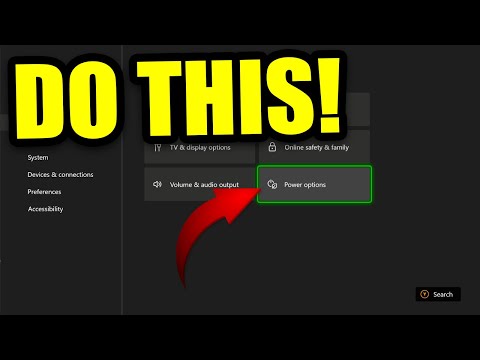
The short answer is yes, under the right circumstances. Your Xbox can indeed download games while in a sleep mode or, more accurately, a standby mode. However, understanding the nuances of Xbox power settings is crucial to ensure those downloads happen seamlessly while you’re catching some Z’s. Let’s dive deep into how it works, explore the different power modes, and address common questions to optimize your Xbox download experience.
Understanding Xbox Power Modes
Xbox consoles offer different power modes, each affecting how the console behaves when “turned off.” These settings significantly impact whether downloads continue in the background. Understanding these modes is the key to optimizing your download speeds and power consumption.
Instant-On vs. Energy Saver
The most crucial distinction is between Instant-On (also known as Standby or Sleep) and Energy Saver modes.
- Instant-On (Standby/Sleep): This mode keeps the Xbox in a low-power state, allowing it to quickly resume and continue tasks in the background, including game downloads, updates, and even remote play.
- Energy Saver: This mode completely shuts down the console, consuming significantly less power. In this mode, downloads will not continue while the Xbox is off.
How to Check Your Power Mode Setting
To check your power mode:
- Press the Xbox button to open the guide.
- Go to Profile & system > Settings > General > Power mode & startup.
- Here, you can choose between Sleep (Instant-On) and Energy saver.
Optimizing Downloads in Sleep Mode
If you want to download games while your Xbox appears to be off, make sure you select the Sleep (Instant-On) power mode. This ensures the console remains in a low-power state, allowing background downloads to continue. However, you should ensure the following factors:
- Stable Internet Connection: A stable internet connection is essential for consistent download speeds.
- Sufficient Storage Space: Ensure you have enough free space on your hard drive or external storage device.
- Background Activity: Minimize background activities such as playing games, streaming videos, or running apps, as these can impact download speeds.
Factors Affecting Download Speed
Even with the correct power mode enabled, several factors can impact your Xbox download speeds. Here are some key considerations:
- Internet Service Provider (ISP): Your ISP’s network congestion during peak hours can significantly slow down download speeds.
- Network Congestion: Other devices on your network using bandwidth can impact the Xbox’s download speed.
- Wi-Fi vs. Ethernet: A wired Ethernet connection is typically faster and more stable than Wi-Fi.
- Xbox Live Services: Occasionally, Xbox Live services may experience issues that affect download speeds.
Troubleshooting Slow Downloads
If you’re experiencing slow downloads, try these troubleshooting steps:
- Restart Your Router: A simple router restart can often resolve network connectivity issues.
- Restart Your Xbox: Restarting your Xbox clears the cache and can improve performance.
- Use a Wired Connection: Switch to an Ethernet cable for a more stable connection.
- Close Background Apps/Games: Suspending or closing running games can free up bandwidth.
- Pause and Resume Downloads: Pausing and resuming downloads can sometimes kickstart the process.
- Change DNS Settings: Try changing your DNS settings to a public DNS server like Google DNS (8.8.8.8 and 8.8.4.4).
FAQs: Downloading Games on Xbox in Sleep Mode
1. What exactly does “sleep mode” mean on Xbox?
On Xbox consoles, “sleep mode” (also known as Instant-On mode on older consoles) refers to a low-power state where the console isn’t fully powered off. It allows the console to quickly resume from this state, continue downloading games and updates in the background, and support remote play features.
2. How much power does Xbox consume in sleep mode compared to being fully off?
Xbox in sleep mode consumes significantly more power than when fully off. In sleep mode, the console uses between 10-15 watts, while in Energy Saver (fully off) mode, it uses less than 0.5 watts.
3. Can I remotely start a download on my Xbox while it’s in sleep mode?
Yes, using the Xbox mobile app, you can remotely start a download on your Xbox while it’s in sleep mode. The console will wake up and begin downloading the game or update.
4. Will disconnecting the power during a download in sleep mode harm my Xbox?
Disconnecting the power during a download can potentially cause data corruption or system errors. It’s best to avoid interrupting the download process. If you must disconnect the power, ensure the download is fully completed.
5. Does having multiple games downloading simultaneously slow down the download speed?
Yes, downloading multiple games simultaneously can slow down the download speed for each game. It’s generally more efficient to download one game at a time.
6. Is it safe to leave my Xbox in sleep mode overnight to download games?
Yes, it’s generally safe to leave your Xbox in sleep mode overnight to download games. The console is designed to operate in this mode for extended periods. However, ensure the console has adequate ventilation to prevent overheating.
7. How do I know if my Xbox is actually downloading games while in sleep mode?
You can check the download progress by waking up the console and navigating to My games & apps > Queue.
8. Does the type of game (e.g., large AAA title vs. smaller indie game) affect the download speed?
Yes, the size of the game significantly affects download time. Larger AAA titles will naturally take longer to download than smaller indie games.
9. What role does my internet speed play in the download speed on Xbox?
Your internet speed is a critical factor in download speed. A faster internet connection will result in faster downloads. Ensure your internet plan meets the minimum recommended speeds for gaming. For online gaming: Minimum download speed of 3 Mbps (or 3,000 Kbps).
10. Can other devices on my network impact my Xbox download speed?
Yes, other devices using bandwidth on your network can impact your Xbox download speed. Streaming videos, downloading files, or engaging in other online activities on other devices can reduce the available bandwidth for your Xbox.
11. Is a wired Ethernet connection significantly faster than Wi-Fi for Xbox downloads?
Generally, a wired Ethernet connection is faster and more stable than Wi-Fi. Ethernet provides a more reliable connection and reduces the risk of interference or signal loss.
12. How do I clear the cache on my Xbox to potentially improve download speeds?
To clear the cache on your Xbox:
- Power down the Xbox completely.
- Unplug the power cord from the back of the console.
- Wait for at least 30 seconds.
- Plug the power cord back in and power on the Xbox.
13. What are the ideal DNS settings for Xbox to optimize download speeds?
While default DNS settings usually work fine, changing to a public DNS server like Google DNS (8.8.8.8 and 8.8.4.4) can sometimes improve download speeds and stability.
14. Does the Xbox Series X/S download games faster than the Xbox One?
Yes, the Xbox Series X/S consoles generally download games faster than the Xbox One, due to their improved hardware and network capabilities.
15. Are there any resources where I can learn more about gaming and educational principles?
Yes, you can explore the Games Learning Society, an organization dedicated to understanding how games can be used for learning and education. Visit their website at https://www.gameslearningsociety.org/ for more information and resources.
Conclusion
Downloading games while your Xbox is in sleep mode is a convenient way to keep your game library up-to-date. By understanding the different power modes, optimizing your network settings, and troubleshooting common issues, you can ensure a smooth and efficient download experience. Remember to select the Instant-On (Sleep) power mode, maintain a stable internet connection, and minimize background activities to maximize your download speeds. Keep exploring the ways GamesLearningSociety.org can inform your gaming habits and understanding of game-based learning.