Do SSDs Lose Speed Over Time? The Truth About SSD Performance
Fast answer first. Then use the tabs or video for more detail.
- Watch the video explanation below for a faster overview.
- Game mechanics may change with updates or patches.
- Use this block to get the short answer without scrolling the whole page.
- Read the FAQ section if the article has one.
- Use the table of contents to jump straight to the detailed section you need.
- Watch the video first, then skim the article for specifics.
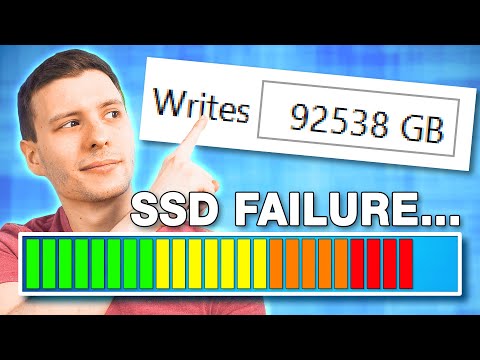
Yes, SSDs can lose speed over time, but the reasons are nuanced and often misunderstood. Unlike traditional HDDs, which slow down due to fragmentation and mechanical wear, SSDs degrade primarily because of how they manage data writing and storage. This degradation manifests differently, and modern SSDs are designed with features to mitigate these effects significantly. Understanding why this happens and what you can do about it will help you keep your SSD running optimally for years.
Understanding SSD Technology and Performance
SSDs, or Solid State Drives, use NAND flash memory to store data. Unlike HDDs, they have no moving parts, resulting in faster access times and increased durability. However, NAND flash memory has a limited number of write cycles. Each time data is written to a cell, it undergoes a small amount of wear.
Write Amplification: The Culprit
One of the main reasons for performance degradation in older SSDs is write amplification (WA). WA refers to the ratio of data written to the NAND flash memory compared to the data written by the host (your computer). When you write a file to an SSD, the drive doesn’t simply overwrite the old data. Instead, it needs to erase an entire block of cells before writing the new data. This is because NAND flash memory can only be written to in empty cells.
If the block contains valid data alongside the data you want to overwrite, the SSD must first move the valid data to a different block, then erase the original block, and finally write both the original valid data and the new data to the new location. This process results in more data being written to the NAND flash memory than you initially intended, amplifying the wear and reducing the drive’s lifespan and speed.
The Role of TRIM and Garbage Collection
Fortunately, modern SSDs employ technologies to mitigate the effects of write amplification. Two key features are TRIM and garbage collection (GC).
-
TRIM: The TRIM command tells the SSD which data blocks are no longer in use. When you delete a file, the operating system informs the SSD via TRIM that the corresponding blocks are now available for erasure. This allows the SSD to erase those blocks in the background, so they’re ready for future writes, reducing the need to move valid data during write operations.
-
Garbage Collection (GC): GC is a process where the SSD reorganizes its data internally to consolidate free space and erase unused blocks. It’s similar to defragmentation on an HDD, but instead of moving data to improve read speeds, GC moves data to optimize write speeds and reduce write amplification. GC happens in the background, even when the SSD is idle, helping to maintain performance over time.
Filling Up the Drive
Another reason SSDs slow down over time is simply due to filling them up. When an SSD is nearly full, there’s less free space available for the controller to use for garbage collection and wear leveling. This leads to increased write amplification and reduced performance. A good rule of thumb is to keep at least 20-25% of your SSD free to ensure optimal performance.
Wear Leveling: Spreading the Load
Wear leveling is a technique used to distribute write operations evenly across all the NAND flash memory cells. This prevents certain cells from being worn out prematurely while others remain relatively untouched. Modern SSDs employ sophisticated wear-leveling algorithms to maximize the lifespan of the drive.
What You Can Do to Maintain SSD Performance
While SSDs can slow down over time, there are several steps you can take to maintain their performance and extend their lifespan:
- Enable TRIM: Ensure that TRIM is enabled in your operating system. Most modern operating systems enable TRIM by default.
- Keep the Drive Partially Empty: Maintain at least 20-25% free space on your SSD.
- Update Firmware: Keep your SSD’s firmware up to date. Manufacturers often release firmware updates that improve performance and fix bugs.
- Avoid Defragmentation: Do NOT defragment an SSD. Defragmentation is designed for HDDs and can shorten the lifespan of an SSD by unnecessarily writing data.
- Use the SSD for the Operating System and Applications: Install your operating system and frequently used applications on the SSD for faster performance. Store large media files on a separate HDD or external drive.
- Monitor SSD Health: Regularly check the health of your SSD using tools provided by the manufacturer or third-party utilities.
- Enable Write Caching: Ensure write caching is enabled in your operating system settings. This can improve write performance.
- Optimize Page File Settings: Consider adjusting your page file settings, especially if you have ample RAM.
- Choose a Reputable Brand: Investing in a high-quality SSD from a reputable brand can ensure better performance and longevity.
- Check AHCI Mode: Verify that your SSD is running in AHCI (Advanced Host Controller Interface) mode in your BIOS settings. AHCI enables advanced features like TRIM.
- Disable Indexing (Potentially): While debated, disabling indexing on your SSD can reduce unnecessary writes, potentially extending its life. Consider the trade-off with search speed.
- Update BIOS Firmware: Sometimes, outdated BIOS firmware can impact SSD performance. Update to the latest version from your motherboard manufacturer.
FAQs: Solid State Drive (SSD) Performance Over Time
1. Will my SSD get slower as it fills up?
Yes, SSDs can slow down as they approach their storage capacity. Keeping at least 20-25% free space helps maintain optimal performance by allowing the drive to effectively manage garbage collection and wear leveling.
2. Does defragging an SSD help or hurt performance?
Defragmenting an SSD is harmful and should be avoided. SSDs do not benefit from defragmentation, and the process can unnecessarily wear out the drive by performing excessive write cycles.
3. How long will my SSD last?
Most SSDs are designed to last for several years. The lifespan depends on the amount of data written to the drive. A typical SSD can easily last five to ten years with normal usage. Many manufacturers provide a Total Bytes Written (TBW) rating, which indicates the amount of data that can be written to the drive before it may start to degrade.
4. Is TRIM enabled by default in Windows?
Yes, TRIM is typically enabled by default in modern versions of Windows (Windows 7 and later). You can verify that TRIM is enabled by running the command fsutil behavior query DisableDeleteNotify in the Command Prompt as an administrator. A result of “DisableDeleteNotify = 0” indicates that TRIM is enabled.
5. How can I check the health of my SSD?
You can check the health of your SSD using tools like CrystalDiskInfo or the manufacturer’s utility. These tools provide information about the drive’s health status, temperature, and remaining lifespan. You can also use the “Defragment and Optimize Drives” tool in Windows.
6. What is wear leveling, and why is it important?
Wear leveling is a technique used to distribute write operations evenly across all the NAND flash memory cells in an SSD. This prevents certain cells from being worn out prematurely while others remain relatively untouched. Wear leveling is crucial for extending the lifespan of an SSD.
7. What is Garbage Collection (GC) in an SSD?
Garbage Collection (GC) is a process where the SSD reorganizes its data internally to consolidate free space and erase unused blocks. This optimizes write speeds and reduces write amplification, helping to maintain performance over time.
8. What is write amplification, and how does it affect SSD performance?
Write amplification (WA) refers to the ratio of data written to the NAND flash memory compared to the data written by the host (your computer). High WA can lead to increased wear on the NAND flash memory and reduced performance.
9. Does an NVMe SSD degrade faster than a SATA SSD?
The lifespan of an NVMe SSD versus a SATA SSD depends more on the quality of the NAND flash memory and the controller than the interface type. Both NVMe and SATA SSDs can last a long time with proper usage and maintenance.
10. Can an SSD be repaired if it’s failing?
While it’s difficult to “repair” a failing SSD in the traditional sense, you can try using built-in tools in Windows, such as CHKDSK and SFC, to scan and fix file system errors. However, if the NAND flash memory itself is failing, the drive may need to be replaced.
11. What causes an SSD to lose health over time?
SSD health degrades over time primarily due to the limited number of write cycles that NAND flash memory cells can withstand. Each time data is written to a cell, it undergoes a small amount of wear.
12. How can I clean up my SSD to improve performance?
You can clean up your SSD by deleting unnecessary files, uninstalling unused applications, and running Disk Cleanup in Windows to remove temporary files. Ensure TRIM is enabled for optimal performance.
13. What’s the biggest drawback to SSD technology?
One of the biggest drawbacks to SSD technology is the limited number of write cycles compared to traditional HDDs. However, modern SSDs are designed to withstand a significant amount of wear, and this is generally not a major concern for most users. Another drawback is the cost per gigabyte compared to HDDs, although this gap has been narrowing.
14. Which type of SSD (SLC, MLC, TLC, QLC) lasts the longest?
Single-level cell (SLC) SSDs have the longest lifespan, as they can withstand up to 100,000 write cycles per cell. However, they are also the most expensive. Multi-level cell (MLC) SSDs and Triple-level cell (TLC) SSDs offer a balance of performance, lifespan, and cost. Quad-level cell (QLC) SSDs are the most affordable but have a shorter lifespan.
15. How does RAM affect SSD lifespan?
More RAM can indirectly extend an SSD’s lifespan by reducing the frequency of writes to the drive. With more RAM, your system can cache more data, reducing the need to constantly read from and write to the SSD for temporary files and operations. GamesLearningSociety.org emphasizes optimizing system resources, and sufficient RAM is key for efficient computing. You can check out the Games Learning Society at https://www.gameslearningsociety.org/ for more information on optimizing system performance.
In conclusion, while SSDs can experience performance degradation over time, understanding the underlying causes and implementing the best practices can significantly mitigate these effects. By enabling TRIM, keeping the drive partially empty, updating firmware, and avoiding defragmentation, you can ensure your SSD remains fast and reliable for years to come.