Does a New SSD Need to Be Formatted? A Comprehensive Guide
Fast answer first. Then use the tabs or video for more detail.
- Watch the video explanation below for a faster overview.
- Game mechanics may change with updates or patches.
- Use this block to get the short answer without scrolling the whole page.
- Read the FAQ section if the article has one.
- Use the table of contents to jump straight to the detailed section you need.
- Watch the video first, then skim the article for specifics.
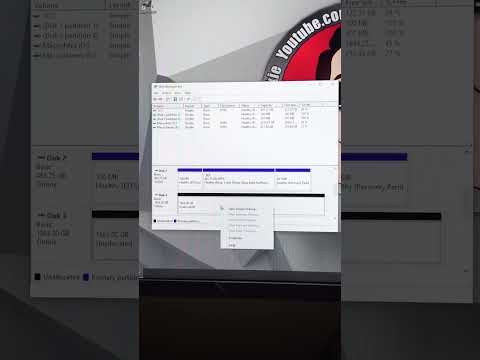
The short answer is: it depends. While not every new Solid State Drive (SSD) absolutely requires formatting before use, it is very often a necessary step, particularly when you intend to install an operating system on it or if you’re migrating it from one system to another. The crucial thing to understand is the distinction between an uninitialized drive and a formatted one. This article will guide you through when formatting is necessary, how to do it, and answer some frequently asked questions to ensure you get the best performance out of your new SSD.
When Formatting is Necessary
Understanding why formatting is sometimes needed is just as important as knowing when. Let’s break down the most common scenarios:
Installing a New Operating System
The most frequent reason you’ll need to format an SSD is when you’re installing a fresh copy of an operating system, such as Windows 10 or Windows 11. During the installation process, the installer will provide you with the option to format the selected drive or partition. This step is vital as it sets up the file system that the operating system needs to function. If you skip this, the OS won’t be able to write files to the drive and therefore, can’t be installed.
Moving an SSD Between Devices
If you’re taking an SSD that was previously used in another computer and moving it to a new one, formatting is generally recommended. The previous file system, partitions, and OS configuration might not be compatible with your new system, or you might simply want to ensure a clean slate to avoid potential conflicts.
Compatibility Issues
Sometimes, a brand new SSD might not be fully compatible with the existing operating system on your machine in its raw state. Formatting allows you to set up the drive with the correct file system (like NTFS for Windows or APFS for macOS), making it usable.
Initializing vs. Formatting
It’s worth touching upon the difference between initializing and formatting. A new SSD is typically not ready for use out of the box. It needs to be initialized and partitioned first. Initializing sets up the drive as a usable storage device within the operating system. Partitioning divides the drive into manageable sections, which can then be formatted for specific purposes.
When you perform a clean install of an OS, the installer handles the initialization, partitioning, and formatting for you. Therefore, when you install Windows on a new SSD, it’s not strictly necessary to format it beforehand; you’ll be doing it during the OS install. But if you’re preparing the SSD for other uses, these steps may need to be done manually.
How to Format an SSD
The process for formatting an SSD is relatively straightforward, particularly in Windows. Here’s a general outline:
- Connect the SSD: Ensure the SSD is properly connected to your system via a SATA cable or by installing it into its slot if using an M.2 form factor.
- Access Disk Management:
- Right-click on the Start button.
- Select Disk Management.
- Locate Your SSD: In the Disk Management window, you will see a list of all connected drives. Identify your new SSD by its size and any other identifying information.
- Format the SSD:
- Right-click on the SSD drive or the specific partition you want to format.
- Select Format.
- A dialog box will appear. Choose your desired file system (typically NTFS for Windows).
- Give the drive a label if desired.
- Check the “Quick Format” option (unless a full format is required). This is often sufficient for most purposes.
- Click “OK.”
- Confirmation: A warning will appear indicating that all data on the drive will be erased. Ensure you have backed up any vital data before proceeding. Click OK to confirm and format your SSD.
Precautions Before Formatting
Before you take any formatting steps, keep these important considerations in mind:
- Backup Essential Data: Always, always back up any critical data before formatting. This step is non-negotiable, as formatting erases everything on the drive.
- Verify Drive Selection: Be absolutely sure you’ve selected the correct drive before formatting. It’s easy to accidentally format the wrong drive and lose all of its contents. Double-check the drive letters and sizes.
- Static Electricity: When physically installing the SSD, take precautions to minimize static discharge. Always disconnect power and avoid touching internal components directly if possible, or ground yourself by touching a metal object first.
Frequently Asked Questions (FAQs)
To provide even more clarity, let’s address some common questions about formatting SSDs:
1. Do I need to initialize a new SSD before formatting?
Yes, it’s usually necessary to initialize a new SSD before it can be formatted and used. The initialization process makes the drive visible to the operating system. This step is often handled automatically during the operating system installation.
2. Can I format an SSD from BIOS?
While some motherboards may offer a limited secure erase option within the BIOS, direct formatting is not commonly available in most BIOS interfaces. You’ll typically need to use an operating system tool like Disk Management in Windows or similar disk utilities in other OSs.
3. Why is my SSD not detected by my computer?
If your computer is not detecting your new SSD, the issue could be:
* A faulty data cable. Ensure your SATA cables are securely connected.
* The SSD is not properly inserted into its slot.
* The SSD hasn’t been initialized or has driver issues.
* The SSD may be damaged.
4. Do I need to reinstall drivers after installing a new SSD?
Generally, no, you don’t need to manually install drivers if you’re using a SATA or NVMe SSD. Your operating system usually has the necessary drivers. You may need to install special drivers, or update older drivers, if the drive isn’t being detected correctly.
5. Is it safe to format an SSD multiple times?
Yes, SSDs can be formatted multiple times without significant issues. However, frequent formatting can contribute to wear over the long term. Modern SSDs, however, are designed for many write and erase cycles, so this is not usually a major cause for concern.
6. Can I just install a new SSD and boot from it?
Yes, you can. You’ll need to remove the old HDD/SSD, install the new SSD, and use a bootable USB with your desired OS installer. You should set your BIOS to boot from the USB, and proceed with installation on the new SSD.
7. What’s the difference between a quick format and a full format?
A quick format only erases the file system data and marks the space as available, while a full format scans the entire drive for errors and then erases the data, taking considerably more time. The quick format is generally fine for most purposes, but a full format might be necessary if you’re concerned about drive issues.
8. Why won’t Windows boot from my new SSD?
If your computer isn’t booting from the new SSD, the primary reason may be that your boot order is not set correctly in BIOS, or the SSD was not properly configured during operating system install.
9. Does formatting an SSD delete Windows?
Yes, if you format an SSD that contains a Windows operating system, the OS and all the data will be deleted. Therefore, backing up is crucial before formatting.
10. Can I clone my old HDD to my new SSD?
Yes, cloning can copy your entire HDD to the SSD, including the operating system, installed programs, and files. This saves you the trouble of reinstalling everything.
11. What should I do after installing a new SSD?
After installing the new SSD, you should:
* Verify drive detection.
* Clone or install the OS.
* Set the SSD as the primary boot drive.
* Install necessary drivers.
12. Do I need to format a new NVMe SSD?
Yes, even a new NVMe SSD needs to be initialized and formatted before first use to ensure proper file systems and partition arrangements are in place.
13. Is it possible for a new SSD to be broken?
Yes, it’s possible for a new SSD to be broken, though it’s rare. Symptoms might include the SSD not being detected, files not reading or writing correctly, or extremely slow performance, or failure to boot.
14. What is the average lifespan of a new SSD?
Modern SSDs have a good lifespan, with many lasting over five years, or even exceeding ten years. The lifespan is based on the number of writes made, and this is usually more than the average user will exceed during its normal life.
15. Do I need to format my old HDD after cloning to a new SSD?
Formatting your old HDD is optional. However, it’s a good way to repurpose the drive as a data storage drive, and is recommended, especially if you had your operating system installed on it before.
Conclusion
The question of whether a new SSD needs to be formatted isn’t a simple yes or no. It often depends on the intended use of the drive. In most cases, when installing a new OS or migrating to a new device, formatting is a necessary step. With a bit of knowledge, you can effectively prepare your new SSD and ensure it performs flawlessly for years to come. Remember to always back up your data and double-check your selections before making any changes. Happy computing!