Unlocking Your Past: A Deep Dive into PS4 Data Transfers to PS5
Fast answer first. Then use the tabs or video for more detail.
- Watch the video explanation below for a faster overview.
- Game mechanics may change with updates or patches.
- Use this block to get the short answer without scrolling the whole page.
- Read the FAQ section if the article has one.
- Use the table of contents to jump straight to the detailed section you need.
- Watch the video first, then skim the article for specifics.
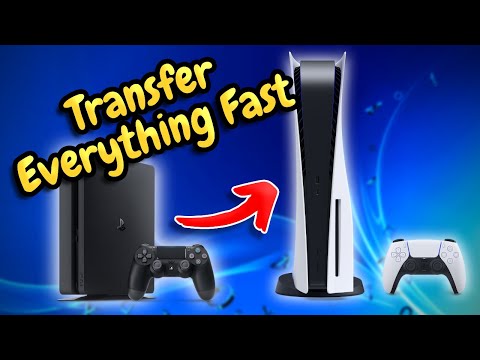
The burning question on every PlayStation gamer’s mind upgrading to the PS5 is: Does PS4 data automatically save to PS5? The short answer is partially, but not entirely automatic. While PlayStation Plus subscribers benefit from automatic cloud saves for most games, some manual steps may still be required to ensure all your precious progress and settings make the jump to your new console. Let’s dissect the nuances and explore the methods available to make this transition as smooth as possible.
Making the Leap: Transferring Your PS4 Data
The PS5 offers several convenient ways to bring your PS4 data along for the ride. Understanding these methods is key to a hassle-free experience.
1. The Cloud Save Route: Your PS Plus Lifeline
For PlayStation Plus subscribers, the cloud storage feature is a godsend. If enabled on your PS4, your game saves are automatically uploaded to the cloud. On your PS5, you can then download these saves directly to your console. This is the closest you get to a truly automatic transfer, but it’s essential to ensure cloud saves are actually enabled on your PS4 before you retire it. To access your PS4 cloud saves on PS5, head to Settings > Saved Data and Game/App Settings > Saved Data (PS4) > Cloud Storage and choose Download to Console Storage. You’ll then be able to select the specific game saves you want.
2. Network Transfer: Connecting Consoles Directly
The PS5 allows you to transfer data directly from your PS4 over your home network. This is a great option for those with large game libraries or spotty internet connections. Both consoles need to be connected to the same network (preferably wired via Ethernet for faster speeds) and turned on. During the PS5’s initial setup, it will prompt you to transfer data from a PS4. If you skip this step, you can initiate the transfer later by going to Settings > System > Data Transfer. The PS5 will guide you through the process, allowing you to select which games, apps, and saved data you want to move.
3. External Storage: The USB Workaround
You can also use an external USB drive to back up your PS4 data and then restore it to your PS5. First, on your PS4, go to Settings > System > Back Up and Restore and select Back Up PS4. Choose the external drive as the destination and select the data you want to back up. Once the backup is complete, connect the drive to your PS5 and go to Settings > System > System Software > Back Up and Restore > Restore PS5. Select the USB drive and the backup file to restore your data.
4. Game-Specific Transfers: Cross-Save Functionality
Some games offer cross-save functionality, allowing you to transfer your progress between PS4 and PS5 versions via the game’s own servers. This often requires linking your account to a service provided by the game developer. Check the specific game’s documentation to see if this feature is supported. This can be the best option if you are jumping back and forth between different consoles as the game is updated with your saves.
Navigating the Nuances: Points to Consider
- Account Linking: Make sure you are using the same PlayStation Network account on both your PS4 and PS5. This is crucial for accessing cloud saves and digital purchases.
- Storage Space: Ensure you have enough storage space on your PS5 to accommodate the transferred data. If you’re running low, consider using an external USB drive to store PS4 games, freeing up space on your internal SSD for PS5 titles.
- Transfer Time: Data transfers can take a significant amount of time, especially over Wi-Fi. Be patient and plan accordingly.
- Data Integrity: While data transfers are generally reliable, it’s always a good idea to back up your important data before starting the process. This provides a safety net in case something goes wrong.
Enhancements and Optimizations: PS4 Games on PS5
While most PS4 games are backward compatible on the PS5, not all of them will automatically look and perform better. Some games may receive upgrade patches that unlock enhanced visuals, frame rates, and other improvements specifically for the PS5. However, even without a dedicated patch, many PS4 games will benefit from the PS5’s superior hardware, resulting in smoother performance and faster loading times. You can store your PS4 games on an external USB drive, playing the games directly from the drive and freeing up space on your PS5’s SSD for games that have been built specifically for the console.
Frequently Asked Questions (FAQs)
1. Will all my PS4 games work on PS5?
The vast majority of PS4 games are compatible with the PS5. However, a small number of titles are not supported. Sony maintains a list of incompatible games, so it’s worth checking before you upgrade.
2. Do I have to repurchase my PS4 games for PS5?
No, you don’t need to repurchase digital PS4 games that you own. They will be available for download on your PS5 using the same PlayStation Network account. Physical PS4 games can be played on the PS5, provided you have the standard PS5 model with a disc drive. The digital edition of the PS5 does not support physical discs.
3. How do I know if a PS4 game has a PS5 upgrade?
Check the PlayStation Store. If a PS4 game has a PS5 upgrade, it will usually be indicated on the game’s page. Some upgrades are free, while others may require a purchase.
4. Can I transfer my PS4 saves after I’ve already started playing on my PS5?
Yes, you can transfer PS4 saves to your PS5 at any time. Use the cloud save option (if you’re a PlayStation Plus subscriber) or the USB drive method.
5. What happens if I turn off my PS5 during a data transfer?
Turning off the PS5 during the first-time setup and data transfer is not a big deal. When you turn it back on when it’s completed powering down, it will just return it to the beginning of the initial setup, where the data transfer can be skipped. However, interrupting a transfer that’s copying data can lead to data corruption. Always try to avoid power interruptions during the transfer process.
6. How long does it take to transfer PS4 data to PS5?
The transfer time depends on the amount of data being transferred and the connection method used. A wired Ethernet connection will be significantly faster than Wi-Fi. Transferring a large game library could take several hours.
7. Can I transfer data from multiple PS4 consoles to one PS5?
Yes, you can transfer data from multiple PS4 consoles to a single PS5, one at a time.
8. Will my PS4 trophies transfer to PS5?
Yes, your PS4 trophies are linked to your PlayStation Network account and will automatically sync to your PS5.
9. Can I use my PS4 controller on PS5?
Yes, you can use your PS4 controller (DualShock 4) to play PS4 games on your PS5. However, you will need a PS5 Dualsense controller to play the PlayStation 5 games.
10. Does transferring data erase my PS4?
No, transferring data from your PS4 does not erase the data on your PS4. The data remains on both consoles after the transfer. Be aware that transferring data to a PS4 will delete anything that was on the target console prior to the transfer.
11. What if my internet is too slow for cloud saves?
If your internet is slow or unreliable, use the network transfer method or the USB drive method to transfer your data.
12. How do I free up space on my PS5 to make room for transferred data?
You can delete games and apps that you no longer use. Alternatively, you can use an external USB drive to store PS4 games and media files.
13. Are there any PS4 games that won’t work on PS5?
Yes, a small number of PS4 games are not compatible with the PS5. Check the official list provided by Sony for the most up-to-date information.
14. Can I transfer my PS4 themes and avatars to PS5?
While most themes are not directly transferable, your avatars are linked to your PlayStation Network account and will be available on your PS5.
15. Is it better to play PS4 games on PS4 or PS5?
In most cases, PS4 games will perform better on PS5 due to the console’s more powerful hardware. Loading times will be faster, and frame rates may be smoother.
Continuing the Conversation: The Future of Gaming and Learning
The evolution of gaming technology, from data transfers to enhanced graphics, continues to shape how we learn and interact with the world. Organizations like the Games Learning Society (GamesLearningSociety.org) are exploring the educational potential of video games, paving the way for innovative learning experiences. GamesLearningSociety.org is at the forefront of integrating game-based learning into education and research.
Migrating from PS4 to PS5 is more than just upgrading hardware; it’s about carrying your gaming memories and experiences into the next generation. By understanding the data transfer options and considering the nuances, you can ensure a seamless transition and continue your gaming journey uninterrupted.