Does Steam Show When Someone Is Online? A Comprehensive Guide
Fast answer first. Then use the tabs or video for more detail.
- Watch the video explanation below for a faster overview.
- Game mechanics may change with updates or patches.
- Use this block to get the short answer without scrolling the whole page.
- Read the FAQ section if the article has one.
- Use the table of contents to jump straight to the detailed section you need.
- Watch the video first, then skim the article for specifics.
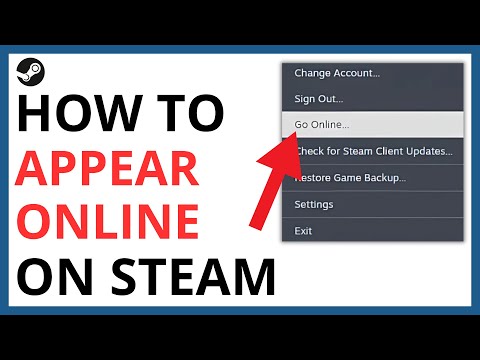
Yes, Steam displays when your friends (and sometimes others, depending on their privacy settings) are online. This is a core feature of the platform, designed to facilitate social interaction and cooperative gaming. Seeing who’s available allows you to quickly invite friends to play, chat, or simply connect. Steam offers various online statuses beyond simply “online,” providing more granular control over your visibility. Understanding these statuses and how they work is key to navigating the Steam social landscape.
Understanding Steam’s Online Statuses
Steam doesn’t just offer a binary “online” or “offline” status. It provides a range of options to cater to different user preferences:
-
Online: This is the default status. It indicates that you are logged in and actively using Steam. Your friends will see you as online, and they’ll also be able to see what game you’re currently playing.
-
Away: This status manually informs your friends that you are temporarily unavailable. It’s a way of signaling that you might not respond immediately to messages or game invites.
-
Invisible: Choosing the “Invisible” status makes you appear offline to all other users, even though you are still logged in and can use Steam’s features, including chatting with friends. It’s useful when you want to game or browse Steam privately.
-
Offline: This status completely signs you out of the Steam network. You won’t receive any notifications, and you will not appear online to anyone. You’ll need to manually log back in to reconnect.
-
Do Not Disturb: Similar to “Away,” but often implies a higher level of unavailability. This status can silence notifications, allowing you to focus without interruptions.
-
Snooze: Steam automatically switches your status to “Snooze” after a period of inactivity (typically around two hours). This informs your friends that you’re likely not at your computer, but still logged in.
How to Check Someone’s Online Status
Checking a friend’s online status on Steam is straightforward:
-
Friends List: Open your Steam client and navigate to your Friends List. Your friends will be listed here, with an indicator next to their names showing their current status (Online, Away, Invisible, etc.). If they are playing a game, it will also display the game’s name.
-
Chat Window: You can also check someone’s status by opening a chat window with them. Their status will be displayed at the top of the window.
-
Steam Profile: Visiting someone’s Steam profile will also show their online status. However, remember that profile privacy settings can affect what information is visible.
Privacy and Visibility: Controlling Your Online Presence
Steam provides granular controls over your online presence, allowing you to tailor who can see your activity. This is crucial for maintaining privacy and managing your social interactions on the platform.
-
Profile Privacy: You can set your profile to be public, friends-only, or private. This setting affects who can see your game library, wish list, and other profile information.
-
Game Details: You can control whether your friends can see what games you are playing. This setting can be found in your privacy settings and allows you to hide your gaming activity.
-
Activity Feed: You can control who can see your activity feed, which displays your recent achievements, purchases, and other actions on Steam.
Understanding these privacy settings is essential for controlling your online visibility on Steam. Take the time to configure them according to your preferences.
The Games Learning Society explores the pedagogical potential of games and gaming culture. For more information on the intersection of gaming and education, visit GamesLearningSociety.org.
Frequently Asked Questions (FAQs)
Here are some frequently asked questions about online presence and visibility on Steam:
1. Can people see you online on Steam if you are invisible?
No, when you are set to “Invisible” status, you appear offline to everyone on your friends list and the broader Steam community. However, you can still chat with your friends.
2. Can you hide when you were last online on Steam?
Yes, selecting the “Invisible” status will effectively hide when you were last online from your friends and other Steam users. There’s no specific “last online” timestamp shown to others when you’re in Invisible mode.
3. Is Steam’s online status accurate?
Generally, yes. Steam’s online status reflects whether you are logged into the Steam client. However, there can be occasional delays or glitches that may cause your status to be temporarily inaccurate.
4. What does the ZZZ mean on Steam?
The “ZZZ” icon on Steam typically indicates that a player is AFK (Away From Keyboard). It suggests they are logged in but inactive, potentially in a game but not actively playing.
5. How long does Steam show online before changing to Away?
Steam typically changes your status to “Away” after about 5 minutes of inactivity. After a longer period, around 2 hours, it changes to “Snooze.”
6. Can you see if someone viewed your Steam profile?
No, Steam does not provide a feature that allows you to see who has viewed your profile.
7. What’s the difference between Offline and Invisible on Steam?
“Offline” completely signs you out of Steam, disconnecting you from the network. “Invisible” keeps you logged in and able to chat, but makes you appear offline to everyone else.
8. Does Steam notify when you remove a friend?
No, Steam does not explicitly notify a user when you remove them from your friends list. They will only realize it if they actively look for you on their list and can no longer find you.
9. Can you see when someone got a game on Steam?
You cannot directly view someone else’s purchase history. However, if a friend buys a game, it may appear in your activity feed as “(User) now owns (Game).” This depends on their privacy settings.
10. How do I view someone’s profile on Steam?
You can view someone’s Steam profile by searching for their username or profile link in the Community tab of the Steam client.
11. Why do people hide their Steam games?
People hide their Steam games for various reasons, including privacy concerns, embarrassment about their gaming choices, or a desire to conceal how much money they’ve spent on games.
12. How do you know if someone is faking offline on Steam?
If you suspect someone is using the “Invisible” status, you can’t definitively know. The best you can do is check their profile or ask mutual friends if they have seen them online.
13. How do I hide my Steam activity from friends?
You can hide your Steam activity by adjusting your privacy settings. Specifically, set “My Profile” and “Game Details” to “Private” or “Friends Only.”
14. Does Steam track my IP address?
Yes, Steam collects your IP address as part of its data collection practices. However, Steam doesn’t typically share your IP address with other players. Peer-to-peer communication is usually relayed through Steam’s servers.
15. How long does Steam activity last?
Steam typically displays your recent activity for the past two weeks, showing the games you’ve played and how long you’ve played them.
Conclusion
Understanding how Steam displays online statuses and manages privacy settings is key to a positive and controlled social experience on the platform. By utilizing the various visibility options, you can customize your online presence to suit your preferences and needs. Be sure to regularly review your privacy settings to ensure they align with your desired level of visibility. Staying informed empowers you to navigate Steam’s social landscape effectively.