Unlocking Extra Storage: Does the PS3 Support External Hard Drives?
Fast answer first. Then use the tabs or video for more detail.
- Watch the video explanation below for a faster overview.
- Game mechanics may change with updates or patches.
- Use this block to get the short answer without scrolling the whole page.
- Read the FAQ section if the article has one.
- Use the table of contents to jump straight to the detailed section you need.
- Watch the video first, then skim the article for specifics.
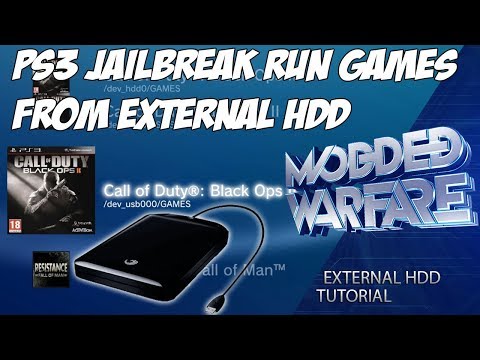
The PlayStation 3, a gaming icon from the late 2000s and early 2010s, offered a rich gaming experience, but its internal storage could often feel limiting. The good news is: Yes, the PS3 does support external hard drives! This opens up a world of possibilities for storing more games, downloadable content, and media files, extending the lifespan and enjoyment of your beloved console. However, there are some crucial limitations and considerations to keep in mind to ensure compatibility and optimal performance. Let’s dive into the details and answer some frequently asked questions.
Understanding PS3 External Hard Drive Compatibility
The PS3’s external hard drive support is a valuable feature, but it comes with specific requirements. Unlike more modern consoles, the PS3 has some limitations on file system support and drive size.
-
File System: The most critical factor is the file system format. The PS3 exclusively supports the FAT32 file system for external drives. This is a significant limitation because FAT32 has a maximum file size limit of 4GB. This means you cannot directly play or store files larger than 4GB (like some Blu-ray rips or larger game installations) directly from the external drive. You would need to split those files.
-
USB Standard: While the PS3 has USB 2.0 ports, an external drive with a faster USB interface like USB 3.0 is still compatible. It will simply operate at the slower USB 2.0 speed of the console.
-
Drive Size: Although some online resources may indicate that the PS3 can only recognize up to a 1TB external hard drive, it’s generally accepted that the PS3 can support up to 4TB, provided it’s formatted correctly. However, to achieve this, you might need to split the drive into multiple partitions, each no larger than 2TB, because exceeding this can cause compatibility issues.
How to Use an External Hard Drive with Your PS3
-
Formatting the Drive: Before connecting your external hard drive, you need to format it to FAT32.
- Caution: Formatting will erase all data on the drive, so back up any important files beforehand.
- On Windows, you may need a third-party tool like EaseUS Partition Master or guiformat to format larger drives (over 32GB) to FAT32, as Windows built-in formatting tools have limitations.
- On macOS, you can use Disk Utility, but you might need to explore other methods if FAT32 isn’t directly offered.
-
Connecting to the PS3:
- Turn off your PS3 completely.
- Plug the external hard drive into one of the PS3’s USB ports. Ideally, use a port at the back of the console.
- Turn on your PS3.
-
Accessing the Drive:
- Once the PS3 is on, navigate to the Photo, Music, or Video sections on the XMB (XrossMediaBar) menu. Your external hard drive should appear as a source.
- For game saves, go to Game > Saved Data Utility (PS3). You can copy save data to and from the external drive.
-
Using the Drive:
- You can now browse and access media files (photos, music, videos) stored on the external hard drive.
- You can back up and restore game saves, which is useful for transferring saves between PS3 consoles or creating backups.
Important Note: You cannot directly install and play PS3 games directly from an external hard drive connected via USB. The PS3’s operating system doesn’t allow this functionality without custom firmware. The external drive is primarily for media storage and game save backups.
Frequently Asked Questions (FAQs)
Here are 15 frequently asked questions about using external hard drives with the PS3:
1. Can I use any external hard drive with my PS3?
Generally, yes, but it must be formatted to FAT32. Additionally, drives larger than 2TB might require partitioning.
2. What is the maximum size external hard drive the PS3 can support?
Officially, there’s some conflicting information, but many users have successfully used 4TB drives by partitioning them into 2TB or smaller sections.
3. Why isn’t my PS3 recognizing my external hard drive?
The most likely reason is the file system. Ensure it’s formatted to FAT32. Also, check the USB connection and try different USB ports. Damaged drive can be another option too.
4. Can I play games directly from an external hard drive on my PS3?
No, not without custom firmware. The PS3’s official firmware does not support running games directly from an external USB drive. It’s intended for media storage and game save backups.
5. How do I format an external hard drive to FAT32?
On Windows, use a third-party tool like EaseUS Partition Master or guiformat for drives larger than 32GB. On macOS, use Disk Utility. Always back up your data before formatting!
6. Can I use an external SSD with my PS3?
Yes, you can. An SSD will work as long as it’s a 2.5″ drive. While it might offer slightly faster loading times for media files, the PS3’s USB 2.0 limitation won’t allow you to experience the full speed potential of an SSD.
7. Can I use the same external hard drive for both my PS3 and PS4?
Yes, but with limitations. Since the PS4 uses the exFAT file system (which the PS3 does not support), and the PS3 uses FAT32, you would need to partition the drive. One partition should be formatted as FAT32 for the PS3, and the other as exFAT for the PS4. However, the PS3 partition will only be able to hold 4GB max files.
8. Can I back up my PS3’s entire hard drive to an external hard drive?
Yes, you can use the PS3’s built-in Backup Utility to create a complete system backup on an external hard drive. This is useful for upgrading the internal hard drive or recovering from system errors.
9. What are the benefits of using an external hard drive with my PS3?
- Increased storage space for media files.
- Backup and restore game saves.
- Transfer saves between PS3 consoles.
10. Does the USB version of my external hard drive matter (2.0 vs 3.0)?
The PS3 only has USB 2.0 ports, so a USB 3.0 drive will still work, but it will operate at USB 2.0 speeds. So, buying the newest drives won’t affect the performance on the PS3 system.
11. Can I use multiple external hard drives with my PS3 at the same time?
Technically, yes, if you use a USB hub. However, performance may be affected, and it’s generally recommended to use a single, larger drive.
12. What happens if I connect an NTFS-formatted drive to my PS3?
The PS3 will not recognize the drive. It must be FAT32.
13. Is it safe to remove the external hard drive while the PS3 is on?
It’s not recommended. Always turn off the PS3 completely before disconnecting the external hard drive to prevent data corruption.
14. Can I install DLC (Downloadable Content) to an external hard drive?
No, DLC must be installed on the PS3’s internal hard drive. The external drive is primarily for media and save backups.
15. Where can I find more information about the PS3 and its capabilities?
You can consult the official Sony PlayStation support website and various online gaming forums. Additionally, resources like the Games Learning Society at GamesLearningSociety.org explore the educational and social aspects of gaming and technology.
Conclusion
While the PS3’s external hard drive support has its limitations, it’s a valuable feature for expanding storage and managing game saves. By understanding the file system requirements and following the proper procedures, you can enhance your PS3 experience and enjoy more of your favorite games and media. Remember to always back up your data before formatting any drive, and enjoy the extended storage capabilities of your trusty PlayStation 3!