Does the Seagate 4TB Work with Xbox? A Deep Dive for Gamers
Fast answer first. Then use the tabs or video for more detail.
- Watch the video explanation below for a faster overview.
- Game mechanics may change with updates or patches.
- Use this block to get the short answer without scrolling the whole page.
- Read the FAQ section if the article has one.
- Use the table of contents to jump straight to the detailed section you need.
- Watch the video first, then skim the article for specifics.
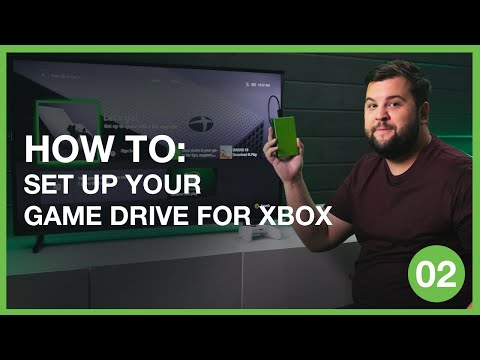
The short answer is a resounding YES. The Seagate 4TB external hard drive, in its various forms (Game Drive, Expansion Drive, etc.), is generally compatible with Xbox consoles, including the Xbox One, Xbox One S, Xbox Series X, and Xbox Series S. It’s a popular and reliable option for expanding your console’s storage capacity. However, the devil is always in the details, and understanding the nuances of compatibility and usage is key to a smooth gaming experience. Let’s delve deeper.
Understanding Seagate 4TB Compatibility with Xbox
Seagate has specifically designed several of its 4TB drives with Xbox in mind, most notably the “Game Drive for Xbox” series. These drives often feature Xbox branding and the iconic green color scheme, making them a natural fit for your gaming setup. The key to their compatibility lies in the USB 3.0 connectivity, which provides the necessary speed and bandwidth for transferring game data.
Here’s a breakdown of how the Seagate 4TB works with each Xbox console:
- Xbox One & Xbox One S: These consoles can both store and play games directly from the Seagate 4TB drive. This means you can expand your game library without having to delete and reinstall titles constantly.
- Xbox Series X & Xbox Series S: Here’s where it gets a little more nuanced. While you can store games optimized for the Xbox Series X|S on the Seagate 4TB, you cannot play them directly from the external drive. To play these optimized games, you’ll need to transfer them back to the console’s internal SSD or a Seagate Storage Expansion Card (which uses a proprietary interface to match the internal SSD speed). However, you can play Xbox One, Xbox 360, and original Xbox games directly from the Seagate 4TB on the Series X and S. This makes the drive a valuable asset for accessing your legacy library.
Essentially, the Seagate 4TB acts as a convenient archive for your Xbox Series X|S optimized games and a playable storage solution for older generation games.
Setting Up Your Seagate 4TB on Xbox
The setup process is remarkably straightforward:
- Plug it in: Connect the Seagate 4TB to an available USB 3.0 port on your Xbox console. Any USB port should work, but the rear ports are often preferred for cable management.
- Xbox Recognition: The Xbox will automatically detect the new drive and prompt you to format it.
- Formatting: Follow the on-screen instructions to format the drive for Xbox use. You’ll be asked to give the drive a name, which is helpful if you have multiple external drives.
- Choose Usage: Select whether you want to use the drive as primary storage (for Xbox One) or additional storage (for Xbox Series X|S game archival).
- That’s it!: Once formatted, the drive is ready to use. You can now manage your game library and transfer titles to and from the external drive.
Important Considerations
- Power: Most Seagate 4TB external drives are bus-powered, meaning they draw power directly from the USB port. However, some larger or older models might require an external power adapter. Make sure you have the necessary power source available.
- Drive Health: Regularly check the health of your external hard drive. While Seagate drives are generally reliable, all mechanical hard drives are susceptible to failure over time. Running diagnostic tools (like Seagate’s SeaTools) can help identify potential issues early.
- USB Hubs: While technically possible, connecting the Seagate 4TB through a USB hub is not recommended. Hubs can sometimes limit the power and bandwidth available to the drive, potentially impacting performance or causing connectivity issues. It’s always best to connect the drive directly to the console.
FAQs: Seagate 4TB and Xbox
Here are some frequently asked questions to further clarify the compatibility and usage of Seagate 4TB drives with Xbox consoles:
1. Can I use any Seagate 4TB external hard drive with my Xbox?
Generally, yes. As long as the drive uses USB 3.0 and is formatted correctly, it should work. However, the “Game Drive for Xbox” models are specifically designed for Xbox and offer guaranteed compatibility and often include convenient features like the Xbox green LED lighting.
2. How many Xbox games can a 4TB hard drive hold?
This depends on the size of the games. Xbox One games tend to be smaller than Xbox Series X
| S optimized games. On average, a 4TB drive can hold approximately 100+ Xbox One games or 50-75 Xbox Series X |
|---|
3. Will using an external hard drive make my Xbox games load faster?
For Xbox One games played from the external drive, load times might be slightly faster compared to the console’s internal hard drive, particularly if the internal drive is older or heavily fragmented. However, for Xbox Series X|S games, the external drive will not improve load times compared to the internal SSD. The bottleneck is the USB 3.0 interface, which is slower than the console’s internal NVMe SSD or the proprietary Seagate Storage Expansion Card.
4. Can I play Xbox Series X|S optimized games directly from a Seagate 4TB external hard drive?
No. Xbox Series X|S optimized games must be played from the console’s internal SSD or a Seagate Storage Expansion Card to take advantage of the faster loading times and graphical enhancements. The Seagate 4TB can only be used to store these games.
5. Does the Seagate Expansion 4TB work with Xbox Series S?
Yes. The Seagate Expansion 4TB works with the Xbox Series S, primarily for storing Xbox Series X|S optimized games and playing Xbox One, Xbox 360, and original Xbox games.
6. Why won’t my Seagate 4TB hard drive connect to my Xbox?
Possible reasons include:
- Faulty USB cable: Try a different USB cable.
- Incorrect USB port: Try a different USB port on the Xbox.
- Insufficient power: If the drive requires external power, ensure it’s properly connected.
- Drive not formatted: Make sure the drive is formatted for Xbox use.
- Drive malfunction: Test the drive on a PC to check its overall health.
7. How do I format my Seagate 4TB for Xbox?
Connect the drive to the Xbox, and the console will automatically prompt you to format it. Follow the on-screen instructions. You can also manually format the drive through the Xbox’s Storage settings.
8. Can I use the same Seagate 4TB on my Xbox and my PC?
Yes, but you’ll need to reformat the drive each time you switch between the two systems. Formatting will erase all data on the drive, so back up any important files before switching. It is generally not recommended to constantly switch the same drive between Xbox and PC due to the formatting requirements.
9. Is the Seagate Game Drive for Xbox better than the Seagate Expansion Drive for Xbox?
The “Game Drive for Xbox” is specifically marketed and designed for Xbox, often featuring Xbox branding and styling. Functionally, both drives are very similar in terms of performance, assuming they both use USB 3.0. The “Game Drive” might offer some minor software enhancements or aesthetic appeal tailored to Xbox users.
10. How do I transfer games from my Xbox to the Seagate 4TB?
Go to your Xbox’s Storage settings, select the game you want to move, and choose the option to “Move” or “Copy” it to the external hard drive.
11. Can I use multiple Seagate 4TB hard drives with my Xbox?
Yes. The Xbox One and Xbox Series X|S support multiple external hard drives. This allows you to significantly expand your storage capacity.
12. What is the maximum external storage capacity supported by Xbox One and Xbox Series X|S?
The Xbox One and Xbox Series X|S consoles support up to 16TB of external storage.
13. My Xbox isn’t recognizing my Seagate 4TB after a system update. What should I do?
Try these steps:
- Restart your Xbox: A simple reboot can often resolve connectivity issues.
- Check for updates: Ensure your Xbox is running the latest system software.
- Reconnect the drive: Unplug and replug the Seagate 4TB.
- Try a different USB port: Rule out a faulty USB port.
- Power cycle the drive: If the drive has an external power adapter, unplug it for a few minutes and then plug it back in.
14. Is a 4TB external hard drive a good investment for Xbox gamers?
Absolutely. Given the ever-increasing size of game installations, a 4TB external hard drive is a wise investment for any Xbox gamer. It provides ample storage for your game library, preventing the need to constantly delete and reinstall titles.
15. Where can I learn more about the intersection of gaming and education?
The Games Learning Society, available at GamesLearningSociety.org, is a fantastic resource for exploring the educational potential of video games. They offer research, articles, and community discussions about how games can be used to enhance learning and development.
Final Thoughts
The Seagate 4TB external hard drive is a reliable and effective solution for expanding your Xbox storage capacity. Understanding its compatibility with different Xbox models and following the simple setup instructions will ensure a smooth and enjoyable gaming experience. Just remember that while it’s perfect for archiving Xbox Series X|S optimized games and playing older titles, you’ll need the internal SSD or the official Expansion Card for the full next-gen experience. Now go forth and build that massive game library!