Level Up Your iPad: A Gamer’s Guide to Playing PC Games on Your Tablet
Fast answer first. Then use the tabs or video for more detail.
- Watch the video explanation below for a faster overview.
- Game mechanics may change with updates or patches.
- Use this block to get the short answer without scrolling the whole page.
- Read the FAQ section if the article has one.
- Use the table of contents to jump straight to the detailed section you need.
- Watch the video first, then skim the article for specifics.
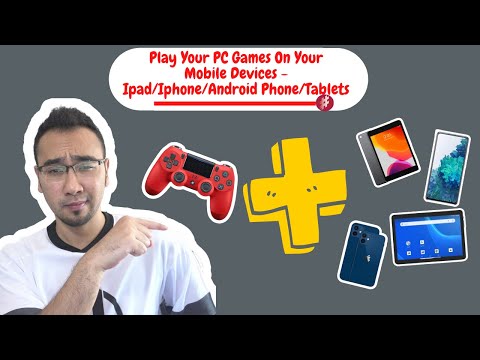
So, you’re itching to bring the power of your PC gaming library to the sleek portability of your iPad? Excellent choice! It’s absolutely possible to enjoy your favorite PC titles on your tablet, opening up a world of gaming on the go. Here’s the breakdown of how to make it happen:
The core method involves streaming your PC games to your iPad. This means your PC handles the heavy lifting of running the game, while your iPad acts as a display and input device. Think of it as remote controlling your gaming rig from the comfort of your couch, coffee shop, or even a plane (with Wi-Fi, of course!). This will require a stable internet connection and a compatible PC with a suitable GPU. Here are the most common and effective ways to stream PC games to your iPad:
- NVIDIA GeForce Now: If you’re willing to pay for a subscription and don’t necessarily need your specific PC, this is a very simple and effective solution. NVIDIA’s cloud gaming service does all the heavy lifting. Simply subscribe, download the app on your iPad, and start playing compatible games.
- Moonlight Game Streaming: This is a popular and completely free open-source solution. It essentially reverse-engineers NVIDIA’s GameStream technology. To use Moonlight, you’ll need an NVIDIA GPU in your PC and the GeForce Experience software installed. Moonlight is very customizable and offers excellent performance when configured correctly.
- Steam Link: Valve’s Steam Link app allows you to stream games directly from your Steam library on your PC to your iPad. It’s relatively easy to set up and works well for games that have good controller support. You’ll need to have Steam installed on both your PC and your iPad.
- Parsec: Parsec is another powerful option, known for its low-latency streaming capabilities. It’s a bit more technical to set up than Steam Link or Moonlight, but the superior performance makes it worth the effort for serious gamers.
Each of these methods has its own pros and cons, so let’s dive into the details.
NVIDIA GeForce Now: Cloud Gaming Convenience
GeForce Now is a cloud gaming service, meaning that NVIDIA’s powerful servers run the games, not your PC. This removes the need for a high-end gaming rig at home, but you’ll need a solid internet connection to stream the gameplay smoothly.
How to Use GeForce Now on iPad:
- Subscribe to GeForce Now: Choose a subscription tier that fits your needs. Free and paid options are available, with varying levels of performance and access.
- Download the GeForce Now app: Install the app from the App Store on your iPad.
- Log in: Use your GeForce Now account credentials to log in to the app.
- Browse and Play: Explore the library of supported games and start playing! Many popular titles are available, but not every PC game is on the service.
- Connect a controller: Many games playable using GeForce NOW have built in controller support, making them easily playable on an iPad
Pros:
- No need for a powerful PC.
- Convenient and easy to use.
- Access to a library of popular games.
Cons:
- Requires a subscription.
- Game availability is limited to what’s supported on the service.
- Dependence on a strong and stable internet connection.
Moonlight: The Free and Flexible Option
Moonlight streams directly from your own PC, leveraging NVIDIA’s GameStream technology. This means you need an NVIDIA GPU in your gaming rig, but it’s a fantastic free alternative to paid cloud gaming services.
How to Use Moonlight on iPad:
- Install GeForce Experience: Make sure NVIDIA GeForce Experience is installed on your gaming PC and up to date.
- Enable GameStream: In GeForce Experience, go to Settings > SHIELD and enable GameStream.
- Download Moonlight: Install the Moonlight app from the App Store on your iPad.
- Pair Your PC: Open Moonlight on your iPad. It should automatically detect your PC on the same network. If not, you can manually add your PC’s IP address.
- Connect and Play: Select your PC in Moonlight and enter the pairing code displayed on your iPad. Once paired, you can launch games from your Steam library or other game launchers.
Pros:
- Completely free.
- Streams directly from your own PC.
- Highly customizable.
- Good performance when configured correctly.
Cons:
- Requires an NVIDIA GPU.
- Setup can be a bit more technical than other options.
Steam Link: Your Steam Library on the Go
Steam Link is a straightforward solution for streaming games directly from your Steam library on your PC to your iPad.
How to Use Steam Link on iPad:
- Install Steam: Make sure Steam is installed and running on your gaming PC.
- Download Steam Link: Install the Steam Link app from the App Store on your iPad.
- Pair Your Devices: Open Steam Link on your iPad and follow the instructions to pair it with your PC. This usually involves entering a code displayed on your iPad into Steam on your PC.
- Start Streaming: Once paired, you can launch games from your Steam library on your iPad.
Pros:
- Easy to set up.
- Directly streams from your Steam library.
- Free to use.
Cons:
- Best suited for games with good controller support.
- Performance may not be as good as Moonlight or Parsec.
Parsec: Low-Latency Streaming for Serious Gamers
Parsec is designed for low-latency streaming, making it ideal for fast-paced games that require precise inputs.
How to Use Parsec on iPad:
- Create a Parsec Account: Sign up for a free Parsec account on their website.
- Install Parsec on Your PC: Download and install the Parsec application on your gaming PC.
- Install Parsec on Your iPad: Download and install the Parsec app from the App Store on your iPad.
- Connect and Play: Log in to Parsec on both your PC and iPad. Parsec will detect your PC, and you can connect and start streaming.
Pros:
- Excellent low-latency performance.
- Ideal for fast-paced games.
Cons:
- Setup can be more technical.
Enhancing the Experience: Controllers and Accessories
To truly elevate your PC gaming experience on the iPad, consider investing in a good quality controller. Many modern Bluetooth controllers are compatible with iPads, offering a more comfortable and precise gaming experience than using the touchscreen.
Here’s what to look for in a controller:
- Bluetooth connectivity: Ensure the controller supports Bluetooth for easy pairing with your iPad.
- Comfortable design: Choose a controller that fits comfortably in your hands.
- Responsive buttons and joysticks: Look for controllers with high-quality components for precise inputs.
Also, a sturdy iPad stand can make gaming more comfortable, especially for longer sessions.
Frequently Asked Questions (FAQs)
1. Can I play any PC game on my iPad?
Not every PC game is perfectly suited for streaming to an iPad. Games that require a mouse and keyboard, or have very complex control schemes, may be difficult to play comfortably on a touchscreen or with a controller. However, many games are perfectly playable and enjoyable. Cloud services such as GeForce NOW have built in controller support for games that may require a controller.
2. Do I need a powerful PC to stream games to my iPad?
Yes, the PC handles the processing power of the game. A more powerful PC will generally result in a smoother streaming experience. However, you don’t necessarily need the absolute top-of-the-line hardware. A mid-range gaming PC with a decent GPU and CPU can often provide a perfectly enjoyable experience.
3. How much does it cost to play PC games on my iPad?
The cost depends on the method you choose. Moonlight and Steam Link are free. GeForce Now requires a subscription. Parsec is free for basic use, but offers paid tiers for additional features.
4. What internet speed do I need for streaming?
A stable internet connection with a download speed of at least 25 Mbps is recommended for smooth streaming. Faster speeds will provide better performance and allow you to stream at higher resolutions and frame rates.
5. Can I use a keyboard and mouse with my iPad for PC gaming?
Yes, you can connect a Bluetooth keyboard and mouse to your iPad. This can be helpful for games that are not well-suited for controllers or touchscreens.
6. Will streaming games drain my iPad’s battery quickly?
Yes, streaming games can be battery-intensive. Be sure to have your iPad plugged into a power source or have a portable charger handy for longer gaming sessions.
7. Are there any alternatives to streaming for playing PC games on iPad?
While streaming is the most common method, there are some alternative, often less practical, options. One is using a remote desktop application to access your PC from your iPad. However, this is not optimized for gaming and will likely result in poor performance.
8. Can I play games I own on GOG on my iPad?
Yes, with some streaming services like Moonlight and Parsec, you can stream games from various launchers, including GOG.
9. Does Steam cost money?
Steam is free to use, but you typically pay for the games you purchase on the platform.
10. How do I improve streaming performance?
Ensure your PC and iPad are connected to the same network, preferably a 5 GHz Wi-Fi network. Close unnecessary applications on both devices. Experiment with different streaming settings, such as resolution and frame rate, to find the optimal balance between visual quality and performance.
11. Is it legal to stream PC games to my iPad using these methods?
Yes, streaming games from your own PC to your iPad is perfectly legal.
12. What about input lag? How can I minimize it?
Input lag can be a common issue when streaming games. Minimize it by using a wired connection if possible, ensuring your Wi-Fi signal is strong, and experimenting with different streaming settings to find what works best for your setup.
13. Can I play PC VR games on my iPad?
Generally, no. The iPad lacks the necessary hardware and software support for VR.
14. Will playing PC games on my iPad damage my iPad?
As long as you keep the iPad cool and don’t push it beyond its limits, playing PC games on your iPad is safe.
15. How does gaming on an iPad help with education or learning?
While directly streaming PC games might not seem educational, the problem-solving skills learned by configuring systems like Moonlight, understanding network settings, or optimizing performance can be valuable. Additionally, some PC games themselves can be highly educational. Research conducted by organizations such as the Games Learning Society has found that playing video games can improve critical thinking, problem-solving, and collaboration skills. Visit GamesLearningSociety.org to learn more about the intersection of gaming and education.
Conclusion
Playing PC games on your iPad is a fantastic way to enjoy your favorite titles on the go. Whether you choose a cloud gaming service like GeForce Now or a local streaming solution like Moonlight or Steam Link, the possibilities are endless. So, grab your iPad, connect your controller, and get ready to experience PC gaming in a whole new way!