How to Play PS5 Games on Your PC (Even Without Owning a PS5)
Fast answer first. Then use the tabs or video for more detail.
- Watch the video explanation below for a faster overview.
- Game mechanics may change with updates or patches.
- Use this block to get the short answer without scrolling the whole page.
- Read the FAQ section if the article has one.
- Use the table of contents to jump straight to the detailed section you need.
- Watch the video first, then skim the article for specifics.
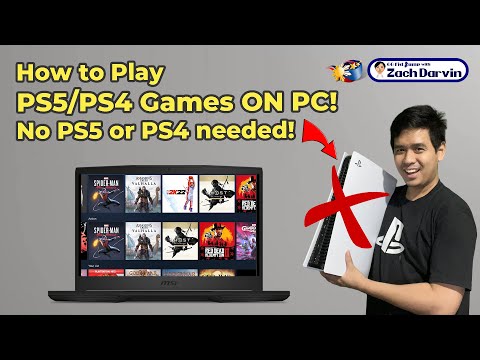
The dream of playing cutting-edge PlayStation 5 games on a powerful PC, without actually owning a PS5, is closer to reality than you might think. While a true, seamless experience mimicking native PC gaming remains elusive, there are established methods leveraging Remote Play and emerging technologies that allow you to enjoy some PS5 titles on your PC screen. The short answer is that while you can’t directly “play” PS5 games on your PC without some connection to the console, here’s how you can get as close as possible.
Leveraging PlayStation Remote Play: Your Primary Option
The most reliable and officially supported method is through PlayStation Remote Play. This feature, developed by Sony, allows you to stream your PS5 games to a compatible device, including your PC, over a network connection.
Setting Up Remote Play on Your PC
- Download the PS Remote Play App: Head to the PlayStation website and download the PS Remote Play application for Windows PC or Mac.
- Install the Application: Follow the on-screen instructions to install the application.
- Enable Remote Play on Your PS5: On your PS5 console, navigate to Settings > System > Remote Play and enable “Enable Remote Play.”
- Configure Rest Mode Settings (Optional): If you want to be able to wake your PS5 from rest mode for Remote Play, go to Settings > System > Power Saving > Features Available in Rest Mode and enable options like “Stay Connected to the Internet” and “Enable Turning On PS5 from Network.”
- Sign In to PSN: Launch the PS Remote Play app on your PC and sign in with the same PlayStation Network (PSN) account you use on your PS5.
- Connect Your Controller: Connect your DualSense or DualShock 4 controller to your PC using a USB cable.
- Select Your PS5: The app will automatically search for your PS5 console. Make sure both your PC and PS5 are on the same network. If it doesn’t find it automatically, you can manually register your console.
- Start Playing: Once connected, your PS5 screen will be mirrored on your PC. You can now play your PS5 games using your connected controller.
Important Considerations for Remote Play
- Network Speed: Remote Play requires a stable and high-speed internet connection. Sony recommends at least 5 Mbps for both upload and download speeds. A wired connection (Ethernet) is always preferable to Wi-Fi for both your PC and PS5.
- Resolution and Frame Rate: The quality of your Remote Play experience will depend on your network conditions and the settings you choose in the Remote Play app. You might need to adjust the resolution and frame rate to achieve a smooth and playable experience.
- Input Lag: Remote Play introduces some degree of input lag, which can be noticeable in fast-paced action games. Minimizing network latency is crucial to mitigate this issue.
- You Still Need a PS5: Remote Play requires you to own a PlayStation 5 console. Your PC is essentially acting as a remote screen and controller for your PS5.
The Elusive PS5 Emulator: Proceed with Caution
You may encounter articles or websites claiming to offer PS5 emulators for PC. As of today, no functional and legitimate PS5 emulator exists. Emulating a modern console like the PS5 is an incredibly complex undertaking, requiring immense processing power and intricate software engineering.
Dangers of Fake Emulators
- Malware and Viruses: Many fake emulators are actually disguised malware or viruses designed to infect your computer.
- Scams and Phishing: Some websites offering emulators are designed to collect your personal information or trick you into downloading harmful software.
- Waste of Time: Even if you find a program that claims to be a PS5 emulator, it’s highly unlikely to work or offer a playable experience.
- Potential Legal Issues: Downloading and using unofficial emulators can sometimes run into legal grey areas, depending on how the software is distributed and used.
Important Note: Be extremely cautious about any website claiming to offer a PS5 emulator. Stick to legitimate and well-established methods like Remote Play. It is also important to support developers by purchasing games directly instead of engaging in piracy. Games Learning Society is a great resource for understanding the ethics and legal aspects of video games: https://www.gameslearningsociety.org/.
The Future of PC Gaming and PlayStation Titles
While a direct, no-PS5-required way to play all PS5 games on PC doesn’t exist right now, the landscape is constantly evolving. Sony has been increasingly releasing some of its exclusive PlayStation titles on PC after a period of console exclusivity. This trend suggests that more PS5 games may eventually become available for PC gamers to purchase and play natively. Keep an eye out for announcements from Sony regarding future PC releases.
FAQs: Your Burning Questions Answered
1. Can I actually play PS5 games on my PC without any hardware connection to a PS5?
No, not currently. Remote Play requires you to own a PS5 console that acts as the source of the game stream. While Sony is releasing more games on PC over time, you will still need a powerful computer to run the newer titles.
2. Is there a legitimate PS5 emulator for PC?
No, there isn’t. Any website claiming to offer a functional PS5 emulator is likely a scam or distributing malware.
3. How much internet speed do I need for PS Remote Play?
Sony recommends at least 5 Mbps for both upload and download speeds. However, for a smoother and more stable experience, especially at higher resolutions, a faster connection is highly recommended.
4. Can I use a keyboard and mouse with PS Remote Play?
While you can’t directly use a keyboard and mouse to control the game within Remote Play, some games might support keyboard and mouse input through the PS5’s accessibility settings. However, this is game-dependent and not a universal solution. You’ll need to use a DualSense or DualShock 4 controller.
5. Can I use PS Remote Play over a mobile data connection?
Yes, you can use PS Remote Play over a mobile data connection. However, this is not recommended due to the potential for high data usage, unstable connection, and increased latency. Wi-Fi is always the preferred option.
6. Is PS Remote Play free?
Yes, the PS Remote Play application is free to download and use. However, you still need to own the PS5 console and the games you want to play.
7. Can I record or stream my PS5 gameplay using Remote Play?
Yes, you can record or stream your PS5 gameplay while using Remote Play. You can use PC-based recording software like OBS Studio or XSplit to capture the Remote Play window.
8. What if my Remote Play connection keeps disconnecting?
Connection issues can be caused by several factors, including network instability, slow internet speed, firewall settings, or outdated software. Try troubleshooting your network connection, updating your PS5 and PC software, and adjusting the Remote Play settings.
9. Does Remote Play work on all PCs?
Remote Play requires a PC that meets certain minimum system requirements. Check the PlayStation website for the latest specifications.
10. How do I improve the image quality of my Remote Play stream?
You can improve the image quality by increasing the resolution and frame rate settings in the Remote Play app. However, this will also increase the bandwidth requirements and may impact performance.
11. Can I play multiplayer games using Remote Play?
Yes, you can play multiplayer games using Remote Play, as long as your network connection is stable and fast enough to handle the demands of online gaming.
12. Is there any way to bypass the need for a controller with Remote Play?
Unfortunately, Remote Play is designed to be used with a DualSense or DualShock 4 controller. There’s no official way to bypass this requirement.
13. Will PS5 games ever be fully playable on PC without needing the console at all?
Sony has been increasingly open to bringing PlayStation exclusives to PC. While it’s impossible to predict the future, it’s certainly possible that more PS5 games will eventually be released on PC, allowing you to play them natively without needing a console.
14. I heard about cloud gaming services. Can I play PS5 games on my PC through them?
While cloud gaming services like PlayStation Plus Premium offer a selection of PlayStation games that can be streamed to your PC, these are primarily PS4 titles. Currently, there are no cloud gaming services that allow you to stream PS5 games to your PC without owning a PS5 console.
15. Can I connect my PS5 directly to my PC with an HDMI cable and play that way?
Yes, however, you’ll need to purchase an HDMI capture card. This device will allow your PC to receive the video and audio signal from your PS5, enabling you to view and potentially record the gameplay. However, you’ll still be playing the game on the PS5, your PC is just acting as a display. This doesn’t offload any processing requirements from the PS5.