How to Tell the Difference Between USB 2.0 and 3.0 Ports
Fast answer first. Then use the tabs or video for more detail.
- Watch the video explanation below for a faster overview.
- Game mechanics may change with updates or patches.
- Use this block to get the short answer without scrolling the whole page.
- Read the FAQ section if the article has one.
- Use the table of contents to jump straight to the detailed section you need.
- Watch the video first, then skim the article for specifics.
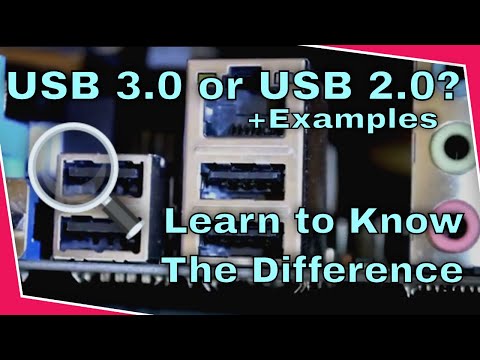
Identifying the difference between USB 2.0 and USB 3.0 ports is crucial for maximizing the performance of your devices. While they may look similar at first glance, understanding their key differences will ensure you’re using the correct port for optimal data transfer speeds and device functionality. Here’s a comprehensive guide to help you differentiate between these two common USB standards.
Physical Appearance: The Key to Identification
One of the most straightforward ways to distinguish between USB 2.0 and USB 3.0 ports is by examining their physical appearance. These are the most easily recognizable differences.
Color Coding of the Internal Block
- USB 2.0 ports typically feature a black plastic insert or “block” inside the port. This is the most common indicator of a USB 2.0 port.
- USB 3.0 ports are generally characterized by a blue plastic insert or “block” inside the port. This blue color is often a quick identifier for the faster USB 3.0 standard. However, it’s important to note that not all USB 3.0 ports will have a blue insert.
- Note, more recent USB 3.1 ports have a red plastic insert.
SuperSpeed (SS) Label or Logo
Another visual cue that can indicate a USB 3.0 port is the presence of an “SS” label or the SuperSpeed USB logo next to the port. This abbreviation stands for SuperSpeed, which is the official term for USB 3.0 and signifies its higher transfer speeds compared to USB 2.0. If you see the “SS” marking, you’re looking at a USB 3.0 or later port.
The USB 3.0 Logo
The USB 3.0 logo is a trident symbol with “SS” below it. Sometimes, a transfer speed capability of 5 Gbps is shown above the trident. This symbol is commonly found near USB 3.0 ports to help quickly identify them.
Checking Through Device Manager (Windows)
If you’re unsure about the USB ports on your computer, especially if they are not color-coded, you can use the Device Manager on Windows:
- Right-click the Windows icon (Start Menu, bottom left).
- Select Device Manager.
- In the Device Manager window, expand Universal Serial Bus controllers.
- Locate the USB ports by their type (e.g., USB 3.0, USB 3.1, USB 2.0). You will usually see entries for things like “USB 3.0 eXtensible Host Controller”. This will tell you what type of USB ports your machine has.
Understanding Transfer Rates and Performance
Beyond the visual differences, understanding the data transfer rates of each USB standard will also help you see why using the correct port is important:
- USB 2.0 ports offer a data transfer rate of up to 480 Mbps (Megabits per second). This is suitable for basic peripherals like keyboards and mice but is noticeably slower for transferring larger files.
- USB 3.0 ports offer a significantly faster data transfer rate of up to 4.8 Gbps (Gigabits per second). This is approximately 10 times faster than USB 2.0 and is essential for devices like external hard drives and high-resolution cameras.
Speed Limitations
It’s crucial to remember that the data transfer rate will be limited by the slowest component in the chain. For example, if you plug a USB 3.0 flash drive into a USB 2.0 port, the data will only transfer at the slower USB 2.0 speeds.
Compatibility and Functionality
One of the great features of USB technology is its backward compatibility. This means:
- You can plug a USB 2.0 device into a USB 3.0 port. It will work, but it will only operate at the speed of the slower USB 2.0 standard.
- You can also plug a USB 3.0 device into a USB 2.0 port. Again, it will work, but at the lower USB 2.0 speeds.
Potential Issues
Though backward compatibility is present, sometimes USB 2.0 devices may not work correctly with USB 3.0 ports if there are:
- Incorrect USB controller configurations.
- Outdated USB controller drivers on your PC.
- Disabled USB legacy support in BIOS.
Identifying USB Cables
Similar to ports, USB cables also follow a color scheme to differentiate between standards:
- USB 2.0 cables often have a white or black inner plastic connector.
- USB 3.0 cables often have a blue inner plastic connector.
Additionally, many USB 3.0 cables will also have the “SS” label. However, remember that these colors do not always apply to all manufacturer’s cables.
Frequently Asked Questions (FAQs)
Here are some frequently asked questions to clarify further the differences between USB 2.0 and USB 3.0 ports:
1. Are USB 2.0 and 3.0 ports the same size?
Yes, both USB 2.0 and USB 3.0 Type-A ports are the same size and use the same rectangular shape. The difference lies in the color and sometimes the presence of the “SS” logo.
2. Do all USB 3.0 ports have a blue color?
No, not all USB 3.0 ports have the blue insert, although it is common. Some manufacturers choose to use black or another color, and therefore use the “SS” label instead.
3. Can I convert a USB 2.0 port to a USB 3.0 port?
You cannot convert a USB 2.0 port to a USB 3.0 port directly. However, you can install a USB 3.0 PCI expansion card on your computer, providing you with new USB 3.0 ports.
4. Why is USB 3.0 faster than USB 2.0?
USB 3.0 is faster because it utilizes more wires (9 in total, vs 4 in USB 2.0) which increases transfer speeds and the overall voltage provided to devices.
5. What is the difference between USB 3.0 and USB 3.1?
USB 3.1 is a later standard that offers even faster speeds than USB 3.0. USB 3.1 has a red plastic insert and its symbol shows “Gen 2” under the trident, and a transfer rate of 10 Gbps over the trident.
6. What does the “SS” label on a USB port mean?
“SS” stands for SuperSpeed, which indicates that it is a USB 3.0 port.
7. Can a USB 2.0 device work in a USB 3.0 port?
Yes, USB 2.0 devices work in USB 3.0 ports but will only operate at USB 2.0 speeds.
8. How do I know if my USB cable is 2.0 or 3.0?
USB 2.0 cables have white or black inner connectors, while USB 3.0 cables are often blue and may have the “SS” label.
9. What is the importance of using the correct USB port?
Using the correct USB port will ensure that your device performs at its maximum speed. For example, use a USB 3.0 port for external hard drives and USB 2.0 for basic peripherals like mice and keyboards.
10. Which USB port is better for charging?
USB 3.0 ports can provide slightly more power for charging, up to 900 mA, compared to USB 2.0’s 500 mA. USB-C ports with Power Delivery (PD) are generally the fastest for charging, though.
11. How do I check my USB version in Windows?
You can check the Device Manager under “Universal Serial Bus controllers” to find the specifications of your USB ports.
12. Can a USB 3.0 device cause issues in a USB 2.0 port?
No, but a USB 3.0 device plugged into a USB 2.0 port will only operate at the slower USB 2.0 speeds.
13. Why is my USB 3.0 device working slowly in a USB 3.0 port?
This could be due to outdated drivers, faulty hardware, or the device itself not performing as expected. Ensure you have the correct drivers installed.
14. Do data cables and charging cables use the same pins?
USB data cables use data pins for transferring data. Some high-power charging cables may use those same data pins to communicate with the charger and device for higher charging speeds, but they use more power than USB allows on its own.
15. What are the different USB Type connectors?
There are various connector types including Type-A (rectangular), Type-B (square/trapezoidal), and Type-C (small, oval). Each can support different USB versions. Type-A is usually found on computers, Type-B is usually for peripherals, while Type-C is becoming more common.
By understanding these key differences, you can confidently identify and use your USB 2.0 and 3.0 ports, ensuring optimal performance and compatibility with your various devices.