How to Add Non-Steam Games to Your Steam Deck: A Comprehensive Guide
Fast answer first. Then use the tabs or video for more detail.
- Watch the video explanation below for a faster overview.
- Game mechanics may change with updates or patches.
- Use this block to get the short answer without scrolling the whole page.
- Read the FAQ section if the article has one.
- Use the table of contents to jump straight to the detailed section you need.
- Watch the video first, then skim the article for specifics.
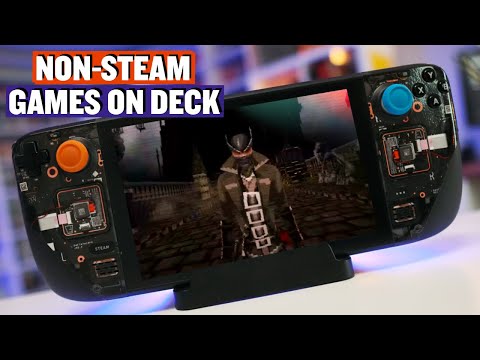
The Steam Deck, with its powerful hardware and versatile nature, has quickly become a favorite among gamers. While it’s primarily designed for the Steam ecosystem, its open Linux architecture allows you to venture beyond and enjoy games from various sources. Adding non-Steam games to your Steam Deck is easier than you might think, opening up a world of gaming possibilities. Here’s how you do it, along with essential tips and answers to frequently asked questions.
Adding Non-Steam Games: The Core Process
The most direct way to add non-Steam games to your Steam Deck involves using the Steam client in Desktop Mode. Here’s a step-by-step guide:
- Switch to Desktop Mode: Press the Steam button, navigate to Power, and select Desktop Mode. This will take you to the KDE Plasma desktop environment, a fully-fledged Linux desktop.
- Open Steam: Launch the Steam client from the desktop.
- Add a Non-Steam Game: In the bottom-left corner of the Steam window, click “Add a Game…”. Select “Add a Non-Steam Game…” from the menu.
- Choose Your Application: A list of installed applications will appear. If your game’s executable is listed, simply select it. If it’s not, click “Browse…” and navigate to the directory where the game’s executable file (.exe for Windows games, or the relevant executable for other games) is located. Select the file and click “Open”.
- Add to Library: The selected game will now be added to your Steam library. It will appear under the “Non-Steam” tab within the Game Mode interface.
- Return to Gaming Mode: Close Steam and navigate back to Gaming Mode by selecting the return to Gaming Mode icon on the Desktop screen.
- Launch Your Game: Locate your newly added game in the library and click to launch it!
This basic process adds a shortcut to your game within the Steam UI. Note that this does not allow you to download updates for the game via Steam or prove ownership of the game through your Steam account.
Leveraging Launchers for Other Game Stores
For games from other stores like Epic Games, GOG, Amazon Games, and others, using a dedicated launcher is often the most efficient method. Here are some popular options:
Heroic Games Launcher
Heroic Games Launcher is an excellent choice for managing games from multiple sources. It acts as a front-end for Epic Games, GOG Galaxy, and Amazon Games, all within one installation. To install Heroic:
- Desktop Mode: Switch to Desktop Mode on your Steam Deck.
- Discover App: Open the Discover app, which is the Steam Deck’s software center.
- Search & Install: Search for “Heroic Games Launcher” and click “Install”.
- Launch Heroic: Once installed, launch the Heroic Games Launcher.
- Login and Install Games: Follow the prompts to log in to your respective accounts (Epic Games, GOG, etc.) and install your games as usual.
- Add Heroic to Steam: Within Steam, add the Heroic Games Launcher as a non-Steam game so you can launch your installed store games directly from Game Mode.
- Game Mode: You can now play your games from the Heroic Launcher through Steam’s Game Mode.
Other Launchers
You can also install the Epic Games Launcher, GOG Galaxy, or the Amazon Games App directly. The process is similar to installing Heroic: access Discover, search for the launcher, and install. Adding these directly as Non-Steam games to your Steam Library will allow you to access them directly from gaming mode, simplifying your gaming experience.
Setting Up SyncThing for Game Data
While you can easily play non-Steam games on your Steam Deck, keeping your game data synced between your PC and Deck is essential. SyncThing is a popular open-source file synchronization program that makes this process seamless:
- Install SyncThing on Steam Deck:
- Enter Desktop Mode on your Steam Deck.
- Open the Discover app.
- Search for “SyncThing” and click “Install”.
- Launch SyncThing and complete the initial wizard.
- Install SyncThing on PC:
- Download SyncThing for your PC’s operating system from the official website.
- Install SyncThing.
- Configure Synchronization:
- On both your PC and Steam Deck, create a shared folder for your game save data.
- Configure SyncThing to monitor and synchronize this folder.
- Follow SyncThing’s instructions to connect your PC and Steam Deck.
- Seamless Sync: Now, your game saves will automatically sync between devices.
Frequently Asked Questions (FAQs)
Here are 15 FAQs about adding non-Steam games to your Steam Deck, covering various aspects of this topic:
1. Can you install other game stores on Steam Deck?
Yes, you can install other game stores like Epic Games Store, GOG Galaxy, Ubisoft Connect, The EA App, and Amazon Games. Using launchers like Heroic makes this process much easier.
2. Can you put any game on a Steam Deck?
Theoretically, yes. The Steam Deck can run a wide range of games, including those outside the Steam ecosystem. However, compatibility can vary. Games verified for Steam Deck have been optimized for the platform.
3. What happens if you add a non-Steam game to Steam?
Adding a non-Steam game to Steam creates a shortcut in your library. It does not grant access to Steam features like automatic updates or prove game ownership. It just facilitates launching the game through the Steam UI.
4. Can you play Xbox games on Steam Deck?
Yes, you can play Game Pass titles on your Steam Deck. Install the Xbox app on your Steam Deck (best done in Desktop mode), and you’ll be able to access your Game Pass library.
5. What other game launchers work on Steam Deck?
Besides Steam, launchers like Heroic Games Launcher, Epic Games Launcher, GOG Galaxy, and Amazon Games App work on Steam Deck. These launchers allow access to various stores and their game libraries.
6. Can Steam Deck play cracked games?
No. The Steam client does not recognize cracked or pirated games. Games installed through Steam should be legally purchased and have the proper licenses to function without issues.
7. Why aren’t all games playable on Steam Deck?
Not all games are compatible with Steam Deck, mainly due to anti-cheat systems in multiplayer games, and also due to lack of support for the Proton compatibility layer. Valve is continually working to improve game compatibility with the Steam Deck.
8. Is SteamUnlocked games safe?
No. SteamUnlocked is a website offering games without charge. It is not an authorized reseller and can carry considerable security risks. It is best practice not to use such websites to obtain games.
9. Can I transfer Epic Games to Steam?
No, you cannot transfer game licenses from the Epic Games Store to Steam. However, you can add a shortcut to your Epic Games titles in Steam by utilizing the Heroic or other launchers mentioned above.
10. How long does Steam Deck battery last?
Steam Deck’s battery life varies between 2 to 8 hours depending on the games you play and your settings. Adjusting settings can help maximize battery life.
11. How do I add non-Steam games to my launcher?
Open Steam, click “Games”, then “Add a Non-Steam Game to My Library.” Locate the application, and click “Open” to add it.
12. How do I add non-Steam games to Steam Deck Heroic Launcher?
You’ll need to first add the Heroic Games Launcher as a Non-Steam game to your Steam Library to launch the launcher from Game Mode, then open the launcher and add the games that way. You cannot directly add non-Steam games to the Heroic launcher through Steam.
13. How do I add Amazon Games launcher to Steam Deck?
You can add the Amazon Games App directly as a non-Steam game or use the Heroic Launcher. Either method will install the Amazon app and allow you to log into your Amazon account.
14. Is it worth it to install Windows on Steam Deck?
Installing Windows can enable access to games not compatible with SteamOS but is a multi-step process. While it adds compatibility, it can be more complex to set up and may introduce issues such as driver conflicts.
15. Can you run emulators on Steam Deck?
Yes, you can run emulators on the Steam Deck. It performs well with 8-bit and 16-bit consoles and handhelds. More demanding emulators may require some additional tweaks to get them running at a satisfactory level.
By following this guide, you can unlock the full potential of your Steam Deck, enjoying not only your Steam library but a world of games from various sources. With a little effort, you can transform your Steam Deck into a truly versatile and powerful portable gaming device.