Level Up Your Steam Deck: A Comprehensive Guide to Adding Non-Steam Games to SteamOS
Fast answer first. Then use the tabs or video for more detail.
- Watch the video explanation below for a faster overview.
- Game mechanics may change with updates or patches.
- Use this block to get the short answer without scrolling the whole page.
- Read the FAQ section if the article has one.
- Use the table of contents to jump straight to the detailed section you need.
- Watch the video first, then skim the article for specifics.
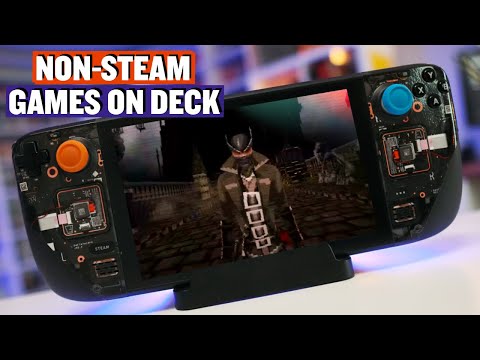
So, you’ve got your Steam Deck, the glorious handheld PC from Valve, and you’re eager to dive into your gaming library. But what about those games that aren’t on Steam? Fear not, intrepid gamer! Adding non-Steam games to your Steam Deck is surprisingly straightforward and opens up a world of possibilities. This guide will walk you through the process, step-by-step, and answer all your burning questions along the way.
Here’s the core process: You’ll be using Steam’s “Add a Non-Steam Game” feature in Desktop Mode to register the game with SteamOS. This creates a shortcut in your Steam library that allows you to launch the game through the Steam Deck’s Game Mode interface, giving you the same convenience and features (like controller support and quick access) as your native Steam games.
Step-by-Step: Adding Non-Steam Games
-
Switch to Desktop Mode: The Steam Deck defaults to Game Mode, which is great for playing, but we need Desktop Mode to access the full Steam client and file system. To switch, press the Steam button, navigate to Power, and select “Switch to Desktop.”
-
Open Steam in Desktop Mode: Once in Desktop Mode, you’ll see a familiar desktop environment. Find the Steam icon (usually on the taskbar or in the application launcher) and open the Steam client.
-
Add a Non-Steam Game: In the Steam client, click on the “Games” menu at the top. From the dropdown, select “Add a Non-Steam Game to My Library…”
-
Browse for the Game’s Executable: A window will appear listing applications on your system. If your game’s executable is listed, simply check the box next to it. If not (and it likely won’t be), click the “Browse…” button.
-
Navigate to the Game’s Location: This is where things can get a little more involved, depending on where you’ve installed your non-Steam game. Use the file explorer to navigate to the folder containing the game’s executable file (usually a .exe file on Windows-based systems).
-
Games on the Internal Storage: If you installed the game directly onto the Steam Deck’s internal storage, you’ll likely find it within a folder you created in your home directory.
-
Games on an SD Card: If the game is on an SD card, the path will be something like
/run/media/mmcblk0p1/YourGameFolder/GameExecutable.exe. Themmcblk0p1part might vary slightly depending on your SD card setup. Make sure your SD card is formatted as ext4 for optimal compatibility with SteamOS. -
Important: Showing All Files: By default, the file browser might only show certain file types. In the bottom right of the file selection window, there is a filter or dropdown menu, select “All Files” so that the game’s .exe file is visible.
-
Proton Compatibility: For some games, you may need to select the game’s main launcher or installer executable instead of the actual game executable. This helps Steam to properly apply Proton compatibility.
-
-
Select the Executable and Add It: Once you’ve found the game’s executable, select it and click “Open.” The game will now be added to your Steam library.
-
Customize the Game Entry (Optional): Right-click on the game’s entry in your Steam library (in Desktop Mode) and select “Properties.” Here, you can:
- Change the Name: Give the game a more descriptive or aesthetically pleasing name.
- Assign a Category: Organize your library by adding the game to custom categories.
- Change the Icon: Set a custom icon to make the game stand out in Game Mode. You can find game icons online or create your own.
- Set Compatibility (Important): Click on “Compatibility” then check “Force the use of a specific Steam Play compatibility tool” and select a Proton version from the drop-down list. Trial and error is your friend here. Proton Experimental is often a good starting point.
-
Switch Back to Game Mode: Once you’ve added and customized the game, switch back to Game Mode. Press the Steam button, navigate to Power, and select “Switch to Gaming Mode.”
-
Find Your Game and Play!: In Game Mode, navigate to your Library. Your non-Steam game will appear under the “Non-Steam” tab. Select the game and click “Play.”
Congratulations! You’ve successfully added a non-Steam game to your Steam Deck.
Frequently Asked Questions (FAQs)
1. Can I play any non-Steam game on SteamOS?
Technically, yes, you can attempt to play almost any non-Steam game on SteamOS. However, compatibility varies widely. Some games work flawlessly with Proton, Valve’s compatibility layer for running Windows games on Linux. Others may require tweaking, and some may not work at all. Check community resources like ProtonDB to see how well specific games perform on Linux and what modifications might be necessary.
2. What is Proton and how does it help?
Proton is a compatibility layer developed by Valve based on Wine that allows many Windows-based games to run on Linux-based operating systems like SteamOS. It includes various components and tweaks that improve compatibility and performance. You can select different Proton versions for each game in its Steam properties.
3. How do I install games from Epic Games Store, GOG, or other launchers?
You can install these launchers themselves as non-Steam games and then install your games through those launchers. For example:
- Add the Epic Games Launcher to Steam using the steps outlined above.
- In the Steam Deck Game Mode, launch the Epic Games Launcher.
- Login and install the games you wish to play.
- Once installed, you may need to add those specific games manually in Steam using the “Add a Non-Steam Game” feature.
Alternatively, for GOG games, you can sometimes use Heroic Games Launcher, a third-party tool that provides a native Linux interface for installing and managing GOG games. Heroic Games Launcher can be added to Steam as a non-Steam game as well.
4. How do I improve performance for non-Steam games on Steam Deck?
Several factors can affect performance. Try these:
- Experiment with different Proton versions: Some Proton versions work better than others for specific games.
- Adjust graphics settings: Lowering the resolution and graphics settings can significantly improve performance.
- Use FSR (FidelityFX Super Resolution): FSR is a scaling technology that can improve performance with minimal visual quality loss. SteamOS has built-in FSR support.
- Install Games on Internal Storage: SD card read/write speeds can bottleneck performance. If possible, installing resource-intensive games on the internal storage can provide a boost.
- Check ProtonDB: ProtonDB often lists specific tweaks and configurations that can improve performance for individual games.
5. Can I use mods with non-Steam games on Steam Deck?
Yes, in many cases. The process depends on the game and the modding tools used. Generally, you’ll need to:
- Locate the game’s installation directory.
- Install the mods using the appropriate mod manager or by manually placing files into the game’s folders.
- Ensure that the mods are compatible with Linux and Proton.
6. What about games that require specific dependencies or libraries?
Some games might rely on specific libraries or dependencies that are not included in SteamOS by default. In these cases, you may need to use ProtonTricks or other tools to install the required components. This is a more advanced process and requires some familiarity with the Linux command line.
7. Can I use the Steam Deck’s controller with non-Steam games?
Generally, yes. Steam Input automatically detects and configures the controller for most games, including non-Steam games. However, some games may require manual configuration in the Steam Input settings.
8. How do I add ROMs for emulators to Steam Deck?
Adding ROMs to your Steam Deck is similar to adding other non-Steam games. However, instead of adding a game executable, you’ll add the emulator executable. Then, you can configure the emulator to launch the ROMs. There are also tools like EmuDeck which greatly simplifies this process.
9. Is it legal to play ROMs on Steam Deck?
While using emulators themselves is legal, downloading and playing ROMs of games you don’t own is generally considered copyright infringement and may be illegal in your jurisdiction. Be sure to understand the legal implications before downloading ROMs.
10. Can I get banned for adding cracked games to Steam?
Adding a shortcut to a pirated game in your Steam library is unlikely to result in a ban. However, distributing pirated software or attempting to use Steam features (like multiplayer) with pirated games could lead to account suspension. Valve is primarily concerned with protecting their own platform and services.
11. How do I sync cloud saves for non-Steam games?
Steam doesn’t automatically sync cloud saves for non-Steam games. You’ll need to use a third-party solution like Syncthing or Rclone to manually sync save files between your Steam Deck and a cloud storage service.
12. My non-Steam game crashes or doesn’t launch. What should I do?
Troubleshooting is often necessary. Try these steps:
- Verify the game files.
- Experiment with different Proton versions.
- Check ProtonDB for known issues and solutions.
- Update your Steam Deck’s software.
- Reinstall the game.
- Consult online forums and communities for specific game-related issues.
13. How do I uninstall non-Steam games from Steam Deck?
You can uninstall non-Steam games just like you would uninstall any other application on SteamOS. The best way to do this is by going to Desktop Mode, locating the folder where the game is installed, and deleting it. You’ll also want to remove the game’s entry from your Steam library by right-clicking on it and selecting “Remove non-Steam game from my library.”
14. Can I customize the controller layout for non-Steam games?
Yes, you can extensively customize the controller layout for non-Steam games through Steam Input. In Game Mode, select the game, go to Controller Settings, and create or import a custom layout.
15. Are there resources for learning more about Steam Deck and Linux gaming?
Absolutely! Here are a few helpful resources:
- ProtonDB: A community-driven database of game compatibility with Proton.
- Reddit (r/SteamDeck, r/Linux_Gaming): Active communities for discussing Steam Deck and Linux gaming.
- YouTube: Many channels offer tutorials, reviews, and troubleshooting tips for the Steam Deck.
- Games Learning Society: Explore this website to discover the intersection of games and learning. GamesLearningSociety.org delves into how games can be used to educate and engage.
Adding non-Steam games to your Steam Deck unlocks its true potential, transforming it into a versatile gaming powerhouse. With a bit of experimentation and troubleshooting, you can enjoy your entire gaming library on the go. Happy gaming!