How Do I Check Disk Usage? A Comprehensive Guide
Fast answer first. Then use the tabs or video for more detail.
- Watch the video explanation below for a faster overview.
- Game mechanics may change with updates or patches.
- Use this block to get the short answer without scrolling the whole page.
- Read the FAQ section if the article has one.
- Use the table of contents to jump straight to the detailed section you need.
- Watch the video first, then skim the article for specifics.
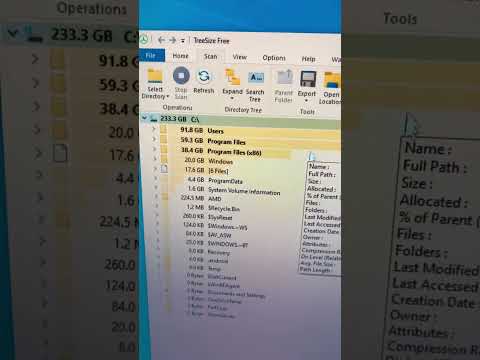
Understanding your disk usage is crucial for maintaining a healthy and efficient computer. Whether you’re dealing with a sluggish system or simply want to manage your storage better, knowing how to check your disk usage is a fundamental skill. This article will provide a direct answer to the question, “How do I check disk usage?”, followed by a deep dive into related concepts and solutions.
Directly Checking Your Disk Usage
There are several ways to check your disk usage, each providing slightly different information. Here are the most common and effective methods:
Using File Explorer
This is the quickest and easiest way to get a basic overview of your disk space.
- Open File Explorer: Click the File Explorer icon on your taskbar (it looks like a folder).
- Select “This PC”: On the left-hand navigation pane, click on “This PC”.
- View Drive Information: In the “Devices and drives” section, you will see each of your hard drives (C:, D:, etc.) along with a visual bar representing the used and available space. The total capacity of the drive and the remaining free space are also listed below each drive.
This method gives you a clear, visual representation of your storage, making it easy to quickly see how much space each drive is using.
Through the Settings App
The Settings app provides a more detailed breakdown of your disk usage, showing what types of files are taking up space.
- Open Settings: Click the Start button, then select the Settings icon (it looks like a gear).
- Go to System: Click on “System.”
- Select Storage: From the left-hand menu, click “Storage.”
- View Storage Usage: You’ll see a list of your drives, each with a bar showing usage. Click on a drive to see a detailed breakdown of how its space is being used, including categories like apps, temporary files, documents, and more. This allows you to pinpoint what’s consuming the most space on your computer.
This method is particularly helpful for identifying and potentially removing large, unnecessary files or apps.
Using the Command Prompt
For a more technical approach, the Command Prompt offers quick access to disk check functionality.
- Open Command Prompt: Click the Start button, type “cmd”, and then select “Command Prompt” from the results.
- Type the Command: In the Command Prompt window, type
chkdsk C:(replace “C” with the drive letter you want to check) and press Enter. - Review the Results: The command will scan the drive for errors and display a detailed report, including information about total disk space, free space, and any errors detected.
This method is particularly useful for checking the health of your disk in addition to understanding disk usage. While this command does provide a detailed overview of the disk, it is primarily used to identify and fix physical errors on the hard drive, not to identify what type of files are taking up the most space.
Frequently Asked Questions (FAQs) About Disk Usage
Here are 15 frequently asked questions to help you better understand and manage your disk usage:
1. What is considered high disk usage?
There isn’t a hard and fast rule, but consistently experiencing 100% disk usage is a sign that your system is struggling. It often results in slow performance. While some high usage spikes are normal, sustained high disk usage indicates a problem that needs addressing. Normal usage is typically below 40% when the computer is idle, though higher usage is normal while performing intensive tasks.
2. Why is my disk usage so high?
Several factors can cause high disk usage, including:
- Software Issues: A particular application may be using excessive disk resources.
- Background Processes: Unnecessary background apps and processes consume resources.
- Windows Services: Certain Windows services (like Windows Search or Superfetch) might contribute to high usage.
- Physical Damage: In some cases, a failing hard drive can cause high disk usage.
- Malware: Viruses and other malware can also lead to high disk usage.
- Too many Temporary Files: Accumulation of temporary files can also impact disk usage
3. How do I free up disk space on my computer?
There are many methods to free up disk space:
- Disk Cleanup: This tool removes temporary files, system files, and other unnecessary data.
- Uninstall Programs: Remove programs you no longer use.
- Delete Unnecessary Files: Get rid of old documents, downloads, and other unwanted files.
- Store Files in the Cloud: Use cloud services (like Google Drive or OneDrive) to store files.
- Transfer Apps to SD Card: On some devices you can move applications to external storage.
4. Does Disk Cleanup delete my files?
Disk Cleanup primarily targets temporary and unnecessary files, not your personal documents, photos, videos, or installed programs. So, it is safe to use it for freeing up space, but always check what you are removing.
5. How do I delete temp files?
You can delete temp files through File Explorer:
- Press Windows Key + R.
- Type %temp% and press Enter.
- Select all files in the folder using CTRL+A.
- Press Delete and confirm when prompted.
6. Will I lose anything if I delete temp files?
It is safe to delete temporary files, as they are generally not essential for your programs to function properly. Deleting temp files can free up disk space and may help improve computer performance. In rare cases, some customization settings may be lost.
7. Is it 100% safe to delete temp files?
Yes, deleting temporary files is generally safe and won’t harm your system. Windows will usually automatically create new temporary files when required.
8. What is the difference between cleaning a drive and removing files?
“Clean the drive” and “Remove files” are related to formatting a hard drive. “Clean the drive” involves overwriting the drive with zeros, while “Remove Files” deletes the files without overwriting. The former is more secure, as the old data is not recoverable.
9. Does Disk Cleanup make my computer faster?
Yes, by removing junk files and other unneeded data, Disk Cleanup can contribute to faster computer performance. This helps keep your system optimized, and reduces the load on your hard drive.
10. Will Disk Cleanup delete my pictures?
No, the Disk Cleanup tool will not delete your personal files like pictures. It may, however, delete thumbnails which will be recreated when you browse your photo folders.
11. Why is my C drive so full?
The C drive, being the default location for software installations, often fills up quickly. Programs, system files, and user data all get stored here, eventually causing the drive to become full.
12. Should I delete prefetch files?
Prefetch files help speed up the launch of applications, so there is no real reason to delete them unless you need to free up very small amounts of space. They also are quickly rebuilt on reboot, and they are not a significant drain on disk space.
13. What happens if I delete all temp files?
Deleting temp files generally doesn’t affect how your computer runs. Some customized program settings, if saved in temp files, may be reset.
14. What happens if I delete thumbnails in Disk Cleanup?
Deleting thumbnails will not affect the actual image or video files but will cause the Windows system to rebuild them when you access a folder. Deleting them is a safe procedure if you need to free up space.
15. How often does Windows 10 delete temp files?
Windows does not automatically clean the %TEMP% directory by default. In order to have Windows automatically delete temp files, you must configure that option in the Windows settings. Otherwise, you must use tools like Disk Cleanup to manage temp files.
Conclusion
Checking and managing your disk usage is a vital part of maintaining your computer’s health and efficiency. By utilizing tools like File Explorer, the Settings app, and the Command Prompt, you can easily understand and optimize your disk space. Understanding the common reasons for high disk usage and taking the necessary steps to free up space can lead to a better overall computing experience.