How to Clean Your Xbox One Without Opening It: A Comprehensive Guide
Fast answer first. Then use the tabs or video for more detail.
- Watch the video explanation below for a faster overview.
- Game mechanics may change with updates or patches.
- Use this block to get the short answer without scrolling the whole page.
- Read the FAQ section if the article has one.
- Use the table of contents to jump straight to the detailed section you need.
- Watch the video first, then skim the article for specifics.
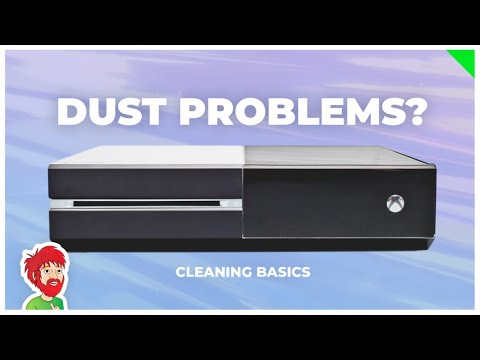
The Xbox One, like any electronic device, is a magnet for dust, dirt, and grime. Over time, this buildup can lead to overheating, performance issues, and even hardware failure. Cleaning your console regularly is crucial for maintaining its health and ensuring a smooth gaming experience. Fortunately, you can effectively clean your Xbox One without opening it, minimizing the risk of voiding your warranty or causing internal damage.
The key is to focus on external cleaning and utilizing compressed air to dislodge dust from vents. Here’s a detailed guide:
Step 1: Gather Your Supplies
- Microfiber cloth: These are soft, lint-free cloths ideal for wiping down surfaces without scratching.
- Compressed air: Essential for blowing dust out of vents. Use short bursts and avoid inverting the can.
- Cotton swabs: Useful for cleaning small crevices and hard-to-reach areas.
- Isopropyl alcohol (70% or less): For disinfecting the controller and cleaning stubborn stains (use sparingly and test on an inconspicuous area first).
- Small vacuum cleaner with brush attachment (optional): Can be used carefully on vents to remove loose dust.
Step 2: Power Down and Unplug
Before you begin any cleaning, completely power down your Xbox One and unplug it from the power outlet. This is a critical safety precaution to prevent electric shock and potential damage to the console. Let it cool down completely.
Step 3: Wipe Down the Exterior
Using a slightly dampened (not wet!) microfiber cloth, gently wipe down the entire exterior of the Xbox One. Pay attention to the top, sides, and front panel. Avoid applying too much pressure, and ensure no moisture enters any vents or openings. For stubborn stains, you can lightly dampen the cloth with diluted isopropyl alcohol, but test it on an unseen area first.
Step 4: Clean the Vents
This is the most crucial step for internal dust removal.
- Compressed Air: Hold the can of compressed air a few inches away from the vents on the sides and back of the console. Use short, controlled bursts to blow dust outwards. Avoid holding the nozzle too close, as this can force dust further inside. Move the can along the length of the vent to ensure you cover the entire area.
- Vacuum (Optional): If you have a small vacuum cleaner with a brush attachment, you can carefully use it to remove loose dust from the vents before using compressed air. Be extremely gentle and avoid touching the vacuum nozzle directly to the console’s surface. The idea is to suck up the loose debris before it is pushed back inside by the compressed air.
- Repeat: Repeat the process of using compressed air and, if applicable, the vacuum cleaner several times to ensure you dislodge as much dust as possible.
Step 5: Clean the Controller(s)
Your Xbox One controller(s) accumulate a lot of dirt and grime from regular use.
- Wipe Down: Use a slightly dampened microfiber cloth to wipe down the entire controller, paying attention to the buttons, analog sticks, and grips.
- Cotton Swabs: Use cotton swabs dampened with isopropyl alcohol to clean around the buttons, analog sticks, and other small crevices. This will help remove dirt and grime that can accumulate in these areas.
- Allow to Dry: Let the controller(s) air dry completely before using them.
Step 6: Clean the Disc Drive Area
Use a dry microfiber cloth to wipe around the disc drive area. Avoid using any liquids near the disc drive opening. If the disc drive is malfunctioning, consider consulting a professional repair service.
Step 7: Reassemble and Test
Once you’ve cleaned all the components, reassemble the Xbox One (if you disassembled any cables) and plug it back into the power outlet. Power on the console and test its performance. If you notice any issues, double-check all connections and consult the Xbox One support website.
Frequently Asked Questions (FAQs)
Here are 15 frequently asked questions to help you understand how to clean your Xbox One without opening it:
1. How often should I clean my Xbox One?
Ideally, you should clean your Xbox One at least once every 3-6 months, or more frequently if you live in a dusty environment or use the console heavily.
2. Can I use a regular household cleaner on my Xbox One?
No. Avoid using harsh chemicals, bleach, or abrasive cleaners. These can damage the console’s finish and potentially harm internal components if they seep inside. Stick to a slightly dampened microfiber cloth and, if needed, diluted isopropyl alcohol.
3. Is it safe to use a vacuum cleaner on the Xbox One vents?
Yes, but with extreme caution. Use a small vacuum cleaner with a brush attachment on the lowest setting. Avoid touching the nozzle directly to the console’s surface and only use it to remove loose dust before using compressed air. Excessive vacuuming or using too much suction can damage internal components.
4. Can I use a wet wipe to clean my Xbox One?
While you can slightly dampen a microfiber cloth with water, avoid using wet wipes that contain harsh chemicals or excessive moisture. They can leave behind residue or damage the console’s surface.
5. What happens if dust builds up inside my Xbox One?
Dust buildup can cause overheating, reduced performance, increased fan noise, and potentially lead to hardware failure over time. Regular cleaning helps prevent these issues.
6. How do I know if my Xbox One is overheating?
Symptoms of overheating include excessive fan noise, the console shutting down unexpectedly, and performance issues like lagging or stuttering.
7. Can I use a can of air freshener instead of compressed air?
No. Air fresheners contain chemicals that can damage the console’s internal components. Only use compressed air specifically designed for cleaning electronics.
8. Will cleaning my Xbox One improve its performance?
Yes, cleaning your Xbox One can improve its performance by preventing overheating and ensuring proper airflow. This can result in smoother gameplay and faster loading times.
9. What should I do if I accidentally get liquid inside my Xbox One?
Immediately unplug the console from the power outlet. Do not attempt to turn it on. Allow it to dry completely, preferably for several days, before attempting to use it again. Consider consulting a professional repair service.
10. Is it better to use canned air horizontally or vertically?
Hold the can of compressed air vertically to avoid spraying liquid propellant onto the console’s internal components. Only use short, controlled bursts.
11. Can I use a cloth that is dripping wet to clean my Xbox One?
No. Never use a cloth that is dripping wet. Excess moisture can damage the console. The cloth should be only slightly dampened.
12. My Xbox One smells like it’s burning. What should I do?
Immediately unplug the console from the power outlet and do not attempt to turn it on. This is a serious issue that could indicate a hardware failure. Consult a professional repair service.
13. How can I prevent my Xbox One from getting dusty in the first place?
- Keep the console in a well-ventilated area.
- Avoid placing it on the floor or near sources of dust.
- Consider using a dust cover when the console is not in use.
- Regularly dust the surrounding area.
14. Does cleaning the Xbox One void the warranty?
Cleaning the exterior of your Xbox One as described in this guide will not void your warranty. However, opening the console likely will void the warranty, as it involves tampering with the internal components.
15. What if I’ve tried cleaning and my Xbox One is still having problems?
If cleaning doesn’t resolve your Xbox One’s issues, it may be a sign of a more serious hardware problem. Consult the Xbox support website for troubleshooting tips or contact a professional repair service. They can diagnose the problem and provide appropriate solutions.