Rediscovering Lost Treasures: How to Download Old DLC on Your PS4
Fast answer first. Then use the tabs or video for more detail.
- Watch the video explanation below for a faster overview.
- Game mechanics may change with updates or patches.
- Use this block to get the short answer without scrolling the whole page.
- Read the FAQ section if the article has one.
- Use the table of contents to jump straight to the detailed section you need.
- Watch the video first, then skim the article for specifics.
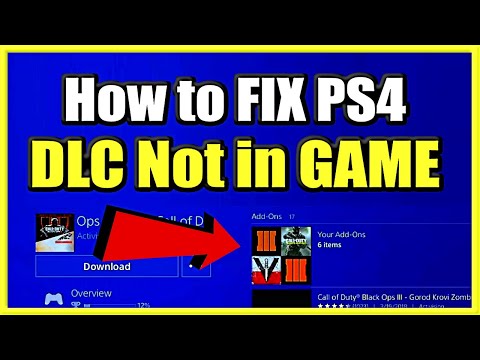
So, you’re diving back into a PlayStation 4 classic and eager to experience all the extra content you once purchased? Maybe a nostalgic trip down memory lane or revisiting a beloved title with its full suite of features. Whatever the reason, accessing that old Downloadable Content (DLC) on your PS4 is usually straightforward, but sometimes a little digital archaeology is required. Here’s a direct, comprehensive guide on how to retrieve those digital goodies:
The Short Answer:
To download your previously purchased DLC on your PS4:
- Quit the Game: Ensure the game you want the DLC for isn’t running.
- Navigate to Library: From the PS4 Home screen, go to Library.
- Choose Purchased: Select the Purchased section.
- Find Your Game: Locate and select the game the DLC belongs to.
- Head to PlayStation Store: Scroll down the game’s overview page until you find the PlayStation Store section.
- Open Your Add-Ons: Within the PlayStation Store section, look for and open My Add-Ons.
- Download Your Content: You should see a list of all the add-ons you’ve purchased for that game. Find the DLC you want to download and start the download process.
- Install and Restart: Once the download finishes, let the DLC install. After installation, restart your game to ensure the content is properly integrated.
If you are still experiencing difficulties, you can also try these alternative methods:
- Search the PlayStation Store Directly: Search for the specific DLC within the PlayStation Store. If you own it, you should see a download option rather than a purchase option.
- Restore Licenses: In Settings > Account Management > Restore Licenses, try restoring your licenses. This can sometimes help the PS4 recognize content you already own.
Frequently Asked Questions (FAQs) About PS4 DLC
These FAQs will help you troubleshoot common issues and understand the nuances of downloading and using DLC on your PS4.
Q1: I can’t find the DLC in “My Add-Ons.” What should I do?
Sometimes the PlayStation Store can be a bit finicky. If you can’t find the DLC in “My Add-Ons,” try searching for the specific DLC title within the PlayStation Store. If you own it, the button should say “Download” instead of showing a price. If you’re still having trouble, ensure you are logged in with the correct PlayStation Network account that you used to purchase the DLC. It’s surprisingly easy to accidentally use a different account.
Q2: Can I transfer DLC from one PS4 to another?
Yes, you can transfer DLC to another PS4, but it’s tied to your PlayStation Network account. If you make the new PS4 your primary PS4, all users on that console will be able to access the DLC. If you don’t make it your primary console, only the account that purchased the DLC will be able to use it. To transfer, sign in to your PSN account on the new PS4 and download the DLC from the store, following the steps outlined above. To set a PS4 as your primary console, go to Settings > Account Management > Activate as Your Primary PS4.
Q3: My DLC appears to be locked. How do I unlock it?
A common issue! The first thing to try is restoring your licenses. Go to Settings > Account Management > Restore Licenses and run the process. This often resolves the problem. If that doesn’t work, make sure the game and the DLC are from the same region. DLC is often region-locked, meaning DLC purchased in one region may not work with a game purchased in another. Also, ensure that the game is fully updated to the latest version, as updates sometimes include necessary compatibility files for DLC.
Q4: Does DLC work on all accounts on my PS4?
It depends! If the account that purchased the DLC has set the PS4 as its primary console, then yes, all accounts on that PS4 will be able to access the DLC. If the PS4 isn’t set as the primary console for the purchasing account, only that specific account will be able to use the DLC.
Q5: Do PS4 DLC codes expire?
Generally, no, PS4 DLC codes shouldn’t expire if they don’t have a printed expiration date. However, there’s always a possibility, especially if the DLC is tied to a limited-time promotion or if the content has been delisted from the PlayStation Store. If the code doesn’t work, contact PlayStation Support.
Q6: Can I download DLC on a jailbroken PS4?
This is where things get complicated and venture into legally gray territory. While it’s technically possible to install DLC on a jailbroken PS4, it often requires specific tools and workarounds (like unlockers). Furthermore, it’s important to recognize that downloading and using DLC without proper entitlement can violate copyright laws and the PlayStation Network’s terms of service.
Q7: How do I fix corrupted add-ons on PS4?
A corrupted add-on can cause all sorts of problems. Try these steps in order:
- Delete and Reinstall: The simplest solution is often the best. Delete the corrupted add-on and redownload it from the PlayStation Store.
- Check the Download: Make sure the download process completes without interruption. A stable internet connection is essential.
- Rebuild Database: Boot your PS4 into Safe Mode and select “Rebuild Database.” This can fix many software glitches.
- Restore Licenses: As mentioned earlier, restoring licenses can sometimes resolve issues with content recognition.
Q8: Why is my DLC not installing?
Several factors can prevent DLC from installing correctly. First, ensure you have enough free storage space on your PS4. If you’re running low, delete unnecessary files or games. Second, verify that you have a stable internet connection. A dropped connection during the download process can lead to incomplete or corrupted files. Finally, restart your PS4. A simple reboot can often clear up temporary software glitches that might be interfering with the installation.
Q9: Can I download DLC without owning the game?
Technically, you can purchase DLC without owning the base game, but you won’t be able to download or use it until you install the game itself. The DLC is tied to the game and requires the game files to function. The PlayStation Store will allow you to buy the DLC, but it will just sit in your account until you have the base game installed.
Q10: How do I access my DLC or add-on content in-game?
This varies from game to game. Some DLC content is automatically integrated into the game, providing new items, abilities, or story elements from the moment you start playing (after installing the DLC). Other DLC may require you to access a specific in-game location, menu, or character to activate it. Check the DLC’s description on the PlayStation Store or consult the game’s manual or online guides for instructions on how to access the content.
Q11: What does “Restore Licenses” do, and how does it help with DLC?
“Restore Licenses” is a feature that verifies your ownership of digital content on your PS4. It essentially re-checks with the PlayStation Network to confirm that your account has the right to use the games, DLC, and other digital items associated with your account. This is useful if your PS4 is having trouble recognizing content you’ve already purchased. It does not delete any data and is a safe process to run.
Q12: Can I get a refund for DLC I purchased on the PlayStation Store?
Sony’s refund policy generally allows you to request a refund within 14 days of purchase, provided you haven’t started downloading or streaming the content. If you’ve already downloaded or streamed the DLC, you typically won’t be eligible for a refund unless there are exceptional circumstances (e.g., the content is faulty). Contact PlayStation Support to request a refund and explain your situation.
Q13: I’m getting a “corrupted data” error when trying to use the DLC. What can I do?
The dreaded “corrupted data” error! This usually indicates that the DLC files have been damaged. Try these solutions:
- Delete and Reinstall: This is the first and often most effective step.
- Rebuild Database: As mentioned previously, rebuilding the PS4’s database can fix underlying file system issues.
- Check Your Hard Drive: If the problem persists, your PS4’s hard drive might be failing. Consider running a diagnostic test or replacing the hard drive if necessary.
Q14: Can I use DLC purchased for the PS4 version of a game on the PS5 version (or vice versa)?
This depends on the specific game and DLC. Some games offer cross-buy or cross-generation compatibility, meaning that purchasing the DLC on one platform grants you access to it on the other. However, many games don’t support this feature, requiring you to purchase the DLC separately for each platform. Check the game’s description on the PlayStation Store to see if cross-buy is supported.
Q15: Where can I find more information about gaming and learning?
The intersection of gaming and education is a vibrant field! You can find a wealth of research, resources, and community connections at GamesLearningSociety.org. The Games Learning Society is dedicated to exploring how games can be used to enhance learning and development.
By following these steps and troubleshooting tips, you should be able to successfully download and enjoy your old DLC on your PS4, breathing new life into your favorite games!