Finding Your Minecraft Purchase: A Comprehensive Guide
Fast answer first. Then use the tabs or video for more detail.
- Watch the video explanation below for a faster overview.
- Game mechanics may change with updates or patches.
- Use this block to get the short answer without scrolling the whole page.
- Read the FAQ section if the article has one.
- Use the table of contents to jump straight to the detailed section you need.
- Watch the video first, then skim the article for specifics.
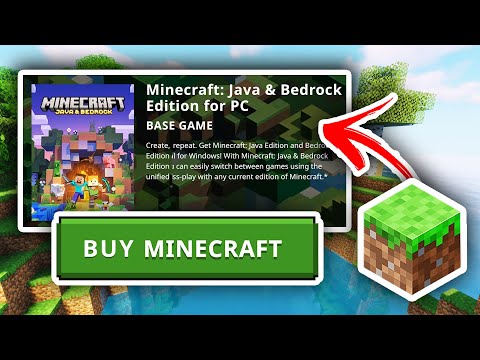
So, you’re scratching your head, wondering where your proof of purchase is for that beloved block-building game, Minecraft? Don’t fret! Finding your Minecraft purchase is usually a straightforward process, but it depends on a few key factors, primarily which version you bought (Java Edition or Bedrock Edition) and when you bought it. The core answer is this:
To find your Minecraft purchase, the process depends on the date of purchase and which version you bought. If you bought Java Edition after July 25, 2022, you need to sign in to your Microsoft account and check your order history. If you bought it earlier or have a Mojang account, you might need to check your Mojang account page.
Let’s delve into the details and explore the steps to uncover that digital receipt.
Locating Your Minecraft Purchase: A Step-by-Step Approach
The method for finding your Minecraft purchase depends on the edition of the game and the date you bought it.
Minecraft: Java Edition
-
Purchases After July 25, 2022: Since this date, Minecraft: Java Edition purchases are tied to a Microsoft account. Here’s how to find your purchase:
- Sign in to your Microsoft account: Head to the Microsoft website and log in using the account you believe you used to purchase Minecraft.
- Navigate to Order History: Go to the Payment & billing section, and then select Order history.
- Search for Minecraft: Look for a completed purchase of Minecraft: Java Edition. The order will have an Order ID instead of a Transaction ID.
- Confirmation: If you see the purchase, you’re all set! Sometimes, a simple game or device restart can refresh the license if it’s not immediately recognized in-game.
-
Purchases Before July 25, 2022: Purchases made before this date were often associated with a Mojang account.
- Log into your Mojang Account: Go to the Mojang website and log in using your Mojang account credentials.
- Check Account Details: Look for your Minecraft: Java Edition purchase details.
- Transaction ID: Your purchase should have a Transaction ID. Keep this ID safe, as it may be required for support inquiries.
Minecraft: Bedrock Edition
-
Microsoft Store: Minecraft: Bedrock Edition is typically purchased through the Microsoft Store.
- Sign in to the Microsoft Store: Open the Microsoft Store app on your PC and sign in with your Microsoft account.
- Check Your Library: Click on the three dots next to your profile picture and select My Library.
- Find Minecraft: Look for Minecraft in your library. If you own it, you’ll be able to download it from there.
Troubleshooting Steps
If you are still having issues after following these steps, try these solutions:
- Restart the Game: Sometimes, the game just needs a kickstart. Completely close and reopen Minecraft.
- Restart Your Device: A simple restart can resolve many licensing issues.
- Check Account Login: Ensure you are logged into the correct Microsoft or Mojang account. Mistakes happen!
- Contact Support: If all else fails, reach out to Minecraft Support. Provide them with as much detail as possible (date of purchase, account details, etc.).
Frequently Asked Questions (FAQs)
Here are some common questions related to finding your Minecraft purchase, along with their answers.
1. Why does Minecraft say I didn’t buy it?
There are several reasons why Minecraft might say you haven’t purchased it:
- Incorrect Account: You may be logged into the wrong Microsoft account or Mojang account.
- Outdated Launcher: Your Minecraft launcher might be out of date. Update to the latest version.
- Purchase Refunded: Your purchase may have been refunded. Check your bank statements.
- Technical Glitch: There could be a temporary glitch. Restart the game and your device.
2. I just purchased Minecraft. Why can’t I play?
After purchasing Minecraft, it may take a few minutes for the license to activate.
- Restart the Launcher: Close the Minecraft launcher completely and reopen it.
- Log Out and Back In: Log out of your Microsoft account or Mojang account in the launcher and log back in.
- Check Order Status: Confirm that the purchase is marked as “Completed” in your order history.
3. What account did I buy Minecraft with?
If you’re unsure which account you used to purchase Minecraft:
- Check Email Addresses: Review all your email addresses for purchase confirmation emails from Microsoft or Mojang.
- Microsoft Account: If purchased after July 25, 2022, it’s likely a Microsoft account.
- Mojang Account: If purchased before July 25, 2022, it’s likely a Mojang account.
4. How do you restore purchases on Minecraft?
To restore purchases in Minecraft:
- Minecraft Marketplace: Open the Minecraft Marketplace, select the Store, and scroll down to purchases.
- Restore Purchases Button: Select Restore Purchases. This will re-sync any content you’ve previously purchased.
- For Bedrock Edition make sure you are signed in to the Microsoft Account you used to make the purchase.
5. What if I already have Minecraft: Java Edition?
If you already own Minecraft: Java Edition and are looking at purchasing the Bedrock Edition or vice-versa:
- Free Version Entitlement: If you already own one version of Minecraft on a Microsoft Secured Account (MSA), you might be entitled to the other version for free! This offer has changed over time, so check the latest details on the Minecraft website.
- Game Remains Unaffected: Your current version of the game will not be affected.
6. How do I download Minecraft: Java Edition if I already bought it?
If you’ve already purchased Minecraft: Java Edition:
- Download the Launcher: Download the Minecraft launcher from the official Mojang website.
- Sign In: Ensure you sign in using the same account (Microsoft or Mojang) you used to purchase the game.
7. Do I have to buy Minecraft again if I have Java Edition?
Whether you need to buy Minecraft again depends on which edition you want to play:
- Java Edition on Windows: If you own Java Edition and want to play Java Edition on Windows, you do not need to repurchase it.
- Bedrock Edition (Windows 10 Edition): If you own Java Edition but want to play Bedrock Edition on Windows, you typically need to purchase Bedrock Edition separately.
8. How do I restore my purchases on Android?
Restoring purchases on Android is typically automatic:
- Account Sync: Ensure your Google account is properly synced on your device.
- Automatic Restoration: Google automatically restores purchases that were made previously.
- Reinstall: Reinstalling the app can sometimes trigger the restoration process.
9. Why won’t my Minecraft purchases download?
If your Minecraft purchases won’t download:
- Update the Game: Make sure your game is completely up to date.
- Correct Account: Ensure you are signed in with the Microsoft account you used to make the purchases.
- Restart: Completely close Minecraft: Bedrock Edition and restart it.
10. What happened to my items in Minecraft?
If you lost items in Minecraft:
- Death Drop: When a player dies, their items are scattered on the floor.
- Despawn Timer: These items will despawn after 6000 in-game ticks (5 minutes).
- Check Death Location: Return to the location where you died as quickly as possible.
11. How do I find my old Minecraft account?
To find your old Minecraft account:
- Legacy Account: For legacy Minecraft accounts, log in with your Java profile name. If you forgot your username, contact Minecraft Support.
- Mojang Account: Your Minecraft Java profile name will be shown in-game, on your Mojang account page, or on the launcher itself.
12. How do I check my Minecraft account?
Checking your Minecraft account is simple:
- Launcher Sign-In: Click on “Sign-in” in the Minecraft launcher.
- Microsoft Account: Enter your Microsoft account credentials and sign in.
13. How do I find out when I bought Minecraft?
To find out when you bought Minecraft:
- Microsoft Account: Sign in to your Microsoft account, select Payment & billing > Order history.
- Mojang Account: Check your Mojang account details for purchase history.
14. Why is my Minecraft account making me buy again?
If Minecraft is making you buy it again:
- Launcher Out of Date: Your launcher is out of date. Update it.
- Different Account: You purchased Minecraft under a different email address, or the email address has been changed.
- Old Account: You have an old Minecraft account that was never migrated to a Mojang account.
- Purchase Refunded: Your purchase was refunded.
15. Why is my Minecraft purchase not working?
If your Minecraft purchase is not working:
- Browser Issues: Try using another web browser such as Microsoft Edge or Firefox.
- Payment Method: Ensure your payment method is valid and up-to-date.
- Device Issues: Try purchasing the game on another device.
Minecraft and Education: The Games Learning Society
Minecraft isn’t just about building blocks and fighting creepers. It’s also a powerful educational tool. Organizations like the Games Learning Society (link: https://www.gameslearningsociety.org/) explore the educational potential of games, including Minecraft. They conduct research and develop resources to help educators integrate games into the classroom.
Minecraft’s open-ended nature fosters creativity, problem-solving, and collaboration. It’s a digital sandbox where students can learn about architecture, engineering, history, and even coding. By engaging with Minecraft in a structured and purposeful way, educators can unlock its vast educational benefits. GamesLearningSociety.org is a good place to start if you are interested in learning more.
Conclusion
Finding your Minecraft purchase might seem daunting at first, but by following these steps and considering the common FAQs, you should be able to locate your proof of purchase and get back to building your digital world. Remember to keep your account information secure and always reach out to Minecraft Support if you encounter persistent issues. Happy crafting!