How do I format a new SD card for a Switch?
Fast answer first. Then use the tabs or video for more detail.
- Watch the video explanation below for a faster overview.
- Game mechanics may change with updates or patches.
- Use this block to get the short answer without scrolling the whole page.
- Read the FAQ section if the article has one.
- Use the table of contents to jump straight to the detailed section you need.
- Watch the video first, then skim the article for specifics.
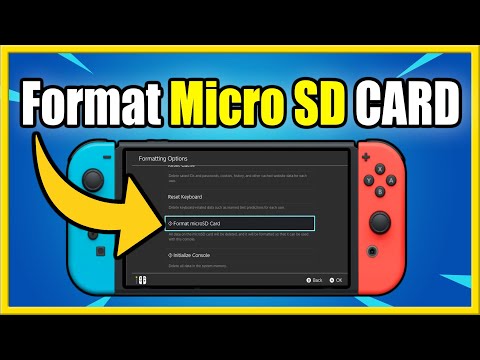
To format a new SD card for a Switch, you need to follow a series of steps: Select “System Settings” from the HOME Menu, then select “System” → “Formatting Options”, enter your PIN if parental controls are enabled, select “Format microSD Card”, and finally, select “Continue” and “Format”. This process will erase all data on the SD card, so it’s essential to backup your files beforehand.
Understanding SD Card Formatting for Switch
Formatting an SD card for your Switch is a straightforward process, but it’s crucial to understand the importance of formatting and how it can impact your gaming experience. By formatting your SD card, you ensure that it’s compatible with your Switch and that you can use it without any issues.
Frequently Asked Questions
1. Do I need to format a new SD card for Switch?
Most experts recommend formatting an SD card for Switch to ensure compatibility and prevent any issues. Since formatting will erase all existing data, make sure to backup your files before proceeding.
2. How do I get my Switch to recognize my SD card?
To troubleshoot SD card issues on your Switch, check the compatibility of your SD card, ensure it’s properly inserted, clean the SD card and slot, check for software updates, and try another SD card if necessary.
3. Why isn’t my Switch accepting my SD card?
If your Switch is not accepting your SD card, it may be due to incompatibility, so try replacing the microSD card with a compatible type. If the issue persists, reinsert the SD card, power on your Switch, and perform a system update.
4. Why won’t my microSD card work on my Nintendo Switch?
The SD card may be physically damaged, corrupted, or have a file system that’s not compatible with your Switch. Additionally, the storage type may be too large or too small for your Switch.
5. How to Format Micro SD Card on Nintendo Switch (Fast Method!)
To format your microSD card quickly, follow the same steps as before: select “System Settings”, “System”, “Formatting Options”, enter your PIN if required, and then “Format microSD Card”.
6. Why is my new SD card not formatting?
Common causes of SD card format errors include corruption, bad sectors, virus infection, or write protection. Ensure your SD card is not write-protected and try formatting it again.
7. What happens if you don’t format a new SD card?
If you don’t format your SD card, you risk corrupting the data, which can lead to lost files or render the card unusable. Your device may also have difficulty reading the card.
8. Do new SD cards come formatted?
In most cases, new SD cards are pre-formatted and can be used to store files directly. However, it’s always a good idea to format your SD card to ensure compatibility with your Switch.
9. Are SD cards locked to Switch?
There is a Lock switch on the left side of the SD card. Ensure the Lock switch is slid up (unlock position) to modify or delete contents on the memory card.
10. Will any microSD card work with Switch?
The Switch supports any UHS-I Micro SD, Micro SDHC, or Micro SDXC cards. If you’re unsure, check the compatibility of your microSD card before purchasing.
11. Why did my SD card switch to read-only?
A memory SD card or USB flash drive may become read-only due to damage, corruption, or virus infection. Sometimes, human error can also cause this issue.
12. What happens if I get a new SD card for Switch?
You won’t lose data if you get a new SD card for your Switch. Simply copy the content from the old SD card to a hard drive and then copy it back to the new SD card.
13. Should I quick format or full format SD card?
Perform a full format on a brand-new data storage device, but if your drive has been previously formatted, a quick format should be sufficient.
14. How many times do I need to format my SD card?
It’s recommended to format your SD card every 2-3 weeks to wipe all files and set it up afresh for continued use with your device.
15. How long does it take to format a new SD card?
The formatting time depends on the capacity of the SD card. A quick format can take between 15 seconds and 2 minutes, while a full format can take up to 20 minutes for an 8 GB card.