How to Get Console Audio on Your Monitor: A Comprehensive Guide
Fast answer first. Then use the tabs or video for more detail.
- Watch the video explanation below for a faster overview.
- Game mechanics may change with updates or patches.
- Use this block to get the short answer without scrolling the whole page.
- Read the FAQ section if the article has one.
- Use the table of contents to jump straight to the detailed section you need.
- Watch the video first, then skim the article for specifics.
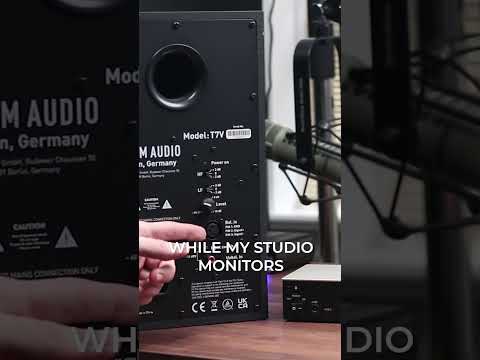
Getting audio from your gaming console to play through your monitor can sometimes be a bit tricky, especially if your monitor doesn’t have built-in speakers. The short answer is that you’ll need to use an audio output method, whether it’s through a built-in audio jack on your monitor, connecting directly to external speakers or headphones, or utilizing your console’s settings. The specific method will depend on your console, monitor, and available hardware. This comprehensive guide will walk you through the different ways you can achieve this, providing a detailed understanding of the process and addressing common issues you may encounter.
Understanding the Basics
Before diving into specific solutions, it’s essential to understand why this issue often arises. Most monitors, especially gaming monitors, prioritize display quality over audio, meaning many lack integrated speakers. This means that unlike televisions that typically come equipped with built-in speakers, monitors require an external audio solution. While HDMI and DisplayPort cables are excellent for transmitting high-quality video, they don’t automatically route audio to speakers on a monitor lacking them. Instead, audio needs a pathway to reach your speakers or headphones.
Common Solutions for Console Audio on Monitors
Here are several methods you can employ to get sound from your console through your monitor setup.
Utilizing Your Monitor’s Audio Output Jack
Many monitors come equipped with a 3.5mm audio output jack (also known as a headphone jack). This is perhaps the most straightforward way to get audio. Here’s how it works:
- Connect your Console: Connect your console (PlayStation, Xbox, or Nintendo Switch) to your monitor via HDMI or DisplayPort for video.
- Connect Audio Device: Connect your headphones or external speakers to the 3.5mm headphone/audio out port on the back of your monitor using a standard AUX cable.
- Set Audio Output: The monitor will now receive the audio signal from your console via HDMI, and then send it out through the audio jack. Your headphones or speakers should now be playing the console’s audio.
- Troubleshooting: If you don’t hear sound, check to ensure the audio cable is firmly connected at both ends, and adjust the volume on your speakers or headphones.
Connecting Directly to Speakers or Headphones
If your monitor lacks a 3.5mm audio output, you’ll need to connect your audio output device directly to your console, or use an alternative. This method bypasses the monitor altogether.
For PlayStation (PS5/PS4)
- HDMI Connection: Connect your PS5/PS4 to the monitor via HDMI for video.
- Headphone or Speaker Connection: Connect your headphones to the controller’s 3.5mm audio port, if using a headset. If using external speakers, you will need a converter to connect the console’s audio cable to your speakers.
- PS5 Audio Settings: Alternatively, on the PS5, if you’d like to use the 3.5mm output on your monitor, you need to pipe the audio from the PS5 via HDMI cable to your monitor. Then, pipe the audio from the monitor to your PC audio input using a 3.5mm cable. Connect the audio cable to the audio input 3.5mm port on your motherboard or soundcard.
For Xbox (Series X/S, One)
- HDMI Connection: Connect your Xbox to the monitor via HDMI for video.
- Headphone/Speaker Connection: Connect headphones or speakers directly to the Xbox controller’s 3.5mm audio port, or alternatively, use a converter to connect your speaker to the console’s audio output. Most newer Xboxes do not have optical out, but most monitors have a 3.5mm audio jack in the rear.
- Xbox Audio Settings: For optimal audio, go to Profile and System > Settings > General > Volume and Audio Output > Additional Options > Allow Passthrough. This setting allows for certain audio enhancements to function properly.
Utilizing a PC as an Audio Passthrough
If you’re using a PC setup, you can pass your console’s audio through your PC. This setup involves piping the audio from the PS5 or Xbox via HDMI cable to your monitor, and from the monitor to your PC audio input using the 3.5mm cable. This will connect to the audio in 3.5mm input on your motherboard or sound card. Then the PC will process the audio before outputting it to your desired audio device.
USB Audio Solutions
Some audio equipment, such as USB speakers or headsets, can bypass the need for a 3.5mm connection by connecting directly to your console via USB. This approach simplifies setup and often delivers high-quality audio.
Addressing Common Issues
Even with the correct setup, you might encounter issues. Here are common problems and fixes:
- No Sound Despite Connections:
- Check Cables: Ensure all audio and video cables are securely connected.
- Volume Levels: Verify that volume settings on both the console and audio devices are turned up.
- Audio Settings: Double-check audio output settings on your console and, if applicable, your monitor.
- Incorrect Audio Output:
- Sound Control Panel (Windows): On your PC, open the Sound Control Panel and make sure your desired audio output device is selected under the Playback tab. Ensure the external display (monitor) is selected and enabled.
- HDMI Audio Issues:
- Driver Updates: Make sure your video and audio drivers are up-to-date.
- HDMI Port/Cable Test: Try using a different HDMI port or cable. Faulty ports or cables can cause audio issues.
- Monitor Mute:
- Check if your monitor’s volume is muted. Look for a volume setting or mute option in the monitor’s on-screen display settings or in your PC settings.
Frequently Asked Questions (FAQs)
Here are some frequently asked questions about connecting console audio to monitors.
1. Do all monitors have built-in speakers?
No, most monitors do not have built-in speakers. Many, especially gaming monitors, are designed primarily for visual performance, so they often lack integrated audio capabilities.
2. Can HDMI carry audio to my monitor?
Yes, HDMI can carry audio, but the monitor needs speakers or an audio out port for you to hear it. If your monitor has no speakers, you need external speakers or headphones.
3. What is a 3.5mm audio jack?
The 3.5mm audio jack is a standard port used to connect headphones or external speakers to a device for audio output.
4. Can I use a headphone port as a speaker port?
Yes, the headphone port on a monitor can be used to connect external speakers. They both output AUX audio.
5. My monitor has no audio jack, what do I do?
If your monitor doesn’t have an audio jack, you’ll need to connect your speakers or headphones directly to your console or use the audio passthrough on your PC if connected.
6. Why isn’t my HDMI carrying sound?
Issues with HDMI audio can stem from loose connections, incorrect audio settings, outdated drivers, or problems with the Windows Audio service. Check connections, audio settings, update drivers, and restart the Windows Audio service.
7. Can I connect Bluetooth headphones to my console?
Most modern consoles, such as PS5 and Xbox Series X/S, support Bluetooth headphones. You can pair them directly within the console’s settings. If your console does not, an external Bluetooth adapter could work.
8. How do I unmute my monitor?
Monitors usually don’t have mute options, this would be through your audio output devices. Unmute your computer by right-clicking the speaker icon in the System Tray (lower right corner of screen), click Open Volume Mixer and click the muted speaker to unmute.
9. What is “audio passthrough?”
Passthrough audio allows you to send sound from multiple sources to an external receiver or audio system via the monitor, minimizing the number of required cables.
10. What is an audio converter?
An audio converter is a device that translates one type of audio connection to another, such as from analog RCA to 3.5mm or from digital optical to analog.
11. Do I need separate speakers for a monitor?
If your monitor does not have built-in speakers, yes, you’ll need separate speakers or headphones to hear audio from your console or PC.
12. Does DisplayPort support audio?
Yes, DisplayPort can carry both video and multi-channel digital audio signals simultaneously. However, audio output requires a monitor or external audio device that supports it.
13. What is HDMI 2.1?
HDMI 2.1 is the latest version of the HDMI standard, offering higher bandwidth and supporting advanced features like 4K resolution at 120Hz or 8K at 60Hz. It’s recommended for the newest consoles for optimal performance.
14. How do I troubleshoot no sound on my PS5 with a monitor?
Check your HDMI cable, try a different HDMI port, and verify audio settings in the PS5 menu. Ensure your monitor’s speakers or headphones are properly connected and powered.
15. Can I use a gaming monitor as a headphone jack?
Yes, if your monitor has an audio output port (usually a 3.5mm headphone jack), you can use it to connect headphones or external speakers. It functions as a pass-through for audio from the source device.
By understanding these methods and solutions, you should be well-equipped to get your console’s audio playing through your monitor and enjoy your gaming experience. Remember to check all connections and settings when troubleshooting audio issues.