How Do I Get My 6-Digit 2FA Code?
Fast answer first. Then use the tabs or video for more detail.
- Watch the video explanation below for a faster overview.
- Game mechanics may change with updates or patches.
- Use this block to get the short answer without scrolling the whole page.
- Read the FAQ section if the article has one.
- Use the table of contents to jump straight to the detailed section you need.
- Watch the video first, then skim the article for specifics.
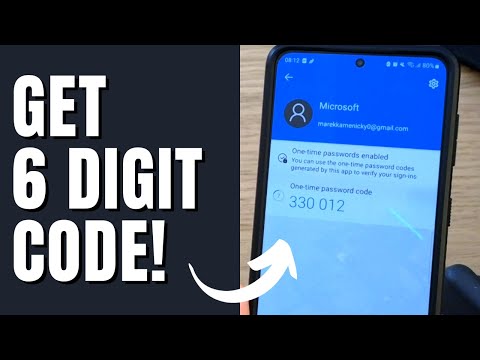
The most direct answer to the question, “How do I get my 6-digit 2FA code?” is that you’ll find it within the authenticator app you used when initially setting up two-factor authentication (2FA). This code is not something you memorize or receive through an SMS text by default. It is generated live by a specific application on your phone or tablet. These apps, like Google Authenticator, Authy, or Duo, produce a unique six-digit code that changes every 30 seconds or so, offering a crucial layer of security for your online accounts. When prompted for a 2FA code, your authenticator app is where you should look. It’s that simple.
Understanding 2FA and Authenticator Apps
Why Use 2FA?
Two-factor authentication (2FA) is a security system that requires two distinct forms of identification to access something. The most common approach is a password for the first factor and then something that is time-sensitive and generated by an app on your phone or a text message as the second factor. This makes it significantly harder for unauthorized users to access your accounts, even if they somehow know your password. Without the second factor from your app or text, the chances of someone breaking in become much slimmer.
How Authenticator Apps Work
Authenticator apps use a shared secret key to generate unique, time-based codes. The shared key is established when you first setup 2FA with your chosen authenticator application. Your device’s clock must be in sync to ensure these codes are correct and valid. The app then uses this key, alongside the current time, to produce a unique six-digit code. The server at the site you are trying to log into also has access to the shared key, and it generates the same code at the same time. This way the servers know that the code you enter must be valid and generated by your app. When you log in to an account protected with 2FA, you’ll need both your password and this code. This adds a critical layer of security, so that even if someone discovers your password, they’ll need access to your phone or tablet, or a backup code, to gain entry.
Types of 2FA Codes
It’s important to understand that not all 2FA codes are generated the same way:
- Authenticator App Codes: These are the time-based six-digit codes we’ve been discussing and are generated by applications like Google Authenticator, Authy, or Duo. They change very quickly, usually every 30 seconds.
- SMS (Text Message) Codes: These are sent to your phone number and are usually only active for a short window. While convenient, SMS codes are considered less secure due to the possibility of SIM swapping and interception.
- Backup Codes: These are codes that you are provided when setting up 2FA for an account. They are meant to be used in case you don’t have access to your phone or device. Each backup code is single use and should be stored in a safe and secure location.
- Device Verification Codes: On some devices, like iPhones, you may see a “Get Verification Code” option from the settings screen. These codes are generated directly on the device instead of an external authenticator app.
Steps to Find Your 6-Digit 2FA Code
- Identify Your Authenticator App: Recall which authenticator app you used when setting up 2FA for the account you want to access. If you can’t remember, try each of the popular options such as Google Authenticator, Authy, or Duo.
- Open the Authenticator App: Launch the relevant app on your smartphone or tablet.
- Locate Your Account: In the app, you will see a list of the accounts you have set up with 2FA. Find the specific account you want to access.
- View the Current Code: You’ll see the current, six-digit code displayed next to the account name. This code is the one you should enter when prompted.
- Note the Timing: Keep in mind that the code changes every 30 seconds, so you need to be quick when entering the code. If it expires while you are trying to type it in, just wait for the next valid code to appear.
Frequently Asked Questions (FAQs) about 2FA Codes
1. Why isn’t my 6-digit authentication code working?
Authenticator apps rely on the time set on your device to create the authentication code. If the time on your device does not match the time on the computer, or the device that you are logging in from, then the code will not work. Check the time and date on your phone and make sure they match the device you are logging into.
2. Why am I not getting my 2-step verification code via text?
There are several reasons why you might not receive an SMS verification code:
* You may have provided the wrong phone number.
* Your text message inbox might be full.
* Your phone may be set to block messages from unknown senders.
* Your phone carrier may be blocking the message.
3. How can I recover my 2FA verification code if I lost my phone?
If you lost your phone or device with your authenticator app, and you didn’t have any backup codes, you will likely need to reset 2FA for your account. Many services offer an option to reset 2FA using your email address and password. Usually, the reset process involves receiving a special reset code through email or via another designated method. Once your 2FA is reset, you can set it up again.
4. What if I lost my backup codes?
If you lost your backup codes, you can usually revoke them and generate new ones through your account settings. Go to the security settings, navigate to the 2-Step Verification section and you will find an option to generate new backup codes. The previous ones are no longer valid once new ones are created.
5. How long is a 2FA recovery code?
A 2FA backup code can vary in length depending on the platform, but is typically longer than the 6-digit codes that authenticator apps generate. Recovery codes are usually a string of characters, letters, and numbers, and are designed for single use in the event that you are unable to use the 6-digit codes.
6. Do 2FA backup codes expire?
Backup codes do not expire, but if you generate a new set of backup codes, the previous set is no longer valid.
7. What happens when you reset 2FA?
Once your 2FA is reset, you can log in with only your username and password, but it is recommended that you set up your new 2FA method immediately for better security.
8. What happens when you disable 2FA?
Your account is more secure with a password and a verification code. If you remove this extra layer of security, you will only be asked for a password when you sign in. This makes it easier for someone to potentially break into your account.
9. How do I find my 6-digit authentication code on my iPhone?
On iPhones and other Apple devices, you might have the option to get verification codes straight from the device. Go to Settings > [your name] > Password & Security > Get Verification Code. This can provide a 6-digit code, but it may also prompt you for the code via your authenticator app.
10. How can I restore my lost Google Authenticator?
There are a few ways to recover your authenticator:
* Using a QR code export: If you have access to your old app, you can export all of your authenticator codes by generating a QR code. Then scan it from your new device.
* Using site-specific QR codes: If you saved the original QR codes you scanned when initially setting up each account, then you can use those to configure the app again.
11. What happens to 2FA when I get a new phone?
When you get a new phone, you will need to transfer your authenticator codes to the new device. Most authenticator apps allow for an easy transfer via a QR code.
12. What do I do if I can’t log into my Facebook account due to 2FA?
If you are unable to log into your Facebook account, go to the Facebook login recovery page at facebook.com/login/identify and follow the instructions to verify your identity and reset your password if necessary.
13. Why are people on Facebook Marketplace asking for a 6-digit code?
This is a scam. The “buyer” might ask for a 6-digit code to verify your legitimacy. They are really using the code to log into your account. Never share 6-digit verification codes with anyone, especially strangers.
14. Can you turn off 2FA?
Yes, you can usually turn off 2FA. Go to your account security settings and look for the 2FA section, where you will typically find options to disable specific 2FA methods, such as third-party authenticator apps, SMS authentication, or email authentication.
15. What happens if I receive a verification code without requesting it?
If you receive a verification code without requesting it, it means someone is likely trying to log into your account. You should immediately log in and change your password. It’s also a good idea to review your account’s security settings and enable more robust security measures.
By understanding how 2FA codes are generated and how to locate them, you can navigate your online life safely and securely. Remember that these codes are an important security tool, so never share them with anyone you don’t trust.