Unleash the Power: Getting Your PS4 Controller Working on Your PC
Fast answer first. Then use the tabs or video for more detail.
- Watch the video explanation below for a faster overview.
- Game mechanics may change with updates or patches.
- Use this block to get the short answer without scrolling the whole page.
- Read the FAQ section if the article has one.
- Use the table of contents to jump straight to the detailed section you need.
- Watch the video first, then skim the article for specifics.
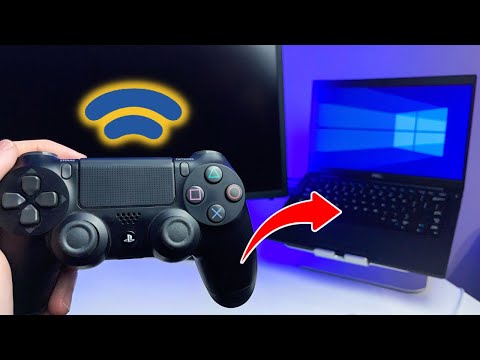
So, you want to bring the comfort and familiarity of your PS4 DualShock 4 controller to your PC gaming adventures? Excellent choice! It’s a surprisingly straightforward process, and this guide will walk you through every step, from initial connection to troubleshooting common issues. Whether you prefer the freedom of wireless or the reliability of a wired connection, we’ve got you covered. Let’s dive in and get you gaming!
The core question is: How do I get my PS4 controller to work on my PC? The answer boils down to two primary methods: Bluetooth connection (wireless) and USB connection (wired).
Method 1: Connecting Via Bluetooth (Wireless)
- Enable Bluetooth on Your PC: Navigate to your Windows settings. You can quickly access this by searching for “Bluetooth” in the Windows search bar. Make sure the Bluetooth toggle is switched to “On”.
- Put Your PS4 Controller into Pairing Mode: This is crucial. Press and hold the PS button (the PlayStation logo button in the center) and the Share button (located to the left of the touchpad) simultaneously. Keep holding both buttons until the light bar on the top of the controller starts to flash rapidly in a distinct double blink. This flashing indicates it’s in pairing mode.
- Add the Controller in Windows: In your Bluetooth settings on your PC, click “Add Bluetooth or other device.” Select “Bluetooth.” Your PC will start scanning for nearby Bluetooth devices.
- Select Your Controller: You should see your controller appear in the list of available devices. It might be labeled as “Wireless Controller” or something similar. Click on it to initiate the pairing process.
- Pairing and Completion: Your PC might prompt you for a pairing code. If it does, try entering “0000” (four zeros). In most cases, it will connect automatically. Once paired successfully, the light bar on your controller will change from the flashing double blink to a solid color (usually blue for player 1). This indicates a successful connection.
Method 2: Connecting Via USB (Wired)
This method is often the easiest and most reliable, especially if you’re experiencing Bluetooth connectivity issues.
- Plug in the Controller: Simply take a Micro USB cable (the same type you use to charge your PS4 controller) and plug one end into the Micro USB port on your controller and the other end into a USB port on your PC.
- Windows Recognition: Windows should automatically recognize the controller as a generic gamepad. In most cases, no additional drivers are needed.
- Test the Connection: Open a game that supports controllers, or use a controller testing application (many are available online). You should be able to control the game or see the controller’s inputs registered.
Dealing with Common Issues
Even with these straightforward steps, you might encounter some hiccups. Don’t worry; here’s how to tackle common problems:
Software and Driver Issues
- Driver Problems: While Windows usually handles the drivers automatically, sometimes things go wrong. If your controller isn’t recognized, you can try manually updating the drivers. Go to Device Manager (search for it in the Windows search bar), find your controller (it might be listed under “Unknown Devices” or “Xbox Peripherals” or “Human Interface Devices”), right-click on it, and select “Update driver.” Choose “Search automatically for drivers.”
- DS4Windows: For more advanced control and customization, consider using DS4Windows. This free software tricks your PC into thinking your PS4 controller is an Xbox 360 controller, which is natively supported by most Windows games. Download it from a reputable source and follow the installation instructions carefully.
- Steam Compatibility: Steam has built-in support for PS4 controllers. In Steam, go to “View” > “Settings” > “Controller” > “General Controller Settings.” Make sure the “PlayStation Configuration Support” box is checked. Steam Input is pretty good at emulating other control mechanisms.
Bluetooth Connectivity Problems
- Interference: Bluetooth signals can be affected by interference from other wireless devices, such as Wi-Fi routers, microwaves, and other Bluetooth devices. Try moving closer to your PC or moving potential sources of interference away.
- Outdated Bluetooth Drivers: Make sure your PC’s Bluetooth drivers are up to date. You can update them through Device Manager, as described above.
- Weak Bluetooth Signal: Some PCs have weaker Bluetooth adapters than others. If you’re consistently having trouble with Bluetooth connectivity, consider purchasing a Bluetooth USB adapter with better range and signal strength.
Controller-Specific Issues
- Low Battery: A low battery can cause connectivity problems. Make sure your controller is adequately charged.
- Faulty USB Cable: If you’re using a wired connection, try a different USB cable to rule out a faulty cable. Some cables are power-only and cannot transmit data.
- Controller Reset: As described above, you can reset your PS4 controller by pressing the button on the back of the controller.
Frequently Asked Questions (FAQs)
Here are some frequently asked questions to further enhance your understanding and ability to troubleshoot PS4 controller issues on your PC:
-
Why is my PS4 controller connected to my PC but not working in-game? This is often a driver or compatibility issue. Try using DS4Windows or enabling PlayStation Configuration Support in Steam. Also, ensure the game you’re playing supports controllers. Sometimes you need to configure input settings in game.
-
How do I connect my PS4 controller to my PC via USB if Bluetooth isn’t working? Simply plug in the Micro USB cable into your PC and DualShock 4 controller. Windows should automatically recognize the gamepad. If not, try updating the drivers in Device Manager.
-
Can I play PS4 games on my PC using the PS4 controller? Yes, but not directly. You can use PS Remote Play to stream games from your PS4 console to your PC and use the PS4 controller to control them.
-
Do I need any special software to use my PS4 controller on PC? Not necessarily, but DS4Windows is highly recommended for broader compatibility and customization. Steam also has native support.
-
Why is my PS4 controller not connecting with USB? You need a USB cable that’s capable of both data and power transfer. Damaged USB ports can also prevent connection. Try a different cable and a different USB port on your PC.
-
My PS4 controller is blinking blue but not connecting. What does this mean? The blinking blue light indicates that the controller is trying to pair. If it’s not connecting, ensure Bluetooth is enabled on your PC, and the controller is in pairing mode (rapidly flashing). Rule out Bluetooth interference and weak signal as well.
-
Can I use multiple PS4 controllers on my PC at the same time? Yes, you can. Each controller will need to be paired individually via Bluetooth, or connected through separate USB ports. DS4Windows can handle multiple controller inputs, but sometimes conflicts with one another.
-
Is there a difference between using a PS4 controller on PC wired vs. wirelessly? Yes. Wired connections are generally more stable and have lower latency. Wireless connections offer greater freedom of movement but can be subject to interference.
-
Will my PS4 controller work with all PC games? Not all PC games natively support PS4 controllers. However, DS4Windows and Steam’s PlayStation Configuration Support can help bridge the gap by emulating an Xbox 360 controller, which is widely supported.
-
I updated my Windows and now my PS4 controller doesn’t work. What should I do? Windows updates can sometimes cause driver conflicts. Try uninstalling and reinstalling your controller drivers in Device Manager. You may need to reinstall DS4Windows.
-
Can I use the touchpad on my PS4 controller on PC? Yes, but the functionality is limited and depends on the game and the software you’re using (e.g., DS4Windows allows some touchpad configuration).
-
How do I check the battery level of my PS4 controller when connected to my PC? DS4Windows typically displays the battery level. Steam can also show the battery level in Big Picture mode. Otherwise, Windows doesn’t directly show it.
-
What do I do if my PC says “Driver Error” when I plug in my PS4 controller? Try manually updating the drivers in Device Manager. If that doesn’t work, try uninstalling and reinstalling the drivers completely.
-
My PC is detecting the controller, but the buttons are mapped incorrectly. How do I fix this? Use DS4Windows or Steam’s controller configuration settings to remap the buttons to your desired layout. Different games expect different types of inputs, so you may have to customize your button setup for individual games.
-
How can I learn more about game design and controllers? Consider exploring resources like the Games Learning Society for insights into game mechanics and design: https://www.gameslearningsociety.org/. This can help you understand how controllers interact with games on a deeper level.