How to Get Your Xbox to Work on Your TV: A Comprehensive Guide
Fast answer first. Then use the tabs or video for more detail.
- Watch the video explanation below for a faster overview.
- Game mechanics may change with updates or patches.
- Use this block to get the short answer without scrolling the whole page.
- Read the FAQ section if the article has one.
- Use the table of contents to jump straight to the detailed section you need.
- Watch the video first, then skim the article for specifics.
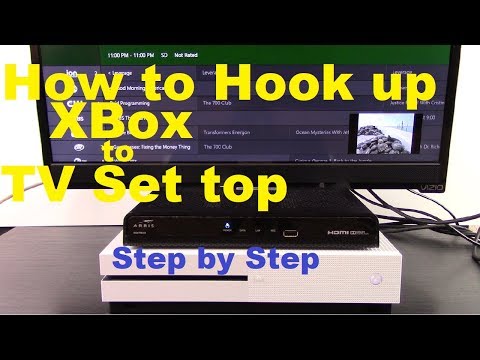
Getting your Xbox console up and running on your TV should be a straightforward process. The most direct way to achieve this is by ensuring you have a proper HDMI connection between your Xbox and your TV. Connect one end of the HDMI cable to the HDMI OUT port on your Xbox (usually marked with a single dash) and the other end to an HDMI IN port on your TV. Once connected, select the correct HDMI input channel on your TV to display your Xbox’s video.
However, there are several reasons why you might be experiencing issues, ranging from simple cable problems to more complex settings configurations. This guide will walk you through the most common problems and provide troubleshooting steps to get you back in the game.
Troubleshooting Common Xbox and TV Connection Issues
If you’ve connected your Xbox to your TV but aren’t seeing anything on the screen, don’t panic! Here’s a systematic approach to diagnosing and fixing the problem:
1. Check the Basics: Power and Connections
- Power: Ensure both your Xbox and your TV are turned on. Sounds obvious, but it’s easily overlooked.
- HDMI Cable: Inspect the HDMI cable for any visible damage. A frayed or damaged cable can prevent signal transmission. Try wiggling the cable at both ends to see if the display flickers, indicating a loose connection.
- HDMI Port: Make sure the HDMI cable is securely plugged into both the Xbox’s HDMI OUT port (crucial!) and the TV’s HDMI IN port. Try using a different HDMI port on your TV. Some TVs have dedicated ports for gaming consoles (often labeled “Game” or “HDMI 2.1”) which may offer better performance.
- TV Input: This is a big one! Use your TV remote to select the correct HDMI input source. If your Xbox is connected to HDMI 2, make sure your TV is set to HDMI 2.
2. The HDMI Cable Itself
- High-Speed HDMI: For optimal performance, especially with newer Xbox consoles like the Xbox Series X and Xbox Series S, you’ll need a High-Speed HDMI cable. These cables support higher resolutions and refresh rates (like 4K at 120Hz).
- Try a Different Cable: Even if your current cable looks fine, it could be faulty internally. Test with a different HDMI cable known to be working.
3. Xbox Display Settings
Sometimes the problem isn’t the connection, but the Xbox’s display settings. Here’s how to access and adjust them:
- Blind Navigation: If you can’t see anything on the screen, you’ll need to navigate blindly. Turn on the Xbox and wait a minute for it to boot up. Then, follow these steps:
- Press the Xbox button on your controller.
- Press the Menu button (the one with three lines).
- Select “Settings” (you’ll have to guess its position based on previous use).
- Navigate to “General” and then “TV & display options.”
- Look for “Video fidelity & overscan” and select “HDMI.”
- Resolution and Refresh Rate: Once you have a display, make sure your Xbox’s resolution and refresh rate are compatible with your TV. If you have a 4K TV, ensure the Xbox is set to 4K resolution. Similarly, if your TV supports 120Hz, enable that setting on your Xbox.
- Color Depth: Incorrect color depth settings can also cause display issues. Experiment with different settings (8-bit, 10-bit, 12-bit) to see if it resolves the problem.
4. Power Cycling Your Devices
A simple power cycle can often resolve minor glitches.
- Xbox: Fully power down your Xbox. Unplug the power cord from the back of the console, wait 30 seconds, and then plug it back in.
- TV: Similarly, unplug your TV from the power outlet, wait 30 seconds, and plug it back in.
5. Check for Updates
Outdated software can sometimes cause compatibility issues. Make sure both your Xbox and your TV have the latest firmware updates installed.
- Xbox Updates: The Xbox typically updates automatically, but you can manually check for updates in the Settings menu.
- TV Updates: The process for updating your TV varies depending on the manufacturer. Consult your TV’s manual or visit the manufacturer’s website for instructions.
6. Black Screen of Death
The dreaded black screen of death can occur due to software bugs or hardware failures. If you’re experiencing this, try these steps:
- Hard Reset: Press and hold the power button on your Xbox for 10 seconds until it turns off. Then, press the power button again to turn it back on.
- Factory Reset: As a last resort, you can try a factory reset. This will erase all your data, so only do this if you’ve exhausted all other options. To perform a factory reset, hold down the Pair and Eject buttons on your console, then press the Power button. Continue holding Pair and Eject until the Xbox powers on.
7. Consider External Devices
Sometimes, external devices connected to your Xbox can interfere with the display.
- Storage Expansion Cards: Try removing any external storage expansion cards or USB hard drives.
- Other USB Devices: Disconnect any other USB devices, such as controllers or headsets.
8. Game-Specific Issues
If the problem only occurs with a specific game, the game itself might be the issue.
- Restart the Game: Close the game completely and restart it.
- Reinstall the Game: If restarting doesn’t work, try uninstalling and reinstalling the game.
Frequently Asked Questions (FAQs)
Here are 15 frequently asked questions to further assist you in getting your Xbox to work on your TV:
1. Why is my Xbox turning on, but there is no display on my TV?
This is a very common issue. It could be due to a faulty HDMI connection, incorrect TV input selection, or problems with the Xbox’s display settings. Follow the troubleshooting steps above to diagnose the problem.
2. Should the HDMI cable be connected to the HDMI IN or HDMI OUT port on the Xbox?
Always connect the HDMI cable to the HDMI OUT port on your Xbox. The HDMI IN port is for connecting other devices to your Xbox, not the other way around.
3. What does the HDMI IN port on the Xbox One do?
The HDMI IN port on the original Xbox One was designed to connect your cable or satellite TV box. This allowed you to watch TV through the Xbox One’s interface and use features like voice control (with Kinect). However, this feature has become less popular.
4. How do I know if my HDMI cable is high-speed?
Look for the words “High-Speed HDMI Cable” printed on the cable itself. You can also check the cable’s specifications online or at the store.
5. What HDMI port should I use on my TV for Xbox Series X?
For the best performance with an Xbox Series X, use an HDMI 2.1 port on your TV. These ports support 4K resolution at 120Hz and other advanced features. Consult your TV’s manual to identify which ports are HDMI 2.1.
6. Why is my Xbox showing a black screen during gameplay?
A black screen during gameplay can be caused by software bugs, overheating, or hardware issues. Try restarting the game, ensuring your Xbox is properly ventilated, and checking for updates.
7. How do I reset my Xbox One if I can’t see the screen?
You can perform a blind factory reset by following the steps outlined earlier in this article. This will erase all your data, so use it as a last resort.
8. My Xbox controller won’t connect. Is that related to the TV display issue?
Not directly, but a malfunctioning controller can make it difficult to navigate the Xbox’s menus and troubleshoot the display issue. Make sure your controller is properly paired with the Xbox.
9. What are the open ports needed for Xbox Live?
Xbox Live requires specific ports to be open on your router. These include Port 88 (UDP), Port 3074 (UDP and TCP), and Port 53 (UDP and TCP). Port forwarding allows your Xbox to communicate effectively with Xbox Live servers.
10. How do I connect my Xbox to my TV wirelessly?
Xbox consoles do not directly connect to TVs wirelessly for video output. The HDMI connection is required for video and audio. Some TVs support wireless casting from other devices, but this is not a standard Xbox feature.
11. Can a damaged HDMI port on my Xbox cause a black screen?
Yes, a damaged HDMI port on your Xbox can definitely cause a black screen or other display issues. Inspect the port carefully for any bent pins or other damage.
12. Why does my TV say “No Signal” when my Xbox is on?
The “No Signal” message indicates that your TV is not receiving a video signal from the selected input source. Double-check the HDMI connection and the TV’s input selection.
13. What is the Xbox sync button for?
The sync button on your Xbox is used to pair wireless controllers to the console. It’s not directly related to the TV display issue.
14. How do I know if my TV is compatible with my Xbox Series X?
Check your TV’s specifications to see if it supports 4K resolution, HDR, and a refresh rate of 120Hz. If it does, it’s likely compatible with the Xbox Series X. However, for optimal performance, ensure it has an HDMI 2.1 port.
15. Where can I find more information about gaming and learning?
Explore the Games Learning Society website at https://www.gameslearningsociety.org/ for in-depth resources and research on the intersection of gaming and education. The GamesLearningSociety.org offers valuable insights into how games can be used as effective learning tools.
By following these troubleshooting steps and consulting the FAQs, you should be able to resolve most common Xbox and TV connection issues. If you’re still experiencing problems, consider contacting Xbox support or a professional TV repair technician.