How To Install Free Games On Your PC: A Comprehensive Guide
Fast answer first. Then use the tabs or video for more detail.
- Watch the video explanation below for a faster overview.
- Game mechanics may change with updates or patches.
- Use this block to get the short answer without scrolling the whole page.
- Read the FAQ section if the article has one.
- Use the table of contents to jump straight to the detailed section you need.
- Watch the video first, then skim the article for specifics.
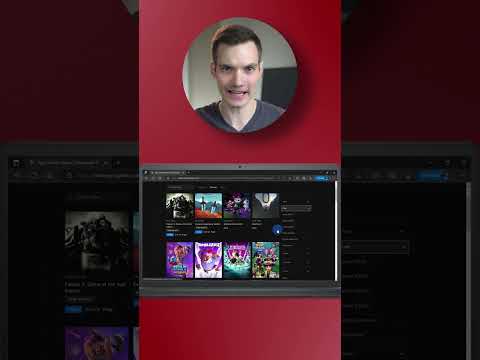
So, you’re looking to dive into the world of free PC gaming? Excellent choice! It’s a fantastic way to explore new titles, revisit classics, and have a blast without spending a dime. The process of installing these games might seem daunting at first, but it’s usually straightforward. Here’s how to install free games on your PC, broken down into manageable steps:
The fundamental method is to download the game from a reputable source, like Steam, the Epic Games Store, or directly from the game developer’s website. Once downloaded, you typically run the installer, follow the on-screen prompts (choosing an installation directory, agreeing to terms and conditions, etc.), and, voila, your game is installed and ready to play. Let’s break down each method with a little more detail:
Downloading & Installing from Digital Distribution Platforms
The easiest way to get free PC games is through major digital distribution platforms:
Steam
- Download and Install Steam: If you don’t already have it, go to the Steam website (https://store.steampowered.com/) and download the Steam client. Install it and create a free account.
- Browse the Free-to-Play Section: Open the Steam client and navigate to the “Store” tab. Look for a “Free to Play” section or use the search bar to find free games.
- Select Your Game: Click on the game you want to install.
- Click “Play Game”: On the game’s page, click the “Play Game” button. This will initiate the download and installation process.
- Follow Prompts: A window will appear asking you to choose the installation directory. You can usually accept the default location. Click “Install.”
- Download and Install: Steam will download the game files and automatically install them. The progress will be displayed in the “Downloads” section at the bottom of the Steam window.
- Launch and Play: Once the installation is complete, the “Play” button will become available. Click it to launch the game.
Epic Games Store
- Download and Install the Epic Games Launcher: Go to the Epic Games Store website (https://www.epicgames.com/store/) and download the Epic Games Launcher. Install it and create a free account.
- Find Free Games: The Epic Games Store often gives away free games weekly. Look for the “Free Games” section on the homepage.
- Claim the Game: Click on the free game you want to claim.
- Click “Get”: Click the “Get” button to add the game to your library. You may need to complete an order (at no cost).
- Install the Game: Go to your “Library” tab in the Epic Games Launcher. Find the game you claimed and click on it.
- Choose Installation Options: Choose your installation directory and any other relevant options.
- Install and Play: Click “Install.” The Epic Games Launcher will download and install the game. Once complete, you can launch it from the “Library” tab.
Other Platforms
Platforms like GOG (Good Old Games) and Battle.net also offer free games or free-to-play titles. The process is similar: download and install the platform’s launcher, create an account, browse for free games, and install them.
Downloading & Installing Directly From a Website
Some games are available directly from the developer’s website as standalone downloads.
- Find a Reputable Website: Be very careful when downloading games from websites you’re not familiar with. Only download from the developer’s official website or a well-known and trusted gaming site.
- Download the Installer: Download the game’s installer file (usually a .exe file).
- Run the Installer: Double-click the installer file to run it.
- Follow On-Screen Instructions: Follow the on-screen instructions to install the game. This usually involves choosing an installation directory, agreeing to the terms and conditions, and clicking “Next” several times.
- Launch the Game: Once the installation is complete, a shortcut to the game should appear on your desktop or in your Start Menu. Double-click the shortcut to launch the game.
Important Considerations
- System Requirements: Before downloading any game, make sure your computer meets the minimum system requirements. These are usually listed on the game’s website or store page.
- Storage Space: Ensure you have enough free space on your hard drive to install the game.
- Security: Always download games from reputable sources to avoid malware and viruses. Keep your antivirus software up to date.
- Updates: Most games will require updates after installation. Follow the instructions provided by the game or platform to update the game to the latest version.
- Administrator Privileges: You might need administrator privileges to install some games. If you encounter an error, try running the installer as an administrator (right-click the installer file and select “Run as administrator”).
FAQs: Free PC Games Edition
1. Are all games on Steam free?
No, Steam offers a mix of paid and free-to-play games. The “Free to Play” section highlights the games you can download and play without any initial cost. Some games might offer in-game purchases.
2. What does “free-to-play” really mean?
“Free-to-play” games are free to download and play, but they often include optional in-game purchases, such as cosmetic items, boosts, or additional content. These purchases are not required to play the game, but they can enhance the experience or speed up progress.
3. Is it safe to download free games from the internet?
It depends on the source. Downloading from official platforms like Steam, Epic Games Store, or the developer’s website is generally safe. Avoid downloading from unknown or suspicious websites, as they may contain malware.
4. My computer doesn’t meet the minimum system requirements. Can I still play the game?
While you might be able to launch and play the game, you’ll likely experience performance issues, such as low frame rates, stuttering, or crashes. It’s best to play games that meet or exceed your system’s capabilities for a smooth experience.
5. How do I uninstall a game on my PC?
There are several ways to uninstall a game:
- Through the Control Panel: Go to the Control Panel, select “Programs,” then “Programs and Features.” Find the game in the list, right-click it, and select “Uninstall.”
- Through the Start Menu: Find the game in the Start Menu, right-click it, and select “Uninstall.”
- Through the Game Launcher: Many game launchers (like Steam and Epic Games Launcher) allow you to uninstall games directly from their libraries.
6. What if I don’t have enough storage space to install a game?
You’ll need to free up storage space on your hard drive. You can do this by uninstalling unnecessary programs, deleting old files, or moving files to an external hard drive.
7. Do I need an internet connection to play free games?
While you need an internet connection to download and install most free games, some games can be played offline after installation. Check the game’s description to see if it supports offline play.
8. What are some good websites for finding free PC games?
Besides Steam and the Epic Games Store, websites like GOG, Itch.io, and GameJolt also offer a selection of free games.
9. How do I update my graphics drivers?
Outdated graphics drivers can cause performance issues with games. To update your drivers:
- NVIDIA: Go to the NVIDIA website and download the latest drivers for your graphics card.
- AMD: Go to the AMD website and download the latest drivers for your graphics card.
- Intel: Go to the Intel website and download the latest drivers for your integrated graphics.
10. Can I get viruses from downloading free games?
Yes, it’s possible to get viruses from downloading free games, especially if you’re downloading from unofficial sources. Always download from reputable websites and keep your antivirus software up to date.
11. Are free games worth playing?
Absolutely! There are many high-quality free games available that offer hours of entertainment. Some popular examples include Fortnite, Apex Legends, Genshin Impact, and League of Legends.
12. Do free games have in-game advertising?
Some free games include in-game advertising, but it’s usually not intrusive. Many games rely on in-app purchases as their primary source of revenue.
13. I installed a game, but it won’t launch. What should I do?
Here are a few things you can try:
- Restart your computer.
- Verify the game files (if you downloaded it through Steam or another platform).
- Update your graphics drivers.
- Run the game as an administrator.
- Check for compatibility issues.
14. Can I use a controller to play free PC games?
Yes, many free PC games support controllers. You may need to configure the controller settings in the game’s options menu.
15. Where can I learn more about game design and the educational aspects of gaming?
For more information on the academic side of gaming, game design, and how games are being used in education, check out the Games Learning Society at GamesLearningSociety.org or by following this link: https://www.gameslearningsociety.org/. You can discover a wealth of resources about the intersection of games and education.