Accessing iCloud When Your iPhone is Down: A Comprehensive Guide
Fast answer first. Then use the tabs or video for more detail.
- Watch the video explanation below for a faster overview.
- Game mechanics may change with updates or patches.
- Use this block to get the short answer without scrolling the whole page.
- Read the FAQ section if the article has one.
- Use the table of contents to jump straight to the detailed section you need.
- Watch the video first, then skim the article for specifics.
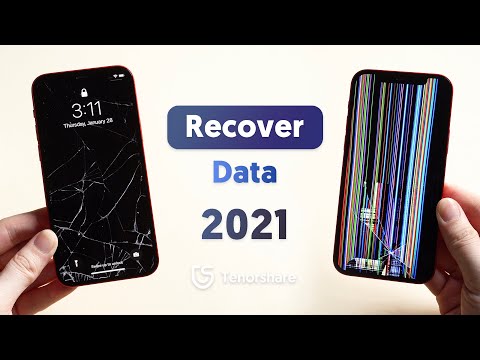
So, your iPhone has taken a tumble, met with an unfortunate bath, or simply decided to stage a rebellion against modern technology. Whatever the reason, your trusty communication hub is out of commission. But fear not! Even with a broken phone, accessing your iCloud account is still entirely possible. Here’s a breakdown of how to do it:
The most straightforward method is to use a web browser on any device – a computer, tablet, or even a friend’s phone. Simply go to icloud.com, enter your Apple ID and password, and you’ll be prompted to enter a verification code if you have Two-Factor Authentication enabled. If your primary trusted device (your broken iPhone) is unavailable, select the “Didn’t Get a Code?” option. Apple will then offer to send a code to your trusted phone number via text message or automated phone call. Choose your preferred option, enter the code you receive, and you’re in!
Alternatives and Workarounds
While the above method is the simplest, it relies on having a trusted phone number set up. If that’s not the case, here are some alternative routes you can explore:
- Recovery Key: If you previously generated a Recovery Key for your Apple ID, you can use it to regain access to your account and set up a new trusted device or phone number. This key acts as a bypass in emergencies and is critically important.
- Account Recovery: Apple offers an account recovery process that can help you regain access to your Apple ID. This process typically involves answering security questions and providing other forms of verification. This can take several days, so plan accordingly.
- Trusted Contact: If you’ve designated a Trusted Contact for account recovery, they can assist you in verifying your identity. This trusted individual can help you receive a verification code or otherwise prove that you are who you say you are.
- Apple Support: As a last resort, you can contact Apple Support directly. They may be able to assist you in regaining access to your account after verifying your identity through other means. Be prepared to answer detailed questions about your account and Apple devices.
Navigating the iCloud Interface Without a Phone
Once you’ve successfully logged in to icloud.com, you can access various iCloud services, including:
- iCloud Drive: Access your files, documents, and folders stored in the cloud.
- Photos: View and download your photos and videos.
- Mail: Manage your iCloud email account.
- Contacts: Access and edit your contacts.
- Calendar: View and manage your appointments and events.
- Notes: Access and edit your notes.
- Find My: Locate your other Apple devices (if applicable).
FAQs: iCloud Access with a Broken Phone
Here are some frequently asked questions to provide further clarification:
1. Can I access my iCloud data from a non-Apple device?
Absolutely! Accessing icloud.com through a web browser is the key. Any device with internet access and a browser (PC, Android phone, tablet, etc.) will work.
2. What if I don’t remember my Apple ID password?
If you’ve forgotten your password, visit iforgot.apple.com and follow the instructions to reset it. You’ll need to verify your identity using your email address, security questions, or other methods associated with your account.
3. I can’t receive text messages on my trusted phone number. What do I do?
Ensure your service provider is not blocking shortcodes, and restart your device. You can also choose to receive the verification code via an automated phone call instead of a text message. If neither works, you’ll need to use your Recovery Key or initiate the account recovery process.
4. I never set up a Recovery Key. Am I out of luck?
While having a Recovery Key makes things significantly easier, you’re not necessarily out of luck. You can still attempt the account recovery process or contact Apple Support.
5. I can’t remember my security questions. What now?
If you’ve forgotten your security questions, the account recovery process will likely take longer. Be prepared to provide as much information as possible to verify your identity.
6. Can I turn off Two-Factor Authentication if my phone is broken?
Turning off Two-Factor Authentication requires access to a trusted device or your Recovery Key. Since your phone is broken, your best bet is to use the Recovery Key (if you have it) or go through the account recovery process.
7. How can I transfer my data to a new iPhone without my old one?
If you had iCloud Backup enabled, you can restore your data to a new iPhone during the setup process. Select “Restore from iCloud Backup” when prompted and log in with your Apple ID. If not, and you previously backed up your old phone to iTunes on a computer, you can restore that backup to your new iPhone.
8. Is it possible to get my photos off the broken iPhone directly?
It depends on the extent of the damage. If the phone can still be connected to a computer, data recovery software might be able to extract the photos. However, if the phone is severely damaged, data recovery may be impossible or very expensive.
9. Can I use iTunes to bypass the verification code?
No, iTunes cannot bypass the verification code. The verification code is an additional layer of security that is independent of iTunes.
10. What if I sold my old phone and forgot to sign out of iCloud?
Immediately change your Apple ID password and remove the device from your trusted device list via icloud.com. This will prevent anyone else from accessing your account.
11. Can I set up a new iPhone without my old phone?
Yes! During the initial setup of your new iPhone, you’ll be given the option to “Set Up Without Another Device”. This allows you to manually enter your Apple ID and password and set up the phone from scratch.
12. I’m setting up a new iPhone for someone else. Can I use my iCloud account temporarily to get them started?
While technically possible, it’s strongly discouraged. Each person should have their own Apple ID for privacy and security reasons. It’s best to create a new Apple ID for the new user during the setup process.
13. Can I merge two iCloud accounts into one?
Apple does not offer a direct way to merge iCloud accounts. The best approach is to manually transfer data (contacts, calendars, photos, etc.) from one account to the other and then discontinue using the older account.
14. I’m concerned about the security of my iCloud account. What steps can I take?
Enable Two-Factor Authentication, create a strong and unique password, regularly review your trusted devices, and be cautious of phishing emails or suspicious links.
15. How can I learn more about Apple’s security features and best practices?
Refer to Apple’s official website for comprehensive information on security and privacy: https://support.apple.com/en-us/HT201303. You can also explore resources like the Games Learning Society, which offer insights into digital literacy and security awareness in the context of games and interactive media. Visit GamesLearningSociety.org for more.