How to Make Borderlands 3 Run Better on PC: A Vault Hunter’s Optimization Guide
Fast answer first. Then use the tabs or video for more detail.
- Watch the video explanation below for a faster overview.
- Game mechanics may change with updates or patches.
- Use this block to get the short answer without scrolling the whole page.
- Read the FAQ section if the article has one.
- Use the table of contents to jump straight to the detailed section you need.
- Watch the video first, then skim the article for specifics.
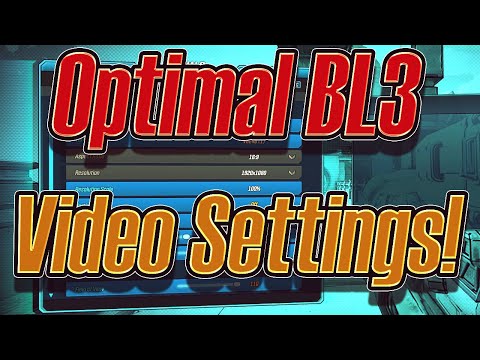
So, you’re diving headfirst into the chaotic world of Borderlands 3 on PC, but your frame rates are making you feel like you’re fighting Psychos in slow motion? Fear not, Vault Hunter! Getting the game to run smoothly is a matter of understanding its demands and tailoring the settings to your hardware. Here’s the straight dope on optimizing Borderlands 3 for peak performance:
The TL;DR (Too Long; Didn’t Read) Version:
The key to boosting performance in Borderlands 3 is striking a balance between visual fidelity and frame rate. Start by lowering the graphics preset to “High” instead of “Badass.” Disable “Screen Space Reflections.” Experiment with lower resolutions and “Resolution Scale.” Ensure you’re running the game in full-screen mode and that your graphics drivers are up-to-date. Enable Hardware-Accelerated GPU Scheduling in Windows Settings if your GPU supports it. Lastly, monitor your CPU and GPU usage; if either is consistently maxed out, that’s your bottleneck.
Diving Deeper: Optimizing Your Settings
Beyond the quick fixes, let’s dissect the settings that have the most significant impact on performance.
1. Graphics API: DirectX 11 vs. DirectX 12
At launch, DirectX 11 was the undisputed king of performance. While DirectX 12 promised improvements, it often suffered from stuttering and instability. While the game has been patched since launch, it’s still important to test both DirectX 11 and DirectX 12. Experiment to see which API provides the more consistent performance on your system. To switch, go to the video options within the game’s settings.
2. Display Settings: Full Screen is Your Friend
Running Borderlands 3 in full-screen mode gives the game exclusive access to your graphics card, which is a performance win. Avoid “Windowed” or “Borderless Windowed” modes.
3. Vertical Sync (Vsync): Turn It Off
Vsync synchronizes your game’s frame rate with your monitor’s refresh rate. While this can prevent screen tearing, it often introduces input lag and can limit your frame rate. Unless screen tearing is a major issue, disable Vsync.
4. Resolution Scale: A Big Performance Lever
The “Resolution Scale” setting determines the resolution at which the game is rendered internally. Lowering this can significantly boost FPS, especially on lower-end hardware. Experiment with values below 100%.
5. Graphics Presets: High vs. Badass
The “Badass” preset cranks everything to the maximum, but the performance hit is substantial. The “High” preset offers a great balance of visual quality and performance. Going lower than “High” can further boost FPS, but the visual sacrifice becomes more noticeable.
6. Individual Graphics Settings: Targeted Tweaks
- Screen Space Reflections: As mentioned earlier, this setting is a performance hog. Disable it for a noticeable FPS boost.
- Ambient Occlusion: Try switching this to a lower setting like “Medium” or even “Low.”
- Shadow Quality: Shadows are demanding. Reduce the quality or disable them altogether for a significant performance gain.
- Anti-Aliasing: Experiment with different AA methods. FXAA is generally less demanding than more advanced options like TAA.
- Material Quality, Texture Streaming, and Anisotropic Filtering: While these settings impact visual fidelity, they typically have a smaller performance impact than shadows or reflections. Experiment to see what your system can handle.
7. Frame Rate Limit: Tailor to Your Monitor
While the article initially mentioned unlimited frame rate, if your PC renders much more frames than your monitor´s refresh rate you should actually limit it to a maximum of 1 or 2 frames more than the monitor refresh rate. This can improve the performance in some situations.
8. Hardware-Accelerated GPU Scheduling: A Modern Boost (If Applicable)
If you’re running Windows 10 (version 2004 or later) and have a compatible GPU, enabling Hardware-Accelerated GPU Scheduling can improve performance by allowing the GPU to manage its memory more efficiently. This is found in Windows Settings -> System -> Display -> Graphics Settings.
9. Drivers: Keep Them Updated
Ensure you have the latest graphics drivers from NVIDIA or AMD. Driver updates often include performance optimizations for new games.
10. Background Processes: Close the Unnecessary
Close any unnecessary applications running in the background. These can consume system resources and impact Borderlands 3‘s performance.
11. Overclocking: Tread Carefully
Overclocking your CPU or GPU can potentially boost performance, but it also increases the risk of instability and overheating. Proceed with caution and do your research before overclocking.
12. Monitor CPU and GPU Temperatures
Keep an eye on your CPU and GPU temperatures while playing. Overheating can lead to performance throttling.
13. Consider an SSD
While not a direct FPS booster, installing Borderlands 3 on an SSD can significantly reduce loading times.
14. Network Connection
Make sure you have a stable network connection.
15. Game Files integrity
Make sure that the integrity of the game files is OK by using the repair function of your favourite game launcher, whether Steam, Epic Games or others.
Borderlands 3 FAQs: Your Burning Questions Answered
FAQ 1: Why is Borderlands 3 so laggy on my PC even with decent hardware?
Lag can stem from various factors, including driver issues, background processes, demanding graphics settings, or even network connectivity problems. Start by updating your drivers, closing unnecessary applications, and lowering the graphics settings. Check your network connection as well. Hardware-Accelerated GPU Scheduling is another important one.
FAQ 2: Is Borderlands 3 more CPU or GPU intensive?
Borderlands 3 leans heavily on the GPU, especially at higher settings and resolutions. However, the CPU still plays a crucial role, particularly in handling the game’s physics and AI. An Intel Core i7 or AMD Ryzen 5 should be sufficient for 60 FPS.
FAQ 3: What are the recommended PC specs for Borderlands 3?
For 1440p gaming, the recommended specs are an AMD Ryzen 5 2600 or Intel i7-4770 CPU, an AMD Radeon RX 590 or Nvidia GeForce GTX 1060 6GB GPU, and 16GB of RAM.
FAQ 4: How much RAM do I need for Borderlands 3?
16GB of RAM is highly recommended to ensure smooth gameplay, even if the minimum requirement is 6GB.
FAQ 5: Can Borderlands 3 run on a low-end PC?
Yes, but you’ll need to make significant compromises. Lower the resolution to 720p, use the lowest graphics settings, and disable demanding features like Screen Space Reflections.
FAQ 6: How can I increase my FPS in Borderlands 3 on PC?
Lower the graphics settings, reduce the resolution scale, disable Vsync, and enable Hardware-Accelerated GPU Scheduling. Ensure your drivers are up-to-date and close unnecessary background processes.
FAQ 7: What is the best DirectX version to use for Borderlands 3?
While DirectX 11 was initially more stable, it is best to test both DirectX 11 and DirectX 12, to see which API provides the more consistent performance on your system.
FAQ 8: How do I fix Borderlands 3 stuttering on PC?
Stuttering can be caused by frame rate drops, driver issues, or background processes. Update your drivers, close unnecessary applications, and experiment with different graphics settings. DirectX 12 has historically been more prone to stuttering, so try switching to DirectX 11.
FAQ 9: What graphics settings have the biggest impact on Borderlands 3 performance?
Screen Space Reflections, Shadow Quality, and Ambient Occlusion have the most significant impact on performance.
FAQ 10: Is Borderlands 3 well optimized for PC?
Optimization has improved since launch, but Borderlands 3 can still be demanding, especially at higher settings. Proper tweaking is necessary.
FAQ 11: Is Borderlands 3 better with a controller or keyboard and mouse?
Personal preference plays a big role, but many players find the keyboard and mouse combination provides superior accuracy for a first-person shooter.
FAQ 12: Why is Borderlands 3 so large in file size?
The high-resolution textures and extensive content contribute to the game’s large file size. With all DLC included, it can reach around 135GB.
FAQ 13: What’s the best GPU for Borderlands 3?
An Nvidia GeForce RTX 3060 or AMD Radeon RX 6600 will provide excellent performance at 1080p and 1440p.
FAQ 14: Does Borderlands 3 support ultrawide monitors?
Yes, Borderlands 3 supports ultrawide monitors.
FAQ 15: Can RAM speed affect Borderlands 3 performance?
Yes, faster RAM can provide a marginal performance boost, especially when coupled with a strong CPU and GPU.
By following these tips and experimenting with your settings, you can optimize Borderlands 3 for a smoother and more enjoyable gaming experience. Remember to tailor the settings to your specific hardware for the best results. Good luck, Vault Hunter, and may your loot be legendary!
The research and development into the effects of video games on learning and child development is very important. You can learn more at the Games Learning Society website, GamesLearningSociety.org.