How to Make Your PS5 Controller Bluetooth Discoverable on PC
Fast answer first. Then use the tabs or video for more detail.
- Watch the video explanation below for a faster overview.
- Game mechanics may change with updates or patches.
- Use this block to get the short answer without scrolling the whole page.
- Read the FAQ section if the article has one.
- Use the table of contents to jump straight to the detailed section you need.
- Watch the video first, then skim the article for specifics.
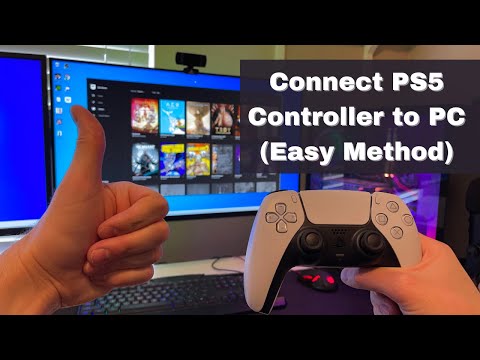
The process of making your PlayStation 5 DualSense controller discoverable via Bluetooth on your PC is straightforward, but it does require a few specific steps. To put your PS5 controller into pairing mode, you need to simultaneously press and hold the PlayStation button (the one with the PS logo) and the Share button (located to the left of the touchpad) until the light bar around the touchpad starts to blink rapidly in blue. This signifies that your controller is now in pairing mode and ready to be discovered by your PC. Once in pairing mode, you need to navigate to your PC’s Bluetooth settings to complete the connection. Detailed instructions are provided below:
Step-by-Step Guide to PS5 Controller Bluetooth Discovery on PC
Prepare Your Controller
- Ensure your PS5 controller is powered off. If it’s already on, press and hold the PlayStation button until it shuts down.
- Locate the PlayStation button (PS button) in the center and the Share button on the top left of the controller.
- Press and hold both the PlayStation button and the Share button simultaneously.
- Watch for the light bar around the touchpad. It should start to blink rapidly in blue. This indicates the controller is in pairing mode. If it does not blink or the light bar turns on and stays on, try this process again while ensuring the controller was powered off prior to holding down the buttons.
Connect Via Your PC
- On your Windows PC, click the Start button and go to Settings.
- Select Devices or Bluetooth & Devices (depending on your Windows version).
- Click on Add Bluetooth or other device.
- Choose Bluetooth as the type of device you want to add.
- Your PC will now scan for available Bluetooth devices. You should see your “Wireless Controller” appear in the list of discoverable devices.
- Click on the “Wireless Controller” to start the pairing process.
- Once paired, the light bar on your controller will change to a solid color, confirming a successful connection.
- If asked to provide a pairing PIN, there is none, and simply select the continue or okay option.
Troubleshooting Tips
- If your controller does not appear in the list, make sure it is in pairing mode (blinking blue light).
- Try restarting your PC’s Bluetooth and restarting the controller.
- Ensure no other devices are connected to your controller, especially your PS5.
- If you still experience issues, see the Frequently Asked Questions section below for more detailed troubleshooting.
Frequently Asked Questions (FAQs)
1. Why isn’t my PS5 controller pairing with my PC even though it’s in pairing mode?
Several factors can prevent pairing. Firstly, ensure your controller is not connected to another device, including your PS5 console. Secondly, other Bluetooth devices nearby can interfere with the signal. Finally, problems with your PC’s Bluetooth drivers can cause connection issues. Try restarting your PC and controller and re-attempting to pair. If issues persist, look at the other FAQ topics for additional troubleshooting steps.
2. My PS5 controller was previously paired with my PS5, will that affect PC pairing?
Yes, pairing with a new device will unpair the controller from any previously connected devices, including your PS5. You may have to re-pair your controller with your PS5 after using it on your PC.
3. How do I know if my PS5 controller is successfully connected to my PC?
Once paired successfully, the light bar on your PS5 controller will change to a solid color instead of blinking, typically blue, which also coincides with the player one indicator light. You can also check your PC’s Bluetooth settings to see if the “Wireless Controller” shows as connected. If the player one indicator light does not turn on it usually means the driver was not installed properly, please see subsequent questions for driver install tips.
4. Do I need a Bluetooth adapter to connect my PS5 controller to my PC?
If your PC has built-in Bluetooth, you do not need a separate adapter. However, if your PC lacks Bluetooth functionality, you will need to purchase a USB Bluetooth adapter that supports data connections and the Bluetooth version required by the PS5 controller.
5. Can I use a wired connection for my PS5 controller instead of Bluetooth?
Yes, you can use a USB-C cable to connect your PS5 controller to your PC. Simply plug one end into the controller and the other into a USB port on your PC. Windows should automatically detect it. If you have a USB-C port on your PC, a USB-C to USB-C cable can be used.
6. My controller is connected, but not working in games. What should I do?
Make sure your game supports the PS5 controller. You may also need to ensure that any third-party emulation software is configured correctly. If you have not properly installed the correct driver for your controller, this could also cause this issue, so be sure to check if a driver update is available. Restart your computer, then launch your game once more.
7. How do I update the drivers for my PS5 controller on PC?
In Device Manager, locate the “Human Interface Devices” category. Right-click on the entry for your controller (often labeled as “HID-compliant game controller”), and select “Update driver”. You can follow the prompts to either search automatically for a driver or install from a file on your local PC.
8. What if my controller isn’t being detected in the Device Manager?
If the controller isn’t detected, try plugging it into a different USB port. Additionally, ensure that the controller is not connected to another device. If this does not work, a controller reset might be in order. See the steps on how to perform this below.
9. How do I reset my PS5 controller?
To reset your PS5 controller, turn it off, then look for a small hole on the back of the controller near the L2 button. Use a small tool (like a paperclip or SIM card tool) to gently press and hold the button inside the hole for about 3-5 seconds, then release. Then attempt to power the controller on and repeat the Bluetooth discovery steps again.
10. Can other Bluetooth devices interfere with my PS5 controller connection?
Yes, nearby Bluetooth devices such as wireless headphones, keyboards, mice, and smartphones can sometimes cause interference. Try turning off any unnecessary Bluetooth devices to reduce potential conflicts.
11. My PS5 controller light flashes white and then turns off. What does this mean?
A flashing white light usually indicates that the controller is trying to connect to a known device but is unable to. This can occur if the controller is connected to your PS5 and you are trying to pair it with a PC. Try restarting both the PC and controller to see if the flashing turns to a rapid blinking blue light, which signifies pairing mode.
12. What if my controller connects, but the input is not correct in-game?
This often happens when there is third-party controller emulation software interfering with the connection. You might need to adjust the configurations of this software or disable it entirely to resolve input issues.
13. Is there a way to switch between a PC and PS5 connection without re-pairing every time?
The PS5 controller can only be actively connected to one device at a time. Re-pairing will always be required when switching between your PC and PS5, although sometimes a controller might automatically re-pair to the last device it was paired with if nearby.
14. Is it possible to use PS5 controller features like haptic feedback and adaptive triggers on PC?
Some games on PC may support haptic feedback and adaptive trigger functionality, but not all. This often depends on the game’s support for PlayStation controllers. If you use a USB wired connection you may have greater support for advanced features. Be sure to check the game’s manual or settings.
15. How do I remove a paired PS5 controller from my PC?
To remove the paired controller, go to your PC’s Bluetooth settings, find the “Wireless Controller” in the list of paired devices, and click on “Remove device” or the equivalent option. This will unpair the controller from your PC. You might have to re-pair it to your PC for the next use.
By following these steps and utilizing the troubleshooting tips provided, you should be able to successfully connect your PS5 controller to your PC via Bluetooth, enhancing your gaming experience. If you encounter any further issues, be sure to review the troubleshooting tips above.