How to Optimize World of Warcraft: Dragonflight for Peak Performance
Fast answer first. Then use the tabs or video for more detail.
- Watch the video explanation below for a faster overview.
- Game mechanics may change with updates or patches.
- Use this block to get the short answer without scrolling the whole page.
- Read the FAQ section if the article has one.
- Use the table of contents to jump straight to the detailed section you need.
- Watch the video first, then skim the article for specifics.
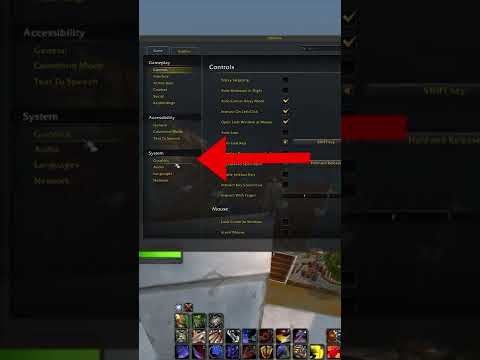
World of Warcraft: Dragonflight is a visually stunning and expansive expansion, but its beauty can come at a cost: performance. Optimizing your game settings is crucial to ensure a smooth and enjoyable experience, whether you’re raiding the Vault of the Incarnates, exploring the Azure Span, or engaging in intense PvP battles. The key to optimizing Dragonflight lies in balancing visual fidelity with framerate stability. This means understanding your hardware capabilities, adjusting in-game settings, and employing other helpful techniques. This article will guide you through the process, helping you achieve the best possible performance in Dragonflight.
Understanding Your Hardware
Before diving into settings, it’s essential to understand your computer’s hardware. Knowing your CPU, GPU, and RAM will inform your optimization strategy.
- CPU (Central Processing Unit): A powerful CPU is vital for processing game logic, AI, and handling large numbers of players, especially in raids and world events.
- GPU (Graphics Processing Unit): The GPU renders the visuals, including textures, shadows, and effects. A dedicated graphics card is essential for decent performance in Dragonflight.
- RAM (Random Access Memory): Sufficient RAM ensures that the game has enough space to store temporary data, preventing slowdowns and stuttering. 16GB of RAM is highly recommended for Dragonflight.
- Storage (SSD vs HDD): Installing WoW on an SSD (Solid State Drive) significantly reduces loading times compared to a traditional HDD (Hard Disk Drive).
In-Game Graphics Settings Optimization
World of Warcraft offers a wide array of graphics settings to customize your experience. Here’s a breakdown of the key settings and their impact on performance:
Graphics Quality Presets
- Graphics Quality Slider: This slider provides a quick way to adjust all graphics settings simultaneously. Experiment with different presets (Low, Medium, High, Ultra) to find a balance between visual quality and performance. Start with “Medium” and adjust upwards or downwards based on your framerate.
Advanced Graphics Settings
- Display Mode: Choose the appropriate display mode based on your setup. “Fullscreen” typically offers the best performance as it gives the game exclusive control over the display. “Windowed” or “Windowed (Fullscreen)” modes can be useful for multitasking but may impact performance.
- Resolution: Lowering the resolution significantly improves performance, but it can also make the game look less sharp. Experiment with different resolutions to find a comfortable balance. Consider using your monitor’s native resolution for the best visual clarity.
- Vertical Sync (VSync): VSync prevents screen tearing by synchronizing the game’s framerate with your monitor’s refresh rate. However, it can also introduce input lag and potentially lower framerate. If you experience screen tearing, enable VSync. Otherwise, disabling it might improve performance.
- Graphics API: Dragonflight supports DirectX 11 and DirectX 12. DirectX 12 generally provides better performance on modern hardware, but DirectX 11 might be more stable on older systems. Experiment to see which API works best for you.
- Ray Tracing: Ray tracing adds realistic lighting and reflections, but it’s extremely demanding on the GPU. Disable Ray Tracing if you’re struggling with performance.
- FidelityFX Super Resolution (FSR): FSR is an upscaling technology that can improve performance with minimal visual impact. If your GPU supports FSR, enable it and experiment with the quality settings. FSR 2 offers better image quality than FSR 1.
- Ambient Occlusion: Ambient occlusion adds depth and realism to shadows. Lowering or disabling this setting can improve performance, especially in areas with complex geometry.
- Shadow Quality: Shadows can be very demanding. Lowering the shadow quality can provide a significant performance boost.
- Liquid Detail: The level of detail in water and other liquids. Reducing this setting can improve performance, particularly in areas with large bodies of water.
- Particle Density: Controls the number of particles displayed, such as spell effects and environmental effects. Lowering particle density can significantly improve performance during combat.
- Texture Resolution: Determines the level of detail in textures. While higher texture resolution looks better, it also requires more VRAM. If you have a GPU with limited VRAM, lower the texture resolution.
- Anti-Aliasing: Smooths out jagged edges in the game. Experiment with different anti-aliasing methods (e.g., MSAA, FXAA, CMAA) to find a balance between visual quality and performance. FXAA and CMAA are generally less demanding than MSAA.
- View Distance: Controls how far you can see in the game world. Lowering view distance can improve performance, especially in outdoor areas.
- Environment Detail: The level of detail in the environment, such as trees, rocks, and buildings. Reducing environment detail can improve performance, especially in crowded areas.
- Ground Clutter Density: Controls the amount of grass and other ground clutter displayed. Lowering ground clutter density can improve performance, especially in grassy areas.
Advanced Optimization Techniques
Beyond in-game settings, several advanced techniques can further optimize your performance:
- Update Your Drivers: Ensure you have the latest graphics drivers installed. Driver updates often include performance optimizations and bug fixes for specific games.
- Close Background Applications: Close any unnecessary applications running in the background, such as web browsers, music players, and file sharing programs. These applications can consume CPU and RAM resources, impacting game performance.
- Overclocking (Use with Caution): Overclocking your CPU or GPU can increase performance, but it can also lead to instability and overheating. Proceed with caution and research thoroughly before overclocking.
- Monitor Temperatures: Monitor your CPU and GPU temperatures to ensure they’re not overheating. Overheating can cause performance throttling and system instability.
- Check for Resource-Intensive Addons: Some addons can be resource-intensive and negatively impact performance. Disable any addons that you don’t need or that are known to cause performance issues. Use an addon profiler to identify performance-hogging addons.
- Defragment Your Hard Drive (if using an HDD): Defragmenting your hard drive can improve performance by optimizing file access times. This is only relevant if you’re using a traditional HDD.
- Adjust Power Options: Set your power plan to “High Performance” to ensure that your computer is using its full potential.
Frequently Asked Questions (FAQs)
- What are the minimum and recommended system requirements for Dragonflight? Check the official Blizzard website for the most up-to-date system requirements. Meeting the minimum requirements will allow you to play the game, but the recommended requirements provide a smoother and more enjoyable experience.
- How much RAM do I need for Dragonflight? 16GB of RAM is highly recommended. While 8GB might be sufficient for low settings, 16GB provides a much better experience, especially in raids and other crowded areas.
- Should I install WoW on an SSD or HDD? Always install WoW on an SSD for significantly faster loading times.
- What graphics API should I use: DirectX 11 or DirectX 12? DirectX 12 generally offers better performance on modern hardware, but DirectX 11 might be more stable on older systems. Experiment to see which API works best for you.
- What is FidelityFX Super Resolution (FSR) and should I use it? FSR is an upscaling technology that can improve performance with minimal visual impact. If your GPU supports FSR, enable it and experiment with the quality settings.
- How do I monitor my CPU and GPU temperatures? Use monitoring software such as HWMonitor or MSI Afterburner.
- What are some resource-intensive addons that I should be aware of? Addons that track combat logs, display detailed raid information, or heavily customize the UI can be resource-intensive.
- How do I update my graphics drivers? Visit the website of your GPU manufacturer (Nvidia, AMD, or Intel) to download the latest drivers.
- Will upgrading my CPU or GPU have a bigger impact on performance? It depends on your current hardware. If your GPU is significantly weaker than your CPU, upgrading your GPU will likely have a bigger impact. Conversely, if your CPU is the bottleneck, upgrading your CPU will be more beneficial.
- What is the best way to troubleshoot performance issues in Dragonflight? Start by identifying the source of the problem. Monitor your CPU and GPU usage, check for overheating, and disable any unnecessary addons. Then, adjust your in-game graphics settings to find a balance between visual quality and performance.
- Why is my framerate dropping during raids? Raids can be very demanding on your system due to the large number of players and spell effects. Lowering particle density, shadow quality, and view distance can help improve performance during raids.
- Does my internet connection affect my framerate? No, your internet connection primarily affects latency (ping), which determines how quickly your actions are registered by the server. Framerate is primarily determined by your hardware and graphics settings.
- Can I run WoW: Dragonflight on a laptop? Yes, but laptop performance can vary significantly. Ensure that your laptop meets the minimum system requirements and that you have adequate cooling. Adjust your graphics settings to optimize performance.
- What is the best anti-aliasing method for Dragonflight in terms of performance? FXAA and CMAA are generally less demanding than MSAA.
- How often should I update my drivers? Regularly check for driver updates, especially when a new game or expansion is released. Driver updates often include performance optimizations and bug fixes.
By following these optimization tips and understanding your hardware capabilities, you can achieve a smoother and more enjoyable gaming experience in World of Warcraft: Dragonflight. Remember to experiment with different settings to find the perfect balance between visual quality and performance that suits your individual setup. Happy gaming!