How to Record PC Gameplay Without Losing FPS: A Comprehensive Guide
Fast answer first. Then use the tabs or video for more detail.
- Watch the video explanation below for a faster overview.
- Game mechanics may change with updates or patches.
- Use this block to get the short answer without scrolling the whole page.
- Read the FAQ section if the article has one.
- Use the table of contents to jump straight to the detailed section you need.
- Watch the video first, then skim the article for specifics.
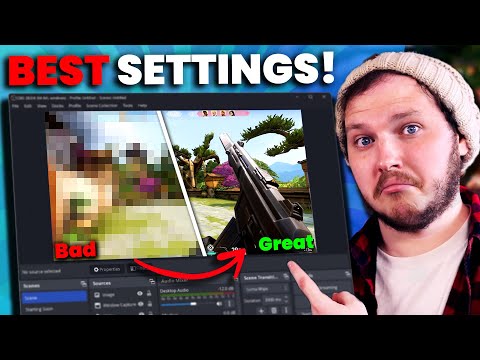
Recording your awesome PC gameplay moments shouldn’t come at the cost of a slideshow experience. Maintaining a smooth framerate while capturing your victories (or hilarious defeats) requires a delicate balance between game settings, recording software, and hardware capabilities. The key is optimizing your setup to minimize the performance hit associated with the encoding process. In essence, you want to offload the recording workload from your CPU to your GPU whenever possible, and to fine-tune settings for optimal performance.
Understanding the FPS Impact
Recording gameplay inherently impacts your Frames Per Second (FPS). Your computer is now doing double duty: rendering the game and simultaneously encoding the video for recording. This extra workload puts a strain on your CPU and GPU, leading to potential performance drops. The severity of this drop depends on several factors:
- Your Hardware: A powerful CPU and dedicated GPU are crucial.
- Game Settings: Higher resolutions and graphical settings demand more resources.
- Recording Software: Some recorders are more efficient than others.
- Recording Settings: Resolution, framerate, and bitrate all influence performance.
Key Strategies for Minimizing FPS Loss
Here’s a breakdown of the most effective strategies for recording gameplay without tanking your FPS:
-
Leverage GPU Encoding (NVENC/AMD VCE): This is arguably the most important factor. NVENC (Nvidia Encoder) and AMD VCE (Video Coding Engine) are hardware encoders built into Nvidia and AMD GPUs, respectively. They offload the encoding process from your CPU to your GPU, resulting in significantly less FPS drop. Most modern recording software supports these encoders. In your recording software settings, prioritize using NVENC or AMD VCE over CPU-based encoding (like x264).
-
Optimize In-Game Graphics Settings: Lowering your game’s graphical settings reduces the load on your GPU, freeing up resources for recording. Consider reducing:
- Resolution: Dropping from 4K to 1440p or 1080p can make a huge difference.
- Texture Quality: High-resolution textures demand more VRAM.
- Shadow Quality: Shadows are notoriously resource-intensive.
- Anti-Aliasing: While it improves image quality, it also impacts performance.
- Other Effects: Disable or reduce effects like bloom, motion blur, and depth of field.
-
Choose the Right Recording Software: Some recording software is more optimized than others. Here are some popular options known for their performance:
- Nvidia ShadowPlay: If you have an Nvidia GPU, ShadowPlay is a fantastic option due to its tight integration with Nvidia hardware and minimal performance impact.
- OBS Studio: Open Broadcaster Software (OBS) is a powerful and versatile open-source option. While it can be CPU-intensive with default settings, careful configuration and the use of NVENC/AMD VCE can make it very efficient.
- AMD ReLive: Similar to ShadowPlay, AMD ReLive is designed for AMD GPUs and offers good performance.
-
Configure Your Recording Software Settings:
- Resolution: Match your recording resolution to your in-game resolution (or lower it slightly for better performance).
- Framerate: 60 FPS is generally ideal for smooth gameplay footage. However, if you’re experiencing significant FPS drops, consider lowering it to 30 FPS.
- Bitrate: The bitrate determines the quality of your recording. A higher bitrate results in better quality but requires more processing power. Experiment to find a balance between quality and performance. A good starting point is 10-20 Mbps for 1080p60 recording.
- Encoder: As mentioned earlier, always choose NVENC or AMD VCE if available.
- Preset (Quality/Performance): Many encoders offer presets that prioritize either quality or performance. Choose a performance-oriented preset if you’re struggling with FPS drops.
-
Close Unnecessary Background Applications: Any application running in the background consumes system resources. Close any programs you don’t need, such as web browsers, music players, and unnecessary utilities. Use the Task Manager (Ctrl+Shift+Esc) to identify resource-hogging processes.
-
Update Your Graphics Drivers: Outdated graphics drivers can lead to performance issues. Ensure you have the latest drivers installed from Nvidia or AMD’s website.
-
Monitor Your System Resources: Use tools like the Task Manager or MSI Afterburner to monitor your CPU and GPU usage during recording. If either resource is consistently maxed out, you’ll need to adjust your settings or upgrade your hardware.
-
Upgrade Your Hardware (If Necessary): If you’ve tried all the software optimizations and you’re still experiencing significant FPS drops, it may be time to upgrade your hardware. A more powerful CPU or GPU can make a significant difference.
-
Optimize your operating system: Keep your operating system updated. Disable unnecessary startup programs. Defragment your hard drive regularly.
-
Record to a separate drive: Recording to the same drive as the game can cause performance issues. If possible, record to a separate hard drive or SSD.
-
Experiment and Test: The optimal settings vary depending on your hardware and the game you’re playing. Experiment with different settings and run test recordings to find what works best for you.
-
Consider an External Capture Card: If you’re serious about recording and streaming, an external capture card can completely offload the encoding process to dedicated hardware, eliminating FPS drops.
-
Use Game Mode (Windows 10/11): Game Mode prioritizes system resources for gaming, which can help improve performance.
FAQs: Recording Gameplay Without FPS Loss
1. Why is my FPS so low when I start recording?
Low FPS during recording is usually caused by the CPU being overloaded with encoding the video. Switching to GPU encoding (NVENC or AMD VCE) is the first and most crucial step.
2. Does OBS affect FPS?
Yes, OBS can affect FPS, especially if you’re using CPU-based encoding (x264). Optimize your OBS settings by using GPU encoding, lowering the resolution and bitrate, and closing unnecessary background applications. The Games Learning Society website often has resources discussing effective streaming and recording practices applicable to OBS.
3. Is ShadowPlay better than OBS for performance?
ShadowPlay generally has a smaller performance impact than OBS, especially on Nvidia GPUs, due to its tight integration with Nvidia’s hardware encoder. However, OBS offers more customization options.
4. What’s the best FPS setting for recording?
60 FPS is generally the best option for capturing smooth gameplay. However, if you’re experiencing FPS drops, lowering it to 30 FPS is a viable alternative.
5. Should I record at 30 FPS or 60 FPS?
60 FPS captures more detail and smoother motion, making it ideal for fast-paced gameplay. 30 FPS is acceptable for slower-paced games or if you’re struggling with performance.
6. What bitrate should I use for recording?
A bitrate of 10-20 Mbps is a good starting point for 1080p60 recording. Experiment to find a balance between quality and performance.
7. How do I reduce frame drops in OBS?
Reduce frame drops in OBS by lowering the bitrate, enabling network optimizations, and ensuring a stable internet connection (using Ethernet is recommended).
8. Does recording gameplay affect FPS on a laptop?
Yes, recording gameplay affects FPS on a laptop. Laptops often have less powerful hardware and are more prone to overheating, which can exacerbate performance issues. Consider using optimized settings and an external cooling pad.
9. Is 20 FPS good for recording?
20 FPS is generally too low for recording gameplay. It will result in choppy and unnatural-looking footage. Aim for at least 30 FPS.
10. Can you stream at 240 FPS?
Streaming at 240 FPS requires powerful hardware and a very fast internet connection. Most streaming platforms don’t support such high framerates.
11. Does Shadowplay decrease FPS?
Yes, ShadowPlay can decrease FPS, but the impact is usually minimal (1-5 FPS loss) on modern Nvidia GPUs due to the efficient NVENC encoder.
12. How do I increase FPS while recording with OBS?
Increase FPS while recording with OBS by using GPU encoding, lowering the resolution and bitrate, and closing unnecessary background applications.
13. Why does my game drop FPS when I stream?
Game FPS drops when streaming are commonly caused by a bad Wi-Fi connection. Use a wired connection for optimum performance.
14. What is the best FPS to record with OBS?
Ideally, you should record at 60 FPS. If your computer is struggling you should then try 30 FPS.
15. Is there a better alternative than OBS for recording?
Other alternative recording and streaming softwares are Streamlabs OBS and XSplit. Check which one is more suitable to your system.
Final Thoughts
Recording PC gameplay without FPS loss is an attainable goal with the right knowledge and optimization. By prioritizing GPU encoding, tweaking your game settings, configuring your recording software, and managing your system resources, you can capture your gaming highlights without sacrificing performance. Remember to experiment and find the settings that work best for your specific hardware and the games you play. Educational platforms like GamesLearningSociety.org offer further insights into the intersection of gaming, technology, and learning, potentially providing further tips and tricks for optimizing your gaming setup. Now go out there and capture those epic moments!