How to Remote Install Games on Your PS5: A Comprehensive Guide
Fast answer first. Then use the tabs or video for more detail.
- Watch the video explanation below for a faster overview.
- Game mechanics may change with updates or patches.
- Use this block to get the short answer without scrolling the whole page.
- Read the FAQ section if the article has one.
- Use the table of contents to jump straight to the detailed section you need.
- Watch the video first, then skim the article for specifics.
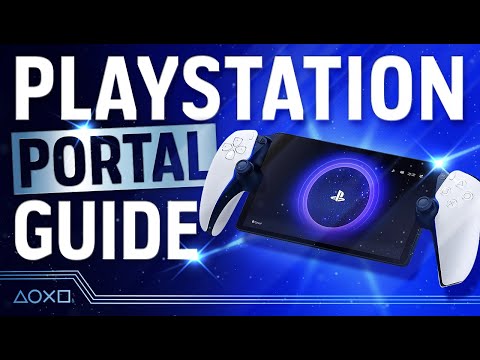
Have you ever been away from home and suddenly had the urge to dive into a new PS5 game? Perhaps a friend told you about a must-play title, or you’ve simply decided to take advantage of a flash sale on the PlayStation Store. Whatever the reason, the good news is you can start game downloads on your PS5 remotely using the PlayStation App on your smartphone. This allows you to come home to a waiting game, ready to play without having to deal with lengthy download times upon arrival.
Here’s how to initiate a remote install on your PS5:
- Link Your PS5 to the PlayStation App: This crucial first step ensures your phone can communicate with your console. To do this, open the PlayStation App, go to the Play tab, then tap the Settings gear icon. Select Link Console to App and choose your PS5 from the list. Confirm the linking by tapping Confirm.
- Verify Your Game Library: Ensure the game you wish to install is in your library. Navigate to the Game Library tab at the bottom of the screen in the PlayStation App.
- Begin the Remote Install: Once confirmed, open the Games section within the Game Library and then go to Purchased. Tap on the game you intend to download.
- Start the Download: Look for the Download to Console option (or a similar prompt). Tap this to remotely initiate the download on your PS5.
That’s it! Your PS5 will now begin downloading the game, even while you’re out and about. When you return home, your game should be ready to play. The PS5 must be either on or in rest mode for the remote install to work. If your console is completely off, the process won’t work until you power it on.
Essential Steps for Seamless Remote Installation
Linking Your Console:
Linking your console to the app is the foundation for remote access. This step needs to be done only once. If you face issues, verify both your console and app are connected to the internet, and are signed into the same PlayStation Network account.
Ensuring Network Connectivity:
A stable and reliable internet connection is vital for smooth remote installation. The recommended minimum connection speed is 5Mbps for both upload and download. Before initiating a download remotely, ensure your console has a strong internet connection. Similarly, the phone or device used for Remote Play must also have a robust internet connection. A weak connection can hinder download speeds or even prevent the process altogether.
Managing Your PS5 Storage:
Keep an eye on your PS5’s storage space. If the PS5 is full, the download might fail. The app allows you to manage your console storage remotely, so you can delete unwanted files before you start a new download. The PS5’s built-in storage is 825GB, but only 667.2 GB is usable for games, as system files use the remaining space.
Remote Play Capabilities
Beyond remote downloads, the PlayStation App and PS Remote Play enable you to launch games and manage PS5 console storage from your mobile device. PS Remote Play lets you play games from your phone, as long as your console is powered on or in rest mode, and both your device and the console have good internet connectivity. However, it’s important to understand that Remote Play and Remote installation are two different features. Remote installation simply starts a download, while Remote Play allows you to actually play your games remotely.
FAQs about Remote Installation and Play on PS5
1. Can I download games to my PS5 from my phone?
Yes, you can download games to your PS5 from your phone using the PlayStation App, as detailed in the guide above. Your console needs to be linked to the app and either powered on or in rest mode.
2. Does my PS5 need to be on for remote download to work?
Your PS5 must be either on or in rest mode for a remote download to start. It cannot be completely powered off.
3. How do I use PS Remote Play to play PS5 games from my phone?
Launch the PS Remote Play app on your mobile device. Sign in with the same PlayStation Network account you use on your console. Select PS5. The app will automatically connect to your console, and your PS5 screen will appear on your phone.
4. What is the minimum internet speed for Remote Play and remote downloads?
The minimum recommended internet speed for both Remote Play and remote downloads is 5Mbps for both upload and download.
5. Why can’t I connect to my PS5 via Remote Play?
Possible reasons include poor internet connection, a weak Wi-Fi signal, other devices on your network using excessive bandwidth, or outdated system software. Ensure your console and device meet the minimum requirements and your network is stable.
6. How do I check if my PS5 has enough storage space for a new game?
Go to the PlayStation Store on your console, select the game, and scroll down to the Details section. The required free space is shown on the right of the screen. You can manage storage via the app by going to the settings of your linked console.
7. How can I expand my PS5 storage?
You can use an external hard drive via USB to store games, but you can’t play games directly from it. You need to copy them back to the internal SSD for gameplay. Alternatively, add an additional compatible SSD to your PS5 using the built-in, empty SSD slot.
8. Can I use Remote Play when I’m away from home?
Yes, you can use Remote Play when you’re away from home, as long as you have a good internet connection on both your device and the console. The connection needs to be robust and stable for optimal performance.
9. Can I install apps from my phone onto my PS5?
You can’t install new apps on your PS5 directly from your phone. Apps need to be downloaded from the media home of your PS5 console. You can, however, trigger downloads of purchased games from the PlayStation App.
10. Why can’t I download apps on my PS5?
Potential reasons include an out-of-date console firmware, storage limitations or a network issue. Check for system updates and make sure you have enough space.
11. What apps can be added to the PS5?
Many media streaming apps such as Netflix, YouTube, Amazon Prime Video, Disney+, BBC iPlayer, Spotify, and Plex are available for download through the PlayStation Store.
12. How do I install a game once it’s downloaded?
Once downloaded, the game installs automatically. Go to Game Library, select the purchased game and you should see the download progress there. You can start the game once the download is complete.
13. How does Auto-Install work on PS5?
When Auto-Install is on, your games and apps are automatically updated to their latest versions when your PS5 console is on. When you prefer not to close your current suspended game or app, use only Auto-Download.
14. What does error code 0x80001fff mean?
This code often indicates that a third-party security program is interfering with your connection. Disable real-time protection to resolve it.
15. What ports does PS Remote Play use?
The port numbers used by Remote Play are 9295 (TCP), and 9296 and 9297 (UDP).
By understanding these instructions and FAQs, you’ll be able to master the art of remotely managing your PS5, ensuring you’re always ready to jump into your favorite games, no matter where you are. Enjoy the convenience of the PlayStation App and Remote Play!