How to Remove Your Nintendo Account from Your Old Switch: A Comprehensive Guide
Fast answer first. Then use the tabs or video for more detail.
- Watch the video explanation below for a faster overview.
- Game mechanics may change with updates or patches.
- Use this block to get the short answer without scrolling the whole page.
- Read the FAQ section if the article has one.
- Use the table of contents to jump straight to the detailed section you need.
- Watch the video first, then skim the article for specifics.
So, you’re looking to sever ties between your Nintendo Account and that old Nintendo Switch collecting dust in the attic? Maybe you’re selling it, gifting it, or perhaps it’s just time to declutter. Whatever the reason, detaching your account is a crucial step to protect your data and prevent unauthorized access to your digital games and Nintendo Switch Online subscription. Let’s dive into the how-to, shall we?
The most straightforward way to remove your Nintendo Account from your old Nintendo Switch is to deregister it as your primary console. If you no longer have access to the old console, you can de-register your account from a different Switch. This is a crucial step if you want to avoid problems with game access.
Here’s a step-by-step guide:
-
On the OLD Nintendo Switch (Ideally):
- Select the Nintendo Account you want to deactivate on the console.
- Select your profile icon in the upper-right corner to access your Account Information.
- Scroll down to the Primary Console status.
- Select Deregister twice to confirm.
- If your account is set to require a password, you will need to enter your Nintendo Account password to confirm.
-
If you no longer have access to the OLD Nintendo Switch, you can still deregister the account from a different Switch:
- Open the eShop on any Nintendo Switch where you are signed in.
- Click on your profile image in the upper-right corner to open Account Information.
- Scroll down to the Primary Console section.
- Click Deregister.
-
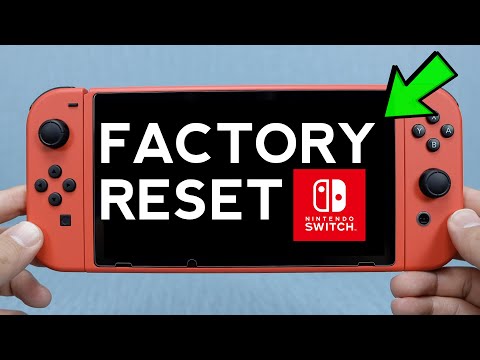
Alternative method: Factory Reset
If you are selling your old Switch, you should restore it to factory settings.
- Select System Settings from the HOME Menu.
- Scroll down to System and select it.
- Scroll to the bottom and select Formatting Options.
- Select Restore Factory Settings to delete all data. Caution: All save data and personal information will be erased.
Now, let’s address some frequently asked questions to ensure you’re fully equipped with the knowledge you need.
Frequently Asked Questions (FAQs)
Can I unlink my Nintendo Account from one Switch?
Yes, you can unlink your Nintendo Account from a Nintendo Switch console. To unlink a single Nintendo Account, delete the associated user account. However, if you want to remove all Nintendo Accounts, initialize the Nintendo Switch console using the Restore Factory Settings option.
How do I change my primary Switch without my old Switch?
You can change your primary Switch even without access to the old one. Simply use your Nintendo Account to access the Nintendo eShop on the console you want to designate as the new primary console. The system will automatically become the primary console for your account. Verify by checking the Primary Console setting in your Nintendo eShop Account Information.
How do I reset my Switch for a new owner?
Resetting your Nintendo Switch for a new owner is crucial for privacy. Go to System Settings > System > Formatting Options > Restore Factory Settings. This will erase all personal data, including save data, user accounts, and Nintendo Account information.
How do I set up a new Switch using data from my old one?
Transferring data to a new Nintendo Switch is straightforward. On both consoles, go to System Settings > Users > Transfer Your User Data. Follow the on-screen prompts, selecting the old Switch as the source console and the new Switch as the target console. This process will transfer your user profile and save data.
Can one Nintendo Account be used on two Switches?
Absolutely! You can link your Nintendo Account to multiple consoles and play digital games on any of them. However, only one console can be designated as the primary console for your account. On the primary console, other users can access and play the games you’ve downloaded.
Can two Nintendo Accounts be linked to one Switch?
Yes, up to 8 Nintendo Accounts can be linked to a single Nintendo Switch console. Games purchased with your Nintendo Account are playable by everyone on your primary console. This is a fantastic way to share your game library with family and friends.
Can I have my Nintendo Account linked on more than one Switch?
You can link your Nintendo Account to multiple Nintendo Switch consoles and play your games on any of them using your Nintendo Account. Only one of the consoles can act as the primary console. On the primary console, any other users can play the games you downloaded with your Nintendo Account.
Can two Nintendo Accounts on the same Switch share a Nintendo Switch Online family membership?
Yes, players with a family membership can access the Nintendo Switch Online service on the same Nintendo Switch system or multiple systems. Everyone doesn’t have to use the same system. Multiple users on the same console are not automatically covered; a family membership is required for multiple accounts.
Can you delete a Nintendo Account entirely?
Yes, you can delete a Nintendo Account. Sign in to your Nintendo Account on the Nintendo website, select Privacy and Other Settings, and click the Delete Account link. After confirmation, the account enters a 30-day deactivation period during which you can reverse the process.
Why does it say my Nintendo Account is already being used on this console?
A Nintendo Account can’t be linked to more than one user on a single Nintendo Switch console simultaneously. If the account you’re trying to use is already linked to another user, create a new Nintendo Account and link it to the new user you wish to use for online features.
How many times can you change your primary Switch?
A single Nintendo Switch can be the primary console for as many accounts as you want. However, each account can only set one Nintendo Switch as its primary console. There is no limit to how many times you can change this.
Can I sell my Nintendo Account?
No, you cannot sell your Nintendo Account. According to the Nintendo Account Agreement and Nintendo Network Agreement and Privacy Policy, your Nintendo Account and/or Nintendo Network ID (NNID) can’t be transferred or sold to another person.
What’s the difference between users and accounts on Nintendo Switch?
User accounts manage each player’s save data and personal settings. You can create up to 8 user accounts on a Nintendo Switch. A Nintendo Account provides access to online services, the Nintendo eShop, and connects your purchases across devices. A user account can be linked to a Nintendo Account.
How do I know if my Switch is the primary console?
To verify if a console is the primary console for your Nintendo Account, check the Primary Console section in your Nintendo eShop Account Information. This setting confirms which console is authorized to play your digital games without an internet connection.
Will I lose my games if I delete a user on the Switch?
Deleting a user account will remove all save data associated with that account. The digital games purchased with that account will remain on the console but become unplayable unless the Nintendo Account associated with the purchases is active and the console is designated as the primary console.
We hope this comprehensive guide helps you navigate the process of removing your Nintendo Account from your old Nintendo Switch and addresses any questions you might have. Remember to always prioritize your data security and privacy. If you’re interested in learning more about the intersection of games and learning, consider exploring the resources available at the GamesLearningSociety.org.