How to Reset Your CPU: A Comprehensive Guide
Fast answer first. Then use the tabs or video for more detail.
- Watch the video explanation below for a faster overview.
- Game mechanics may change with updates or patches.
- Use this block to get the short answer without scrolling the whole page.
- Read the FAQ section if the article has one.
- Use the table of contents to jump straight to the detailed section you need.
- Watch the video first, then skim the article for specifics.
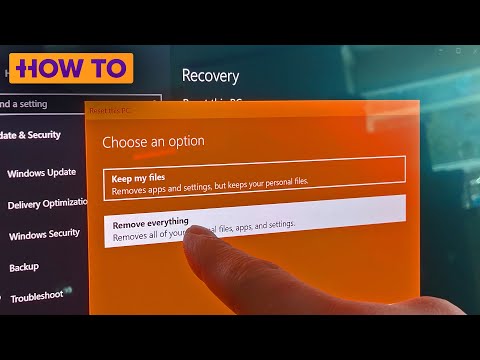
The short answer: You can’t directly reset a CPU in the same way you reset other components like a router or phone. CPUs don’t store persistent settings in the same way. Instead, what most people mean by “resetting” their CPU involves clearing or updating the BIOS/UEFI, troubleshooting performance issues, or addressing overheating problems. This guide will cover the various interpretations of “CPU reset” and provide steps to address each scenario.
Understanding What “Resetting” Your CPU Really Means
The term “resetting” in the context of a CPU is often a misnomer. Unlike a router or other devices that have a factory reset option, a CPU doesn’t have such a feature. Instead, when users talk about resetting a CPU, they are usually referring to one of the following:
- Clearing the CMOS/BIOS: This resets the motherboard’s settings, which can indirectly impact CPU performance and behavior.
- Addressing Overclocking Issues: If you’ve overclocked your CPU and are experiencing instability, you might need to revert to the default settings.
- Troubleshooting Performance Problems: Sometimes, perceived CPU issues are due to software conflicts or driver problems, not the CPU itself.
- Addressing Thermal Issues: High CPU temperatures can throttle performance; addressing these issues can feel like a “reset.”
Let’s delve into each of these scenarios and how to address them.
Clearing the CMOS/BIOS (and its impact on the CPU)
Clearing the CMOS (Complementary Metal-Oxide-Semiconductor) or BIOS (Basic Input/Output System) is the closest thing you can get to “resetting” your CPU. The BIOS/UEFI (Unified Extensible Firmware Interface) stores low-level settings for your motherboard and connected components, including the CPU. Clearing it resets these settings to their default values. Here’s how:
1. Using the CMOS Battery
This is the most common method:
- Power off your computer and unplug it from the wall. This is crucial for safety.
- Open your computer case. Refer to your case’s manual for instructions.
- Locate the CMOS battery on the motherboard. It’s typically a small, round, silver battery (CR2032).
- Remove the battery. Gently pry it out with a small, non-conductive tool (like a plastic spudger).
- Wait 5-10 minutes. This allows the CMOS to completely discharge.
- Reinsert the battery. Make sure it’s properly seated.
- Close your computer case, plug it back in, and power it on.
- Enter the BIOS/UEFI setup. You’ll usually see a message on screen telling you which key to press (Del, F2, F12, Esc are common).
- Restore defaults or load optimized defaults. The exact wording will vary depending on your motherboard manufacturer. Save the changes and exit.
2. Using the CMOS Jumper
Some motherboards have a CMOS reset jumper:
- Power off your computer and unplug it from the wall. Safety first.
- Open your computer case.
- Locate the CMOS jumper on the motherboard. Refer to your motherboard manual; it’s usually labeled CLRTC or similar.
- Move the jumper. Typically, you’ll move it from pins 1-2 to pins 2-3 for a few seconds.
- Return the jumper to its original position. Pins 1-2.
- Close your computer case, plug it back in, and power it on.
- Enter the BIOS/UEFI setup and restore defaults.
3. Using the BIOS/UEFI Interface
Some modern BIOS/UEFI interfaces allow you to reset to default settings directly from the menu. This is often the simplest method, but it requires that you can successfully boot into the BIOS/UEFI.
- Restart your computer.
- Enter the BIOS/UEFI setup.
- Look for an option like “Load Defaults,” “Restore Defaults,” or “Load Optimized Defaults.”
- Select the option and confirm.
- Save the changes and exit.
Important Considerations:
- Clearing the CMOS will reset all your BIOS settings, including boot order, SATA mode, and any custom fan curves.
- Make sure you know how to access your BIOS/UEFI setup before clearing the CMOS.
- Consult your motherboard manual for the exact location of the CMOS battery and jumper.
Addressing Overclocking Issues
If you’ve overclocked your CPU and are experiencing instability (crashes, freezes, BSODs), the overclock might be too aggressive. In this case, “resetting” your CPU means reverting to the default clock speeds and voltages. The easiest way to do this is by clearing the CMOS, as described above. Alternatively, you can manually adjust the settings in the BIOS/UEFI to their default values. Consult your motherboard and CPU documentation for the correct default settings. It’s recommended to revert to the default settings of the CPU before attempting any further troubleshooting to guarantee a stable baseline.
Troubleshooting Performance Problems
Sometimes, what seems like a CPU problem is actually a software or driver issue. Here are some steps to troubleshoot performance problems:
- Update your drivers: Make sure you have the latest drivers for your motherboard, graphics card, and other components.
- Scan for malware: Malware can consume CPU resources and slow down your system.
- Close unnecessary programs: Many programs run in the background and consume CPU resources.
- Check CPU usage: Use Task Manager (Windows) or Activity Monitor (macOS) to see which processes are using the most CPU.
- Reinstall your operating system: In extreme cases, a clean install of your operating system can resolve performance problems. This is a drastic measure, so back up your important data first.
- Check your power settings: Ensure your power plan is set to “Balanced” or “High Performance,” but be aware of increased power consumption and potential heat generation.
Addressing Thermal Issues
High CPU temperatures can cause thermal throttling, which reduces performance to prevent damage. Addressing thermal issues can feel like “resetting” the CPU because it restores performance to its expected level. Here are some steps to address thermal issues:
- Clean your CPU cooler: Dust can build up on the cooler and reduce its effectiveness.
- Reapply thermal paste: Thermal paste helps transfer heat from the CPU to the cooler. If it’s old or dried out, it needs to be replaced.
- Improve case airflow: Make sure your case has adequate airflow to remove hot air. Consider adding more fans.
- Check the CPU cooler: Verify that the CPU cooler is properly installed and making good contact with the CPU.
- Monitor CPU temperatures: Use monitoring software to track your CPU temperatures. If they’re consistently high, you may need a better cooler.
Frequently Asked Questions (FAQs)
1. Will resetting my CPU delete my data?
No. “Resetting” your CPU, as described in this article, does not delete any data from your hard drive or SSD. Clearing the CMOS only resets the BIOS settings.
2. How do I know if I need to reset my CPU?
Consider “resetting” your CPU if you’re experiencing instability after overclocking, have made changes to your BIOS settings that are causing problems, or are troubleshooting performance issues.
3. What happens if I remove the CMOS battery while the computer is on?
Removing the CMOS battery while the computer is on can damage your motherboard and other components. Always power off and unplug the computer before removing the battery.
4. Can I reset my CPU from Windows?
No, you cannot directly reset your CPU from within Windows. You can only clear the CMOS/BIOS, which requires accessing the BIOS/UEFI setup or physically removing the CMOS battery.
5. How long should I wait after removing the CMOS battery?
Wait at least 5-10 minutes to ensure the CMOS is completely discharged.
6. What is the difference between BIOS and UEFI?
UEFI is a more modern replacement for BIOS. It offers several advantages, including support for larger hard drives, faster boot times, and a more user-friendly interface.
7. Where can I find my motherboard manual?
You can usually find your motherboard manual on the manufacturer’s website. Look for the support section for your specific motherboard model.
8. What is thermal throttling?
Thermal throttling is a mechanism that reduces CPU performance when it reaches a certain temperature to prevent damage.
9. How do I monitor my CPU temperature?
You can use software like HWMonitor, Core Temp, or the monitoring utilities provided by your motherboard manufacturer.
10. What is a safe CPU temperature?
Safe CPU temperatures vary depending on the CPU model and workload. Generally, temperatures below 80°C under load are considered safe. Consult your CPU’s specifications for the recommended temperature range.
11. How often should I reapply thermal paste?
Reapply thermal paste every 1-2 years, or if you remove and reinstall your CPU cooler.
12. What kind of thermal paste should I use?
There are many different types of thermal paste available. Choose a reputable brand with good thermal conductivity.
13. My computer won’t boot after clearing the CMOS. What should I do?
Make sure you have reconnected all cables properly. If the issue persists, try reseating your RAM and other components. You may also need to adjust the boot order in the BIOS/UEFI setup.
14. How do I update my BIOS/UEFI?
Updating your BIOS/UEFI is a complex process that can be risky. Consult your motherboard manual for instructions. Ensure you have a stable power supply and follow the instructions carefully. A failed BIOS/UEFI update can brick your motherboard.
15. Will resetting the BIOS fix a damaged CPU?
No, resetting the BIOS will not fix a physically damaged CPU. If your CPU is damaged, it needs to be replaced. Resetting the BIOS addresses BIOS/UEFI settings only.