Resetting Your Nintendo Switch to Factory Settings: A Comprehensive Guide
Fast answer first. Then use the tabs or video for more detail.
- Watch the video explanation below for a faster overview.
- Game mechanics may change with updates or patches.
- Use this block to get the short answer without scrolling the whole page.
- Read the FAQ section if the article has one.
- Use the table of contents to jump straight to the detailed section you need.
- Watch the video first, then skim the article for specifics.
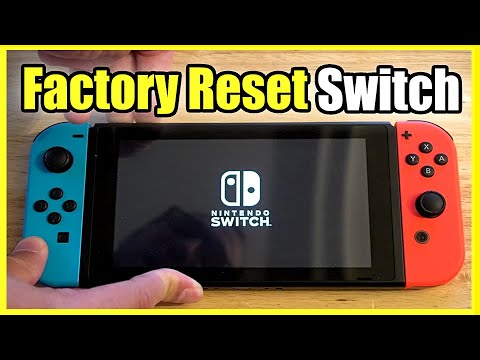
So, you’re looking to reset your Nintendo Switch to its factory settings but can’t remember the password? Don’t fret! While directly bypassing a forgotten password isn’t possible, there are a few alternative routes you can take depending on your specific situation. The most effective solution usually involves using Maintenance Mode to initialize the console without deleting save data (if possible), or contacting Nintendo support for assistance. Let’s dive deeper into the process and explore the various options available to you.
Initializing Your Nintendo Switch via Maintenance Mode
This method is your best bet if you’ve forgotten your password but still want to reset the console. It allows you to initialize the system without deleting save data, if that option is available.
Here’s how to do it:
- Power Off Your Nintendo Switch: Ensure your console is completely turned off. Do not put it into sleep mode.
- Enter Maintenance Mode: Press and hold both the volume up (+) and volume down (-) buttons simultaneously. While holding these buttons, press the POWER button to turn the console on. Keep holding the volume buttons until the Maintenance Mode menu appears.
- Select “Initialize Console Without Deleting Save Data”: If this option is available (it will depend on your console’s state), select it. Be aware that this option is not always available. If it is, carefully follow the on-screen instructions.
- Follow On-Screen Instructions: The system will guide you through the initialization process.
Important Considerations:
- Save Data: If the “Initialize Console Without Deleting Save Data” option is not available, you will lose all data on the console’s internal storage. Consider any backups you may have made to the cloud (if you have Nintendo Switch Online) or a microSD card.
- Nintendo Account: Initializing the console will unlink your Nintendo Account.
- Maintenance Mode Options: Other options in Maintenance Mode are for more advanced troubleshooting. Only use them if you understand their functions.
Other Resetting Options (If You Do Have the Password)
If you eventually recover your password or find you’re simply looking to factory reset and do have access to the system with the correct login credentials, you can use this method.
- Access System Settings: From the HOME Menu, select System Settings.
- Navigate to System: Scroll down to System and select it.
- Choose Formatting Options: Scroll down to the bottom of the menu and select Formatting Options.
- Initialize Console: Select Initialize Console. This will delete all data on the system memory.
- Follow Prompts: Carefully follow the on-screen instructions to complete the process. This action is irreversible, so double-check you’ve backed up anything you need.
Removing a Nintendo Account Manually (With Password Access)
This isn’t a full factory reset, but it’s crucial if you want to disconnect your account before selling or giving away your Switch. This is especially important for preventing unauthorized access to your linked accounts.
- Access System Settings: From the HOME Menu, select System Settings.
- Navigate to Users: Scroll down to highlight Users, then select the appropriate user account to access the Profile Settings.
- Delete User: Scroll down to the bottom of the settings and select Delete User. You’ll need your password at this point.
- Confirm Deletion: Check the box next to Delete, then select Next. Select Delete this User.
Contacting Nintendo Support
If all else fails, your best bet is to contact Nintendo Support directly. They may be able to offer solutions specific to your situation, especially if you can provide proof of ownership (like the console’s serial number and original purchase information). Nintendo can guide you through specific troubleshooting steps or potentially provide a master key to unlock the console. You may want to provide your Inquiry number and console serial number when you call them.
Understanding Parental Controls and Their Impact
Parental controls can sometimes complicate the resetting process. If parental controls are active, they may require a PIN to make changes. If you’ve forgotten the PIN, contacting Nintendo Support is usually the best solution. In some cases, you can also try to disable parental controls through the Nintendo Switch Parental Controls app.
What to Do if Your Nintendo Switch is Stolen
If your Switch has been stolen, immediately contact Nintendo to report the theft. Provide them with the serial number of your console. Nintendo may be able to flag the device if it connects to their online services. You should also consider deregistering your primary console through your Nintendo Account on a separate device (you can only do this once a year if you do not have access to the stolen system).
Additional Resources and Information
For more information about gaming and learning, be sure to check out the Games Learning Society at https://www.gameslearningsociety.org/. The Games Learning Society explores the intersection of games and education. You can also visit GamesLearningSociety.org for more information about this resource.
Frequently Asked Questions (FAQs)
Here are some frequently asked questions that will provide additional information:
1. How do I force a factory reset on a Switch if the screen is unresponsive?
If your screen is unresponsive, the Maintenance Mode method (holding volume buttons and power) is your best option. This bypasses the need for screen interaction for the initial step.
2. Can I remove my Nintendo Account from a broken Switch remotely?
Yes, you can deregister a primary console from your Nintendo Account remotely. However, this can only be done once per year. Log into your Nintendo Account on a computer or other device, navigate to the eShop settings, and deregister the console.
3. What happens to my digital games after a factory reset?
Your digital games are tied to your Nintendo Account. After a factory reset, you can redownload them from the eShop once you relink your account to the console.
4. How do I find my Nintendo Switch’s serial number?
The serial number is usually found on the bottom of the console (on the device itself) and on the original packaging.
5. Can I use a microSD card to back up my save data before a reset?
Yes, but not for all games. Some games allow you to back up save data to a microSD card. Check each game’s specific save data options. Cloud saves are available for most games with a Nintendo Switch Online subscription.
6. What if I don’t have access to the email address associated with my Nintendo Account to reset the password?
Contact Nintendo Support. They will guide you through an account recovery process, which may involve providing proof of ownership.
7. How long does a factory reset take?
The process typically takes between 5 and 15 minutes, depending on the amount of data on the console.
8. Will a factory reset fix a glitching game?
A factory reset might fix a glitching game, especially if the glitch is caused by corrupted data. However, if the problem lies with the game itself, a reset may not help.
9. Can I perform a factory reset if my Nintendo Switch is banned?
Yes, you can still perform a factory reset on a banned console. However, this will not remove the ban.
10. How do I turn off Parental Controls on a Switch without a PIN?
If the Nintendo Switch is not currently linked, then the parental controls should not be active. If Nintendo Switch is linked, then Sync/Unregister The Nintendo Switch Parental Controls App and use that method to deactivate the app.
11. What are the requirements for a Nintendo password?
The password must be 8 to 20 characters long. The password must be a combination of characters from at least two of the following categories: uppercase or lowercase letters, numbers, and punctuation. The password cannot have the same letter or character more than twice in a row.
12. Can Nintendo change my email for me?
If you do not have access to the e-mail address associated to your Nintendo Account, we will need to update your e-mail address for you. If you need to have the e-mail address updated, please contact us for support.
13. What is a master key code?
A Master Key is an additional security feature you can enable that allows you to Prevent an unwanted password reset, even if your email account is compromised. Use it as an alternative method for Sign-in Two-factor Authentication (2FA).
14. Do parental controls turn off at 18?
The parental controls do not turn off until age 18.
15. How do I delete my Nintendo Account?
Sign in to your Nintendo Account, and select Privacy and Other Settings. Click the Delete Account link at the bottom of the page. Read through the onscreen information regarding Nintendo Account deletion. Once you have read the information, click Deactivate and Delete.
Remember to proceed with caution and back up any important data before performing a factory reset. Always prioritize contacting Nintendo Support when facing account-related issues.